Notebook migration
These instructions only apply to customers who are using notebooks or used notebooks in the past and which to keep their notebooks after the upgrade.
As of the 2022.R2.0 release Zeppelin notebooks are replaced by Jupyter notebooks. The conversion from the notebooks needs to be done manually on your local computer.
Prerequisites
Python installation of version 3.6 or above
Check with:
python --versionnbformat version 5.0.2 or above
pip install nbformat==5.0.2orconda install nbformat==5.0.2Download all the Zeppelin notebooks which you would want to migrate and save them locally. Note that all notebooks need to be exported one by one. There is no bulk export available.
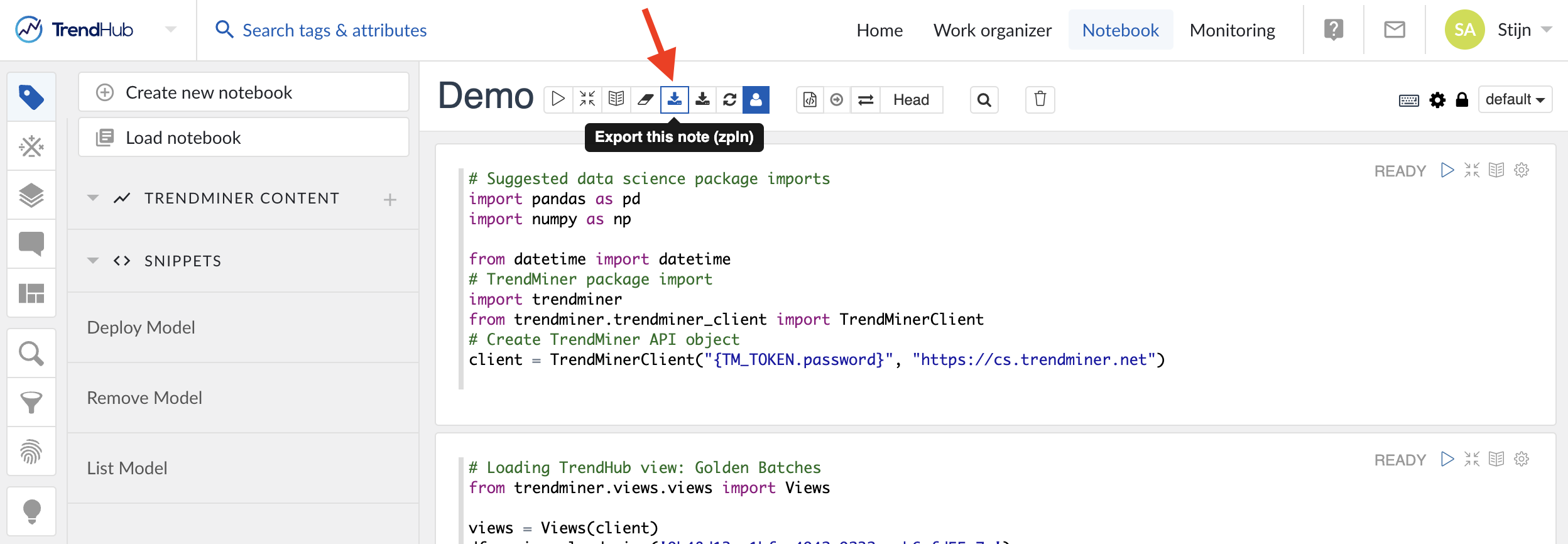
Download the Python migration script to your local machine.
Migration
There are 2 options to migrate notebooks: via the CLI or by programming in Python.
Options | Description |
|---|---|
input_file (mandatory) | Path to the input zeppelin notebook file. ex: ./notebooks/example.zpln |
output_filename (optional) | Name of the converted notebook file. default : <zeppelin name>.ipynb ex: example.ipynb |
output_directry (optional) | Destinaton directory to save the converted notebook file. default : <current directory> ex: ./target |
Migration via CLI
python path/to/migrate.py -i={input_file} -o={output_directry} -f={output_filename}
example:
python migrate.py -i=./notebooks/example.zpln -o=./target -f=example.ipynb
example shell script to migrate multiple zeppelin files in a folder:
for file in ./notebooks/*.zpln; do python migrate.py -i="$file" -o=./target; done
Migration via programming
import sys
sys.path.insert(0, /path/to/directory) # Replace with path to directory containing migrate.py
import migrate

input_file = /path/to/file # Replace with path to zeppelin notebook file
output_directry = None # or /path/to/output/directory
output_filename = None # or filename

migrate.main(input_file, output_directry, output_filename)
example to migrate multiple zeppelin files in a folder:
import sys
sys.path.insert(0, '.') # Replace with path to directory containing migrate.py
import migrate
import os
import re

input_directory = './notebooks' # Replace with path to directory containing zeppelin notebook files
output_directry = './target' # Replace with path to output directory
extension = '.zpln' # Change this to '.json' if you have your zeppelin files with .json extension

if os.path.exists(input_directory) and os.path.isdir(input_directory):
    for file in list(filter(lambda x: re.match(fr'.*\{extension}$',x.lower()), os.listdir(input_directory))):
        migrate.main(f"{input_directory}{os.sep}{file}", output_directry)
else:
    sys.stderr.write(f"error: Path '{input_directory}' does not exists or is not a valid directory!\n")
On successful migration, the script will print the path to the ipynb file.
Important
As a precaution, do not delete the original notebooks after migration in case they are needed for further troubleshooting after the upgrade. It is only advised to delete them from your local machine after it has been confirmed they are working successfully in the new MLHub after the upgrade.