Upgrade Center
Introduction TrendMiner Upgrade system
Note
This guide will contain screenshots with version information. This version information is going to be different in your installation.
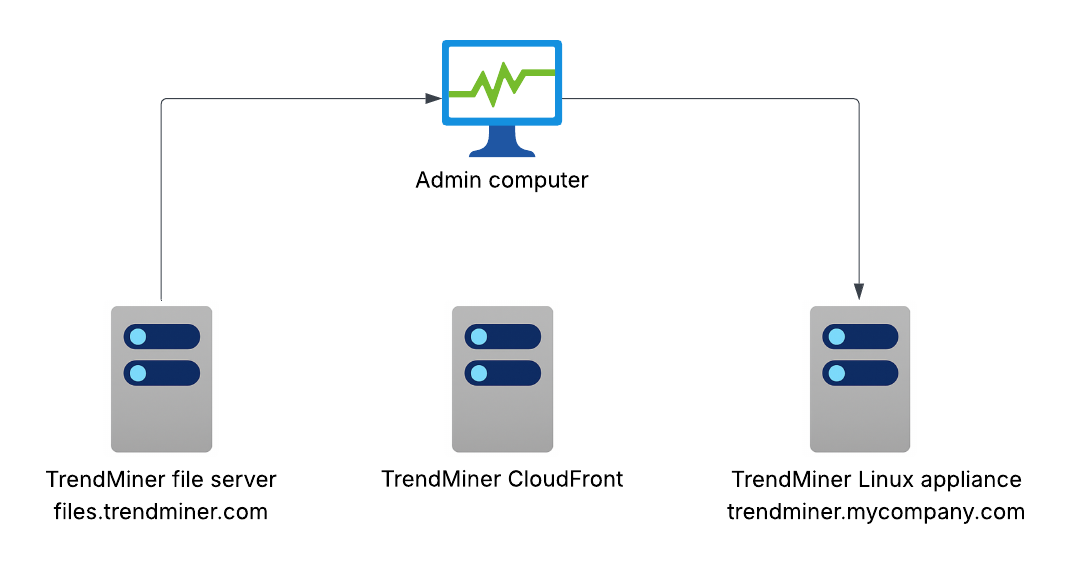
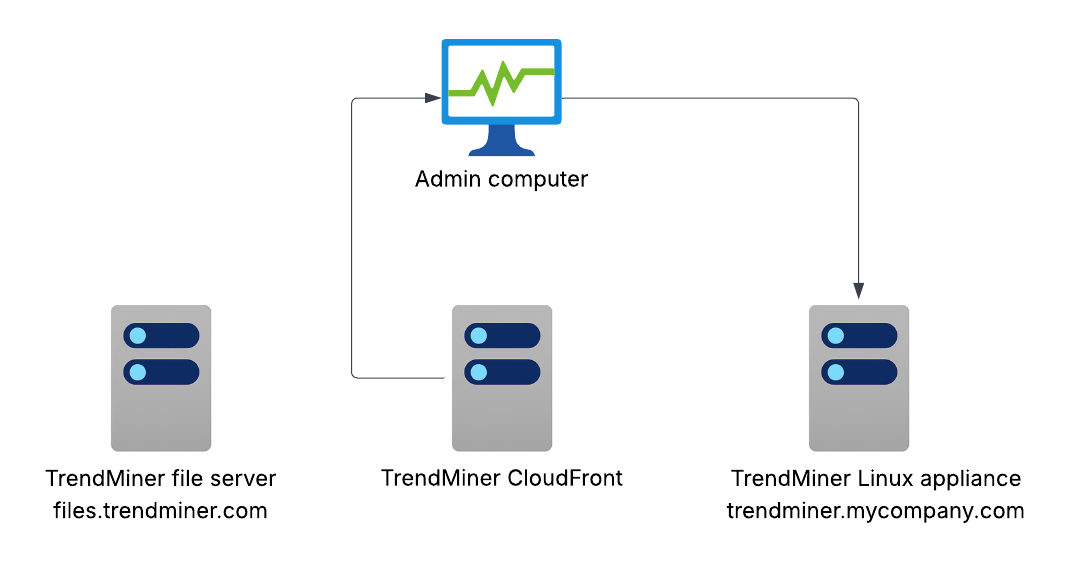
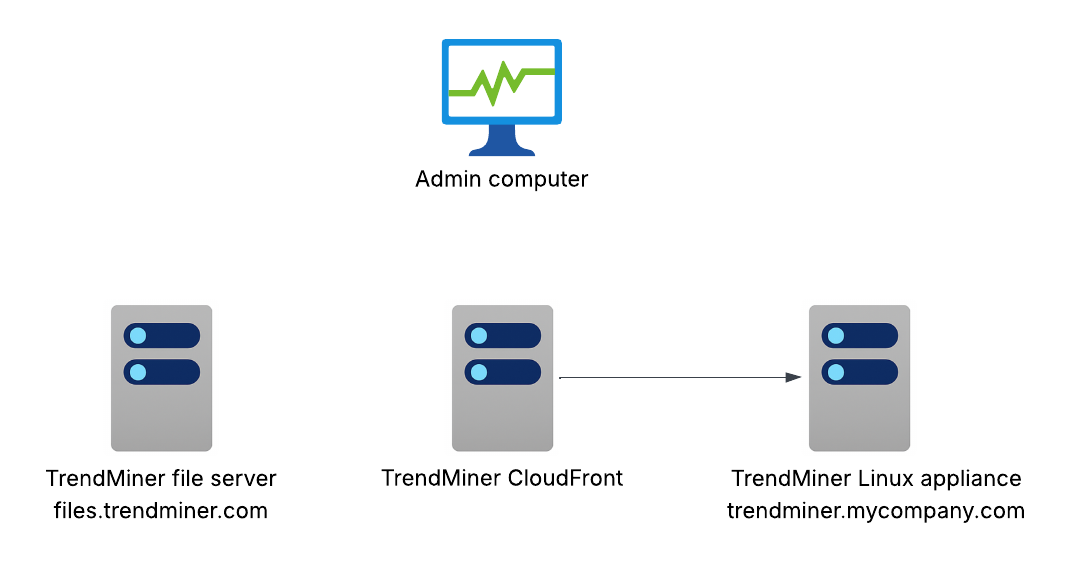
There are 3 ways to upgrade your TrendMiner installation, here a high level overview on all options:
Manual upgrade
Download the upgrade package from files.trendminer.com
upload and upgrade it to TrendMiner installation
Download upgrade package to PC
Download the upgrade package directly from EdgeManger to your Computer
The listed upgrade packages are the only one compatible with your installation.
Upgrade using “Manual upgrade” procedure.
Download & Install
Download / Download & Install directly in EdgeManager
The listed upgrade packages are the only one compatible with your installation.
The upgrade package will be downloaded directly to your TrendMiner installation. No need to manually upgrade the system.”
Download first, plan install later with downloaded upgrade package
To make full use of these new options, your TrendMiner installation needs Internet access, for more info on how to accomplish this read .this document
Upgrade using Download & Install - option
Note
This option is only available when the TrendMiner installation has the correct level of Internet access. See the following for more information: Upgrade Center system requirements
For every available upgrade these are the steps possible to take for upgrading to the selected version
Download
Download & Install

3. Install (only available after one upgrade package has been downloaded) example:

Using the Download, the selected upgrade will be downloaded to the TrendMiner installation.This allow you to prepare the upgrade for a later date. The upgrade package will remain on the TrendMiner installation until installed or the installation is upgraded to another version.
The upgrade package will only be downloaded to the TrendMiner installation when sufficient disk space is available (approximately twice the size of the upgrade file).When starting the download, a progress tracker is shown. This includes the total upgrade package size and download speed.

When a download completes, it will become available for installation.
Important
A ongoing download can not be cancelled, but its still possible to download another version.
This option will initiate the download of the upgrade package, and when complete, the installation of the upgrade package will begin..
Before downloading and installing the upgrade package, confirmation is required. Make sure the important “upgrade notes" are read before proceeding. The upgrade notes can be found via the link in the confirmation.

After confirmation the upgrade procedure will start. More information about the upgrade procedure can be found here Installation of the upgrade package
This option is only available for upgrade versions that have already been downloaded, see “Download”.
Before installing the upgrade package, confirmation is required. Make sure the important “upgrade notes" are read before proceeding. The upgrade notes can be found via the link in the confirmation..

After confirmation the upgrade procedure will start. More information about the upgrade procedure can be found here Installation of the upgrade package
Upgrade using “Download upgrade package to computer” option
Note
This option is only available when the TrendMiner installation has the correct level of Internet access. See the following for more information: Upgrade center system requirements
This upgrade option allow you to download the upgrade file to your computer. The listed upgrade packages will only apply to the current version of the TrendMiner installation.
To install the downloaded upgrade package, please refer to the Manual Upgrade option
The download of the desired upgrade package can be started by clicking the “Download to computer”.

The download will start and be available for monitoring in the download history of the browser

After completing the download of the upgrade package, the installation can be executed by uploading the package via the “Manual upgrade” option at the top of the page. Also see the Manual upgrade for more information

Upgrade using - Manual steps - option
Log in to Edge Manager by browsing to ‘https://<trendminer_address>/edge’. Make sure all the Application Services are in healthy status.
First navigate to the ‘Backup and restore’ menu item in the 'Management' section and click on the ‘+Create backup’ to create TrendMiner backup. Click on the ‘Yes, create’ to proceed with backup creation.

A popup message will appear indicating backup process has been started.

Wait until the ‘create-backup’ task under RECENT ACTIONS panel changed into ‘success’.

Once the task in the RECENT ACTIONS panel changed into ‘success’, refresh the browser to see new backup line item.
Save a copy of the backup by clicking ‘Options’ and then ‘Download backup’. Store the backup outside of TrendMiner. Doing so guarantees that no user data can be lost in case of issues during the upgrade.
Download the TrendMiner installation file from theTrendMiner download site. The installation file is the trendminer-<version>.tar.gz file.
Navigate to the ‘Upgrade Center' menu in the 'Management' section and click ‘Browse file'.

Select the trendminer-202X.RX.X-XX.tar.gz installation file and click ‘Open’.
Click the 'Upload and install' button.

Click ‘Yes, perform upgrade’.
Wait until file gets uploaded into the TrendMiner server. Once the file is uploaded, the list of 'Recent Actions' in the right panel of the screen will show the update progress.
You can also follow the progress as indicated in Installation of upgrade package
Wait until every ‘PENDING’ task changes into the ‘SUCCESS’ status.
Important
During the upgrade services will be restarted, including ConfigHub and Edge Manager. This will result in users (including admins following up on the upgrade in ConfigHub/Edge Manager) being disconnected and error pages being shown when refreshing the pages. This is expected behaviour during the upgrade process.
Only if Edge Manager does not come back online after about 10 minutes TrendMiner Support should be contacted.
12. When all tasks finished successfully make sure all services listed below are shown and healthy. In case of missing services or if the status is not green, please contact TrendMiner Support.
Important
For customers without expert license some services will be greyed out.
Installation of the upgrade package
This section documents the process of installing an upgrade package.The process described is executed regardless of the method used for installation. These include the Manual upgrade and automated Download & Install or Install options.
First, the installation is prepared. This includes prerequisite checks and extracting the upgrade files to the correct locations:

Second, the installation is executed. This includes changes to the TrendMiner installation and TrendMiner services.

The installation process can be monitored by the progress tracker shown on the page (see screenshot).
Furthermore, the details of the sub-process can be viewed by clicking the logs icon (4 lines) on the right-hand side of the progress tracker:

The screenshot below illustrates the details of the sub-process mentioned before.

Please note that the upgrade process may take some time to complete.

Lastly, when the installation process is completed, Edge Manager will be restarted. This will require you to log in again.
The desired version will be installed, and the TrendMiner installation and services are upgraded.
Upgrade availability
Note
The upgrade availability will only be shown when your TrendMiner installation is properly configured. More information see Upgrade Center system requirements
In case an upgrade is available, the following indication will be shown on top of Edge Manager

It will indicate what version is available for upgrade. Clicking the provided link will navigate to the Upgrade Center
An upgrade can be classified into 3 different types:
As an example, when running the 2025.R4.0 version
Major upgrade: 2026.R1.0
Minor upgrade: 2026.R1.1
Patch Upgrade: 2025.R4.0-02
Edge Manager will only show the versions that are available for your installation.
The screenshot below illustrates all three possible upgrades. Note that the screenshot contains past upgrade versions

Upgrade Center system requirements
The following changes are required to leverage the automated options when upgrading the TrendMiner installation.
To be able to use this option, your TrendMiner installation needs to have access to the Internet over port 443 (HTTPS)
In case there are any restrictions in relation to Internet access , these are a few options, that might work better for you.
Setup your Firewall
Adapt your internal firewall, so that the TrendMiner installation is able to reach-out to internet over port 443 for all urls.
Adapt your internal firewall, so that the TrendMiner installation is able to reach-out to the internet over 443 on the ip’s related to CloudFront Services from AWS.
You can find more information on these ip’s here:
https://docs.aws.amazon.com/AmazonCloudFront/latest/DeveloperGuide/LocationsOfEdgeServers.html
As these ip’s change from time to time, it is a good practice to automatically update these ip ranges on your firewall.
additionally you also need to allow access to this IP:
13.248.161.236 3.33.158.180
Use a proxy server in your network to access internet, and allow outgoing internet communication towards
download.license.trendminer.cloud license.trendminer.cloud
To setup the access to a proxy server in your TrendMiner installation, please follow this guide: Enable Proxy support
To be able to use this option, your TrendMiner installation needs to have access to the Internet over port 443 (HTTPS) towards our license servers
This can be achieved by executing one of the following options
Adapt your internal firewall, so that the TrendMiner installation is able to reach-out to the internet over 443 towards the following IP's
13.248.161.236 3.33.158.180
2. Use a proxy server in your network to access the Internet, and allow outgoing internet communication towards license.trendminer.cloud
To setup the access to a proxy server in your TrendMiner installation, please follow this guide: Enable Proxy support
Enable Proxy support
When using TrendMiner, some parts of the application require internet access, such as automated upgrades, licensing, and metric collection
a configured proxy server where the TrendMiner installation has access to.
root access (or using sudo) on the TrendMiner server, either over console or over SSH
Basic Linux Knowledge (used command: vi/nano/ssh/ls/cd)
Proxy server configured with internet access (HTTPS) towards the following urls
license.trendminer.cloud download.license.trendminer.cloud
create a proxy config file
vi /etc/systemd/system/tm-edge-manager.service.d/proxy.conf
add the following content
[Service] Environment="http_proxy=login:password@proxyservernameorip:port" Environment="https_proxy=login:password@proxyservernameorip:port" Environment="no_proxy=localhost,127.0.0.1,.cluster.local,10.42.0.0/24,10.42.1.0/24,10.41.1.0/24,10.41.0.0/24" Environment="HTTP_PROXY=login:password@proxyservernameorip:port" Environment="HTTPS_PROXY=login:password@proxyservernameorip:port" Environment="NO_PROXY=localhost,127.0.0.1,.cluster.local,10.42.0.0/24,10.42.1.0/24,10.41.1.0/24,10.41.0.0/24"
Make sure to replace “login:password@proxyservernameorip:port” with the proxy server for your organization.
Make sure to have your server IP listed in the NO_PROXY and no_proxy variables above also, or add the ip range.
Environment="NO_PROXY=localhost,IPOFSERVER, ...." Environment="no_proxy=localhost,IPOFSERVER,....."
or
Environment="NO_PROXY=localhost,IPOFSERVER/24, ...." Environment="no_proxy=localhost,IPOFSERVER/24,....."
reload systemctl deamon and restart EdgeManager to activate the changes
# systemctl daemon-reload # systemctl restart tm-edge-manager.service
Login to the the TrendMiner Instance over SSH/Console
create a file /etc/ansible/facts.d/proxy.factusing vi and add the following content
{
"http_proxy": "http://:3128/",
"https_proxy": "http://:3128/",
"no_proxy": "localhost,127.0.0.1,.cluster.local,10.42.0.0/24,10.42.1.0/24,10.41.0.0/24"
}Replace / change the following part in this file:
<PROXY_IP>:3128 with the ip and port of the proxy server to use
related to 'no_proxy”,
add the server ip address or its ip/subnet to this list
Make sure they are separated by, and have a proper format.
allowed formatting: ip/24, domain, domain.tld, .domain.tld
3. save the file
4. Run configure-tm-platform
# ansible-playbook /mnt/data/ansible-playbooks/platform/configure-tm-platform.yml
5. Restart tm-config-operator / tm-metrics-forwarder as following:
# kubectl rollout restart -n tm-config-operator-system deployment.apps/tm-config-operator-controller-manager deployment.apps/tm-config-operator-controller-manager restarted # kubectl rollout restart -n tm-metrics-forwarder-system deployment.apps/tm-metrics-forwarder deployment.apps/tm-metrics-forwarder restarted