Manual upgrade
For a successful manual upgrade follow the procedure below:
Verify that all upgrade prerequisites are met.
Download the TrendMiner installation file from the TrendMiner download site. The installation file is the trendminer-<version>.tar.gz file.
In Edge Manager, navigate to 'Management' -> ‘Upgrade Center'.
click ‘Browse file'.
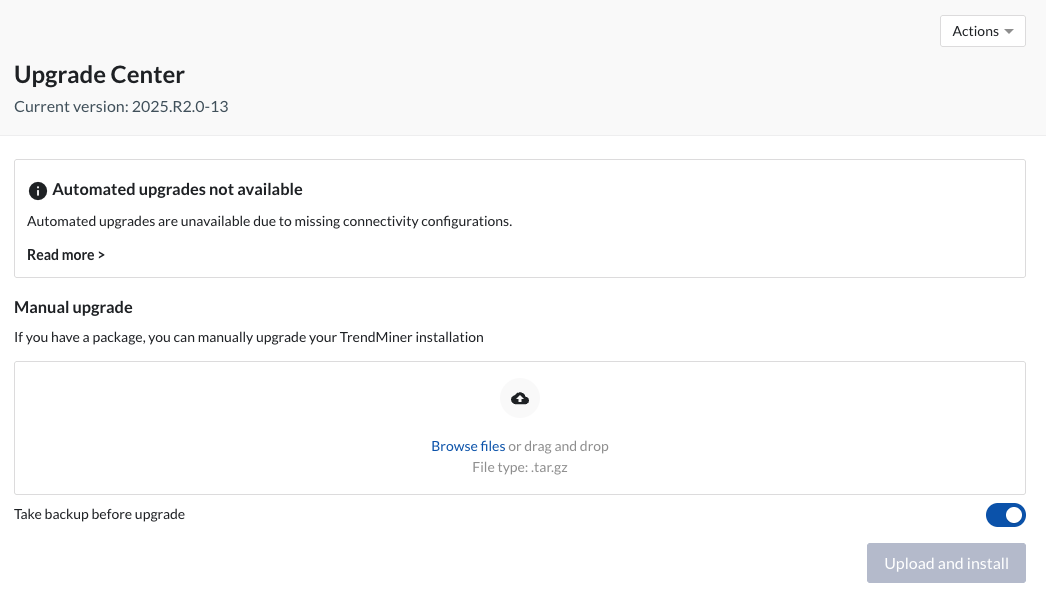
Select the trendminer-<version>.tar.gz upgrade package and click ‘Open’.
Click the 'Upload and install' button.
Click ‘Yes, perform upgrade’.
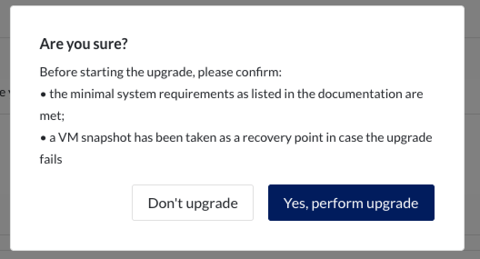
Wait until file gets uploaded to the TrendMiner server.
The installation is prepared. This includes prerequisite checks and extracting the upgrade files to the correct locations:

The installation is executed. This includes changes to the TrendMiner installation and TrendMiner services.
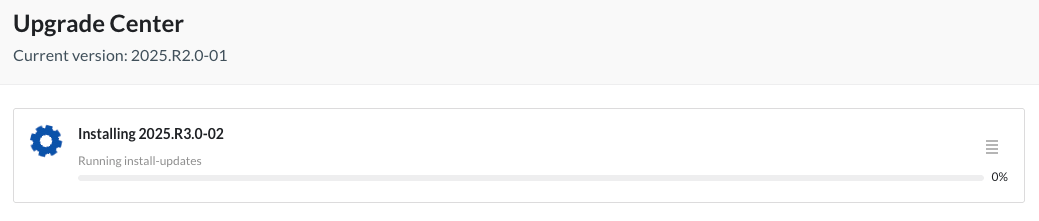
The installation process can be monitored by the progress tracker shown on the page (see screenshot).
Furthermore, the details of the sub-process can be viewed by clicking the logs icon (4 lines) on the right-hand side of the progress tracker:
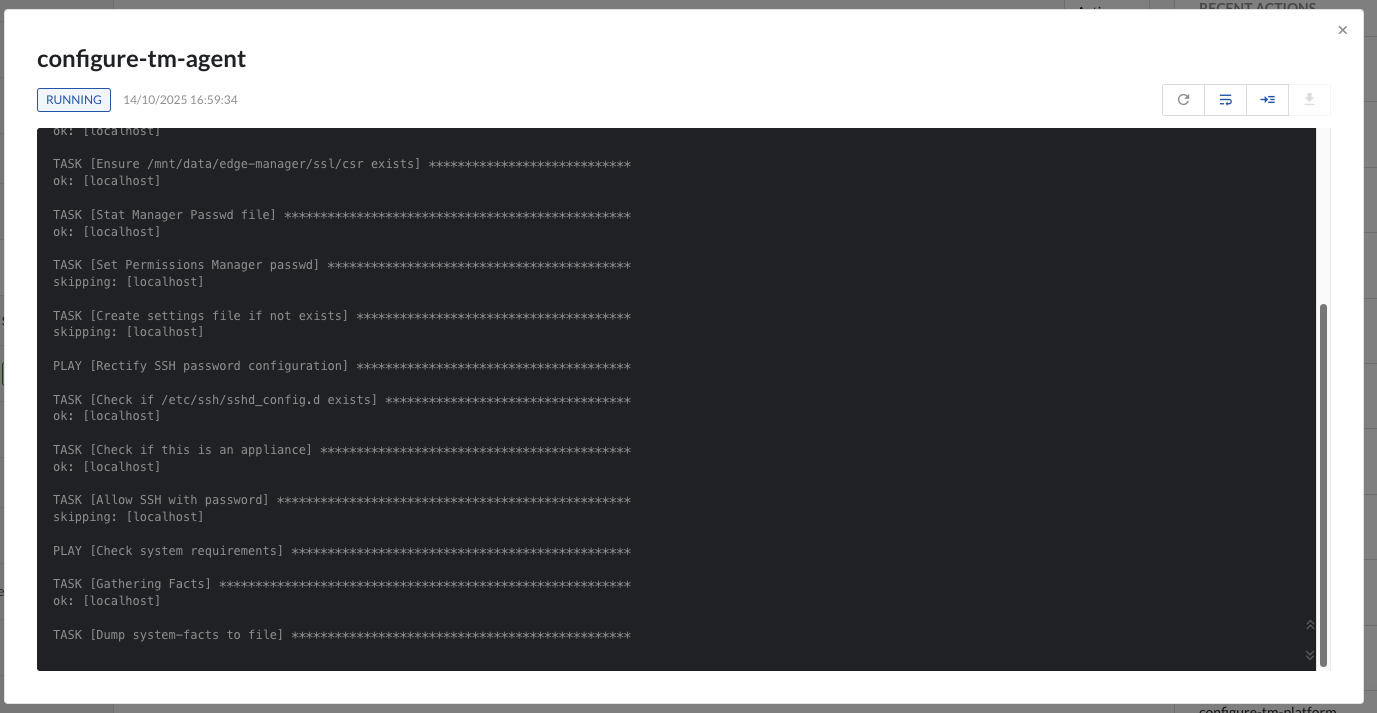
Please note that the upgrade process may take some time to complete. Wait until every ‘PENDING’ task changes into the ‘SUCCESS’ (or 'FAILURE') status. As long as there are tasks 'PENDING' or 'RUNNING' do not make changes in Edge Manager or reboot the server. When in doubt, contact TrendMiner support.
Important
During the upgrade services will be restarted, including ConfigHub and Edge Manager. This will result in users (including admins following up on the upgrade in ConfigHub/Edge Manager) being disconnected and error pages being shown when refreshing the pages. This is expected behavior during the upgrade process.
Only if Edge Manager does not come back online after about 10 minutes TrendMiner Support should be contacted.
When all tasks finished successfully make sure all services listed in the services screen are healthy. In case of missing services or if the status is not green, please contact TrendMiner Support. For customers without expert license some services will be greyed out.