How to enable the AI agent?
The TrendMiner Agent only becomes available once 3 conditions are met: the AI license is installed, an admin has configured and enabled the agent LLM, and the user has been assigned the AI Access role.
If any one of these is missing, the TrendMiner Agent is not availble. No error or message is shown to the user, so check all three conditions when the Agent doesn't appear.
Check the AI license
AI functionality must be enabled in your TrendMiner license. Without it, the AI configuration pages in ConfigHub are locked and the Agent never appears to any user.
Open Edge Manager.
Go to Management > License.
Under Licensed features, check that AI_INTEGRATION is listed with the state Licensed.
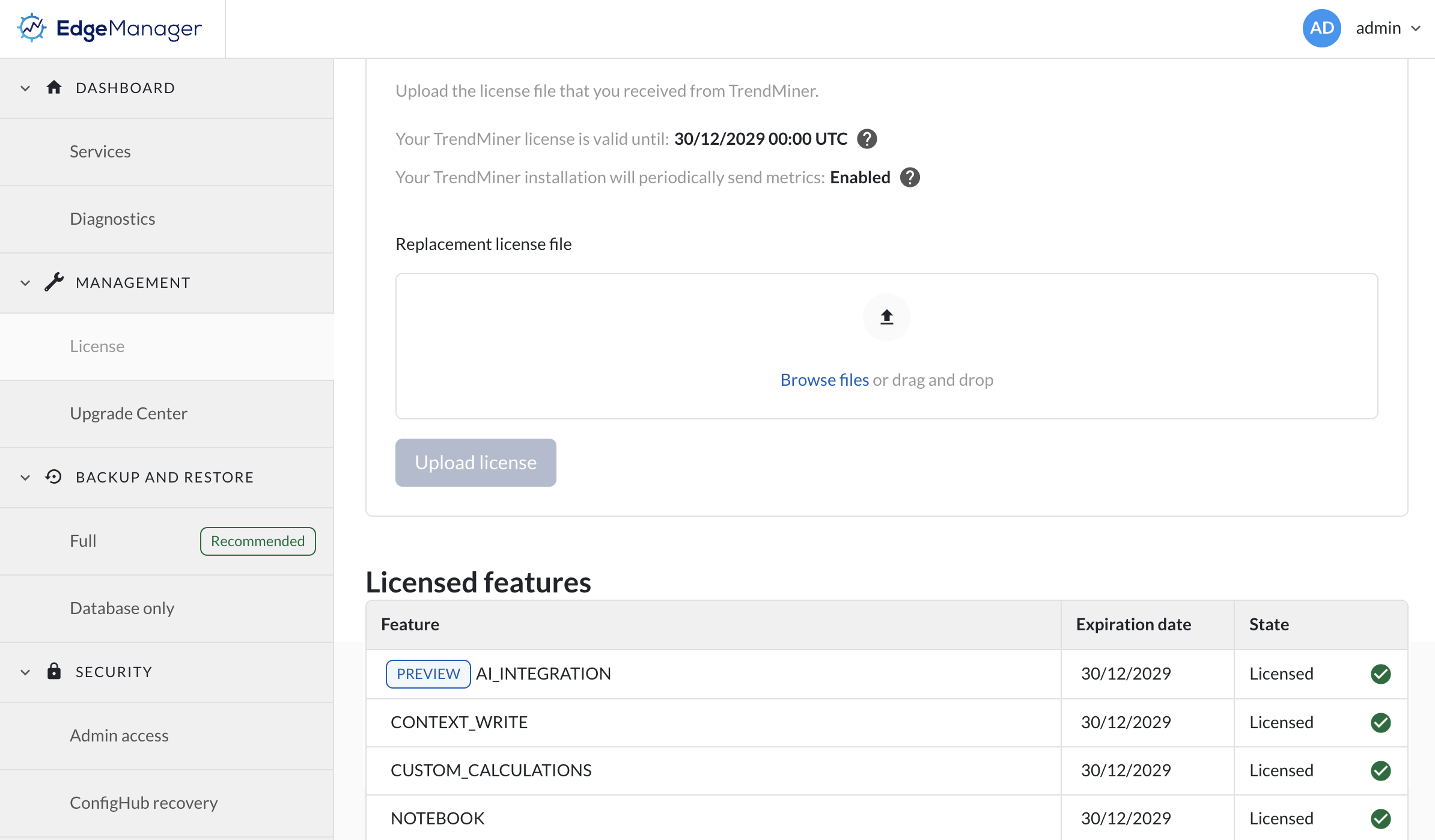
For more information, see the Edge Manager license screen. If AI is not enabled in your license, reach out to your TrendMiner contact to get started.
Configure and enable the agent LLM
An admin must save and enable an LLM configuration in ConfigHub. Without an active configuration, the Agent is hidden for all users, even users who have the AI Access role.
Open ConfigHub.
Go to AI Configuration > Agent LLM configuration.
Turn on the Enable agent LLM toggle.
Select a provider, enter the API connection details, and assign the models.
Click Save.
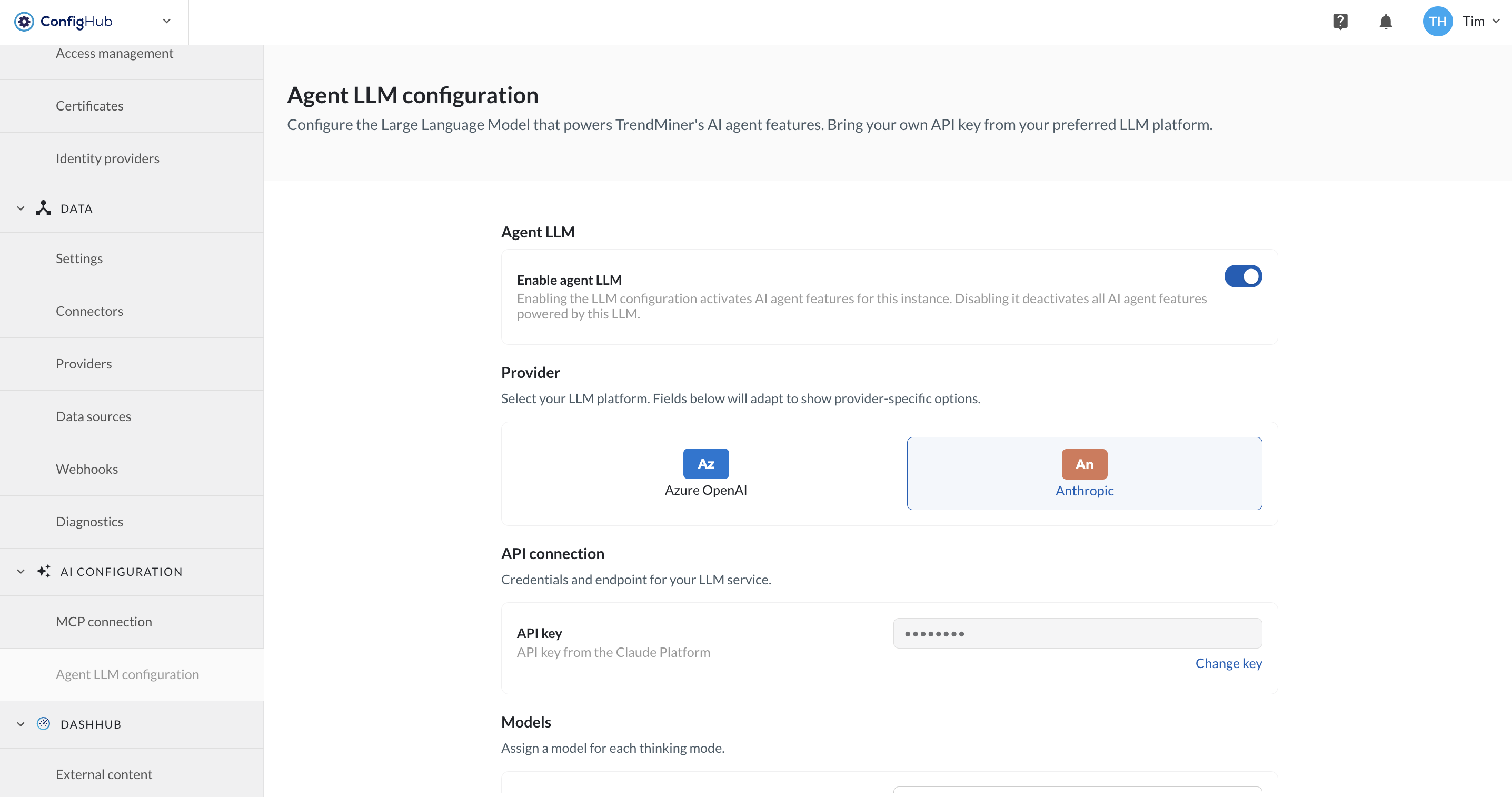
For a clear guide how to configuring the LLM model that powers the TrendMiner agent, see Agent LLM configuration.
Assign the AI Access role
An admin must assign the AI Access role to each user who needs the Agent. Without this role, the Agent is hidden for that specific user, even if the license and LLM configuration are both in place.
Open ConfigHub.
Go to Security > Users.
Select the user you want to give access to.
Under User role, select AI Access.
Save your changes.
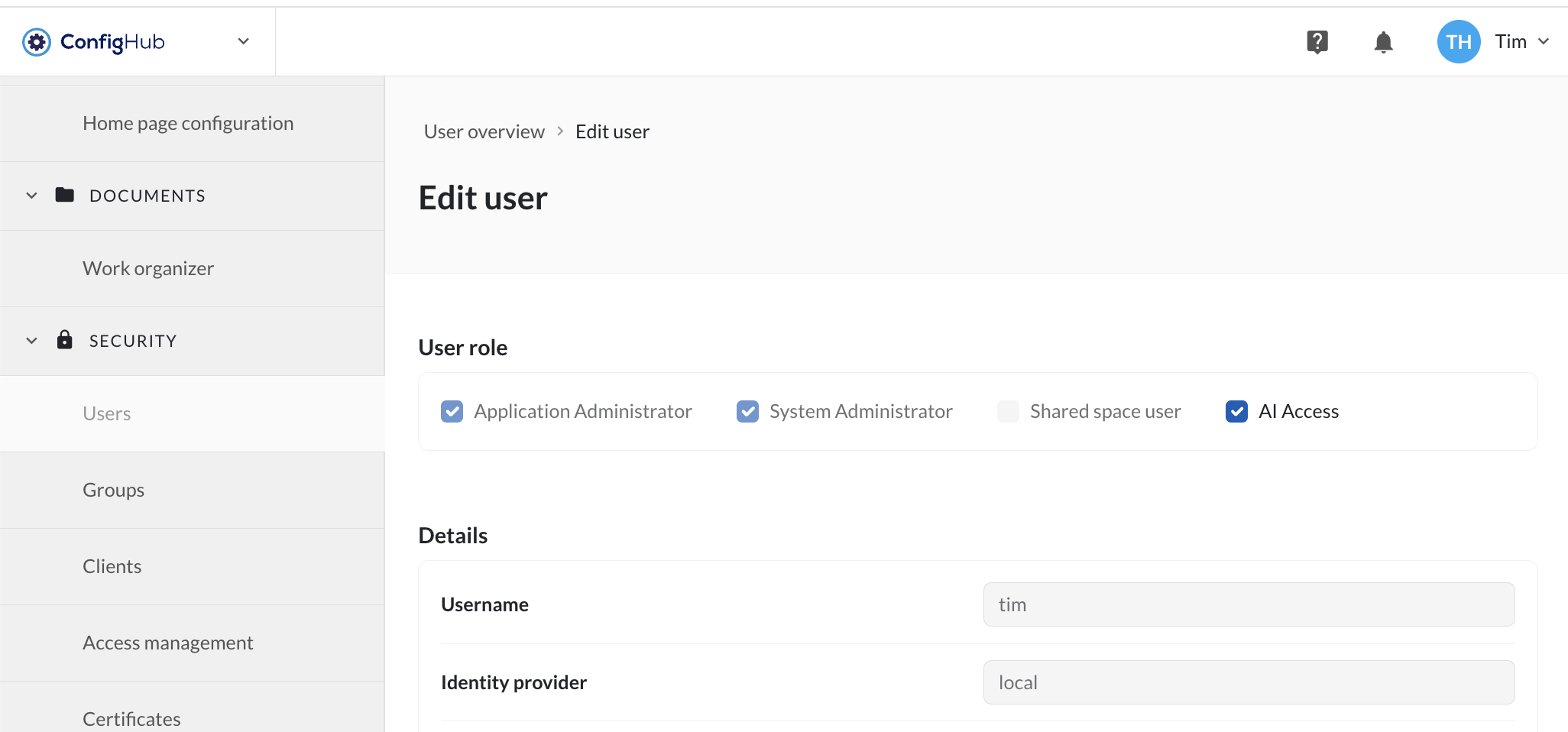
For more information on managing users, see ConfigHub > Users.