Agent LLM configuration
As an administrator, you configure the large language model (LLM) that powers the TrendMiner Agent from ConfigHub > AI Configuration > Agent LLM configuration.
Bring your own API key from your preferred LLM platform.
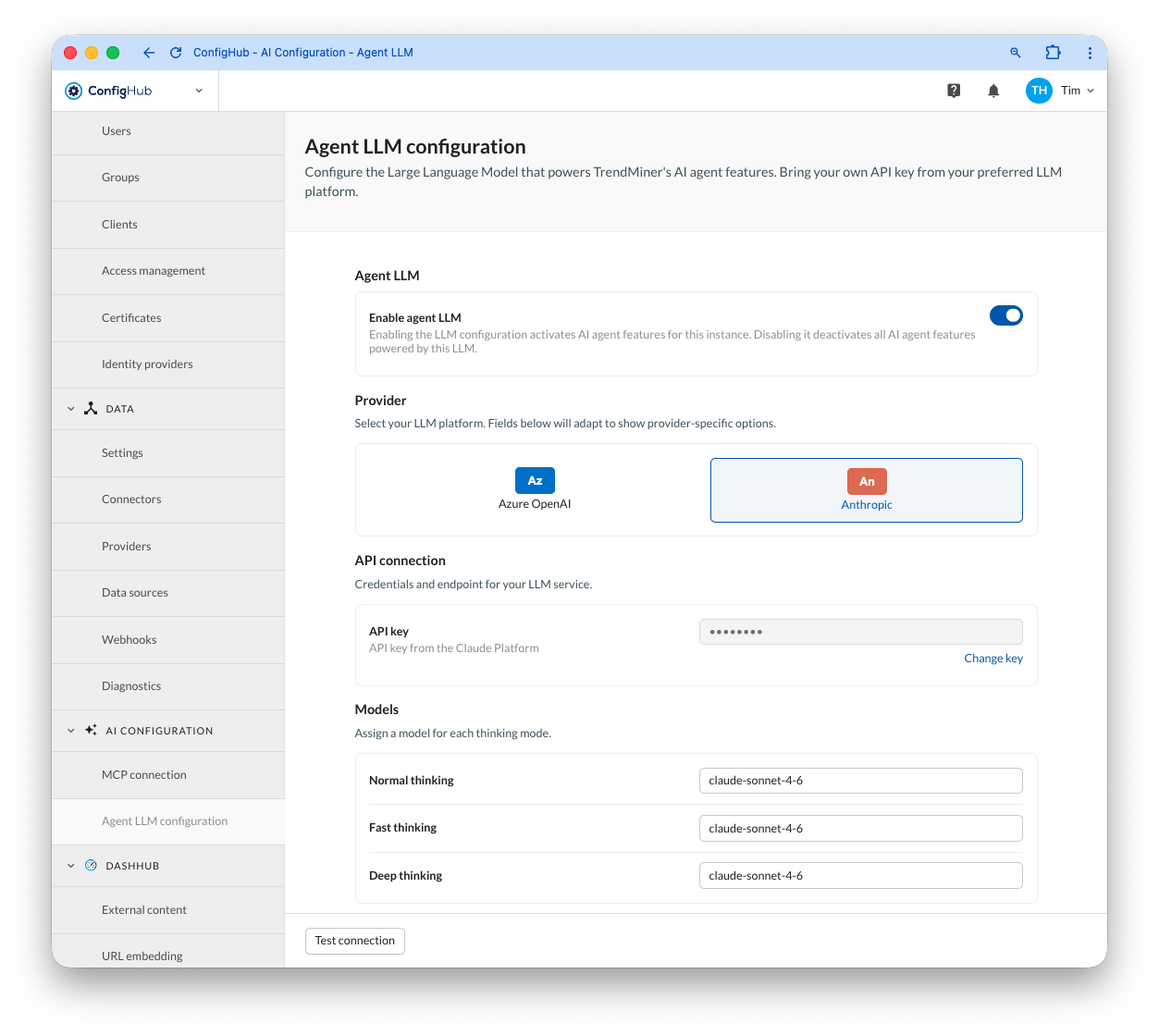
Enabling the Agent LLM
Notice
The AI License must be installed on your instance before you can enable the agent LLM.
Use the Enable agent LLM toggle to activate or deactivate the AI agent features for this instance. Disabling it deactivates all AI agent features powered by this LLM.
Selecting a provider
Choose your LLM platform under Provider. The API connection and Models fields below adapt to show the options for the provider you select: Azure OpenAI / Foundry or Anthropic.
Azure OpenAI / Foundry
Connect to models deployed in your organization’s Azure OpenAI or Azure AI Foundry resource. Manage your resource and retrieve credentials from the Azure Portal.
Configuration | Value (example) | Description |
|---|---|---|
API key |
| Your Azure OpenAI resource key. Find it in the Azure Portal, on your Azure OpenAI resource’s Keys and Endpoint page. |
Endpoint URL |
| Your Azure OpenAI resource endpoint. Also found on the Keys and Endpoint page. |
API version |
| The Azure OpenAI REST API version. |
Anthropic
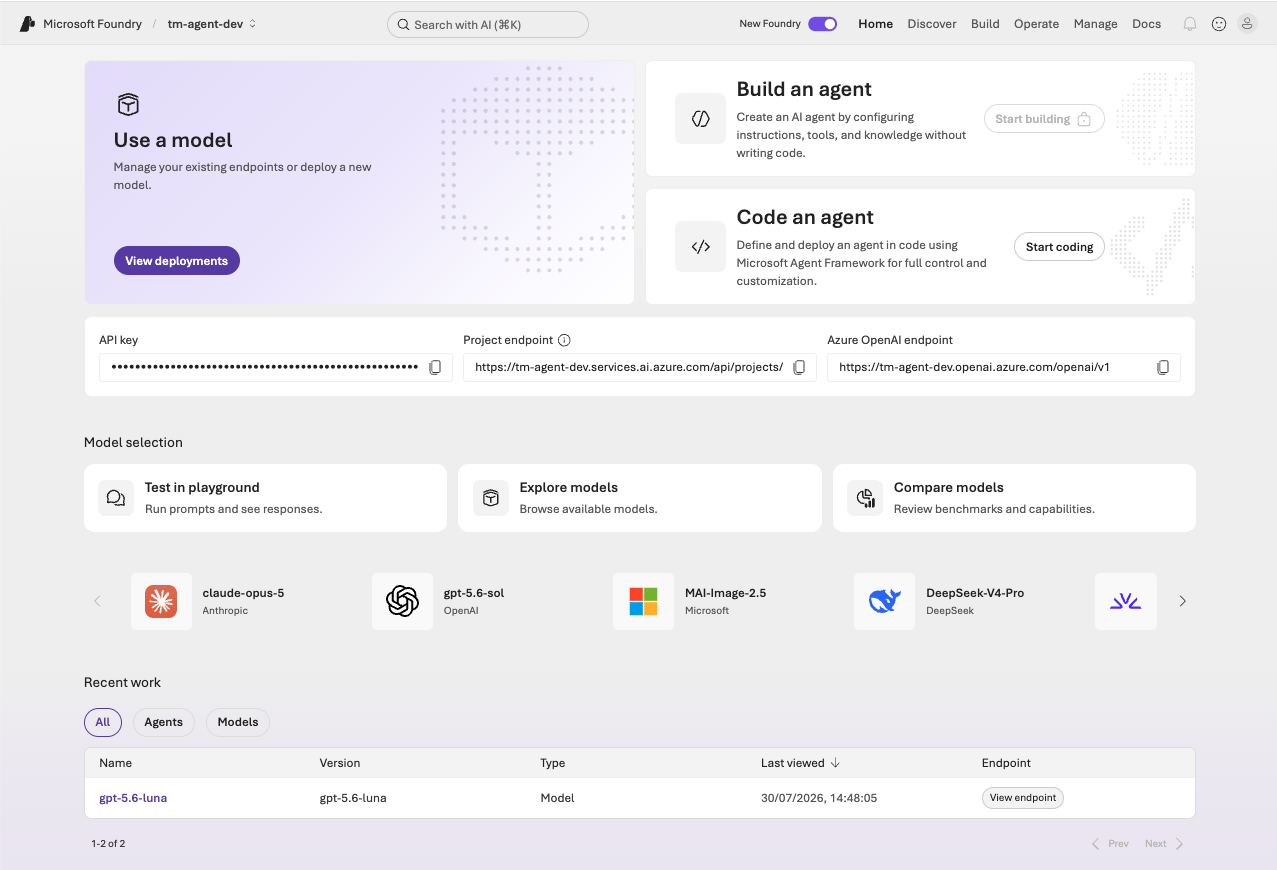
Connect directly to Claude models through the Anthropic API. Generate your API key from the Anthropic Console.
Configuration | Value (example) | Description |
|---|---|---|
API key |
| Your API key from the Claude Platform. Generate one in the Anthropic Console, under API keys. |
Assigning models
Under Models, assign a model for each thinking mode: Normal thinking, Fast thinking, and Deep thinking. This lets you match the model to the trade-off between response speed and reasoning depth for each mode.
For example, with Anthropic as your provider:
Thinking mode | Model (example) |
|---|---|
Fast thinking |
|
Normal thinking |
|
Deep thinking |
|
For example, with Azure OpenAI / Foundry as your provider:
Thinking mode | Model (example) |
|---|---|
Fast thinking |
|
Normal thinking |
|
Deep thinking |
|
Testing the connection
Click Test connection to validate the credentials you entered. This confirms that TrendMiner can reach your LLM provider with the API key, and endpoint and model details where applicable, before you rely on the Agent in TrendHub.
Saving your configuration
Click Save to store your provider, API connection, and model settings. Changes only take effect once saved.
Deploy Azure Foundry models
This guide walks through deploying a model in Azure AI Foundry, from creating a project to getting a callable endpoint and API key.
Note
Microsoft currently ships two Azure AI Foundry interfaces: the classic Management Center and the newer “New Foundry” experience (toggle in the top bar). Both give access to the same projects and resources, just laid out differently. The screenshots below reference both, so don’t worry if your screen doesn’t match one exactly; the same steps apply.
Microsoft is rebranding, so you may see “Azure OpenAI” and “Azure AI Foundry” / “Microsoft Foundry” used interchangeably across their portal, docs and this guide; they refer to the same service.
A resource group to contain the Foundry resource and project. You can reuse an existing resource group or create a new one while creating the project.
A resource group with permission to create resources (Contributor role or higher). If you don’t have one yet, you can create it from the project creation dialog (see below).
Access to Azure AI Foundry with the above subscription.
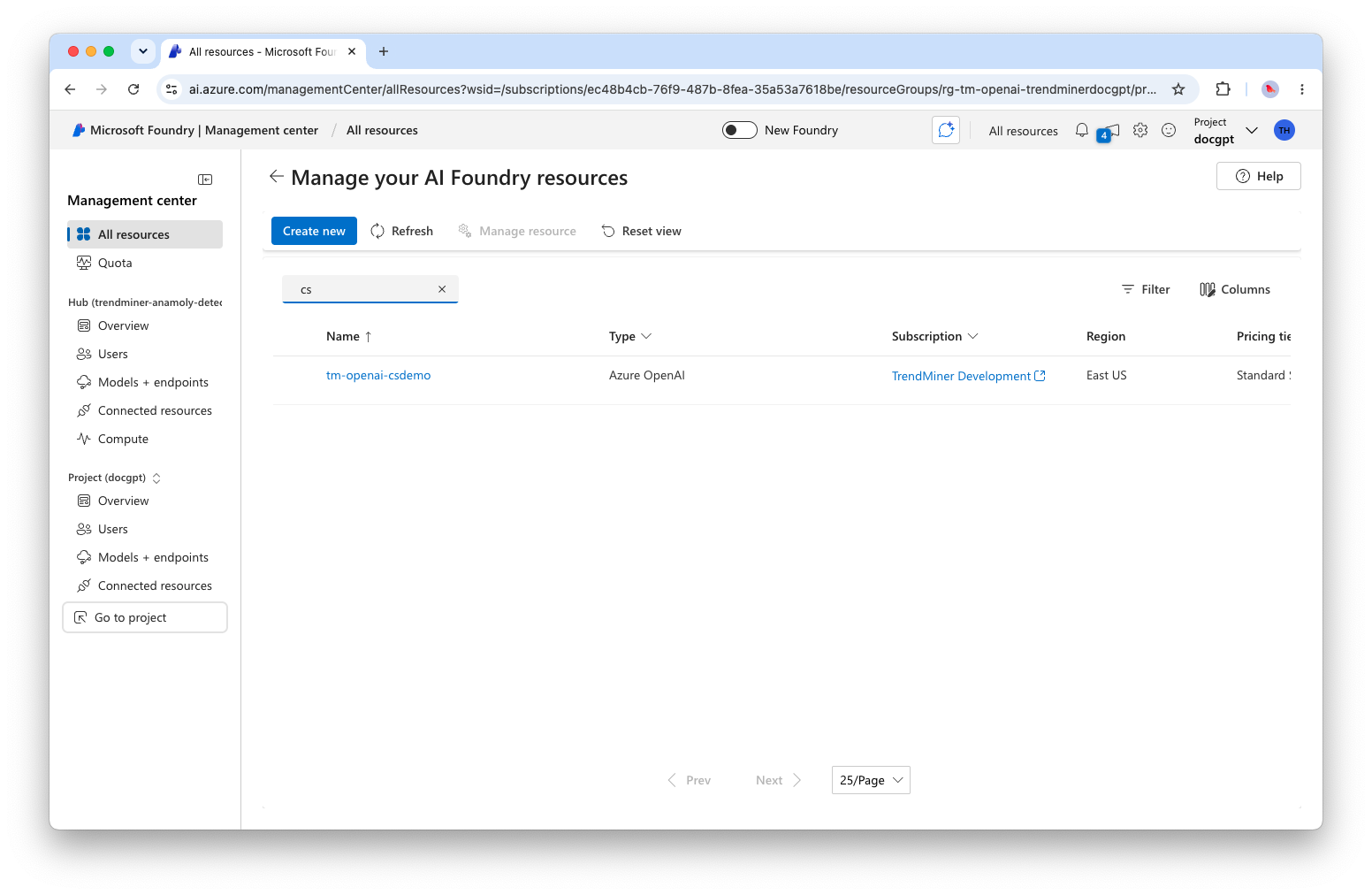
Open the Management Center
Sign in to ai.azure.com and go to Management center > All resources. This is where you manage subscriptions, resource groups and Foundry resources across your organization.
Create a project
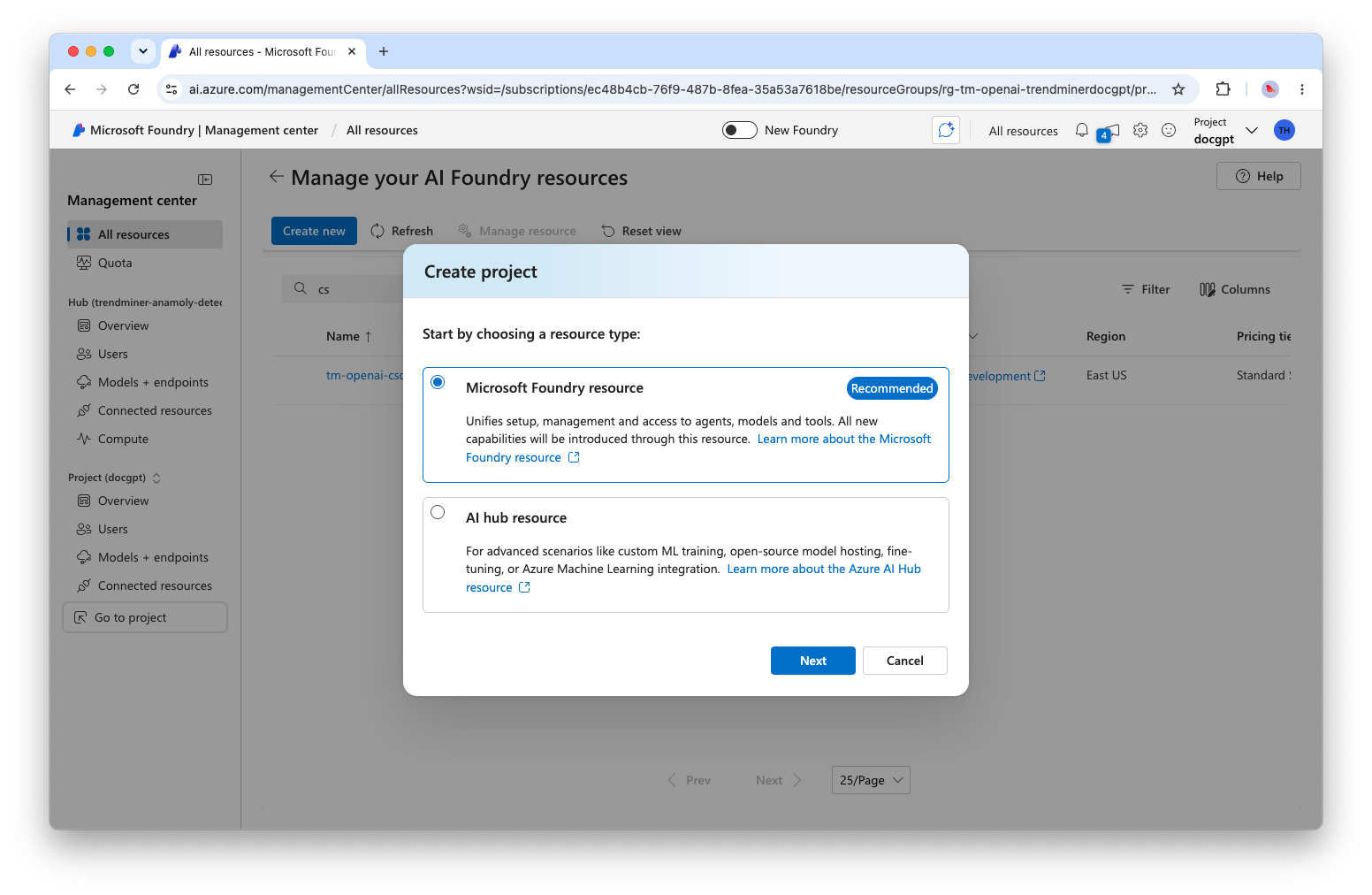
Click Create new and choose a resource type. For most use cases, pick Microsoft Foundry resource (recommended): it unifies setup and access to agents, models and tools. Use AI hub resource only for advanced scenarios like custom ML training or Azure Machine Learning integration.
Fill in the project details:
Field
Description
Project
A name for your project, e.g.
tm-agentSubscription
The Azure subscription to bill and host this project under
Resource group
An existing resource group, or
(new)to create one on the flyMicrosoft Foundry resource
The name of the underlying Foundry resource
Region
The Azure region to deploy into, e.g.
Sweden CentralIf you don’t have a subscription or resource group yet, use the Create a new subscription / Create new resource group links right in this dialog.
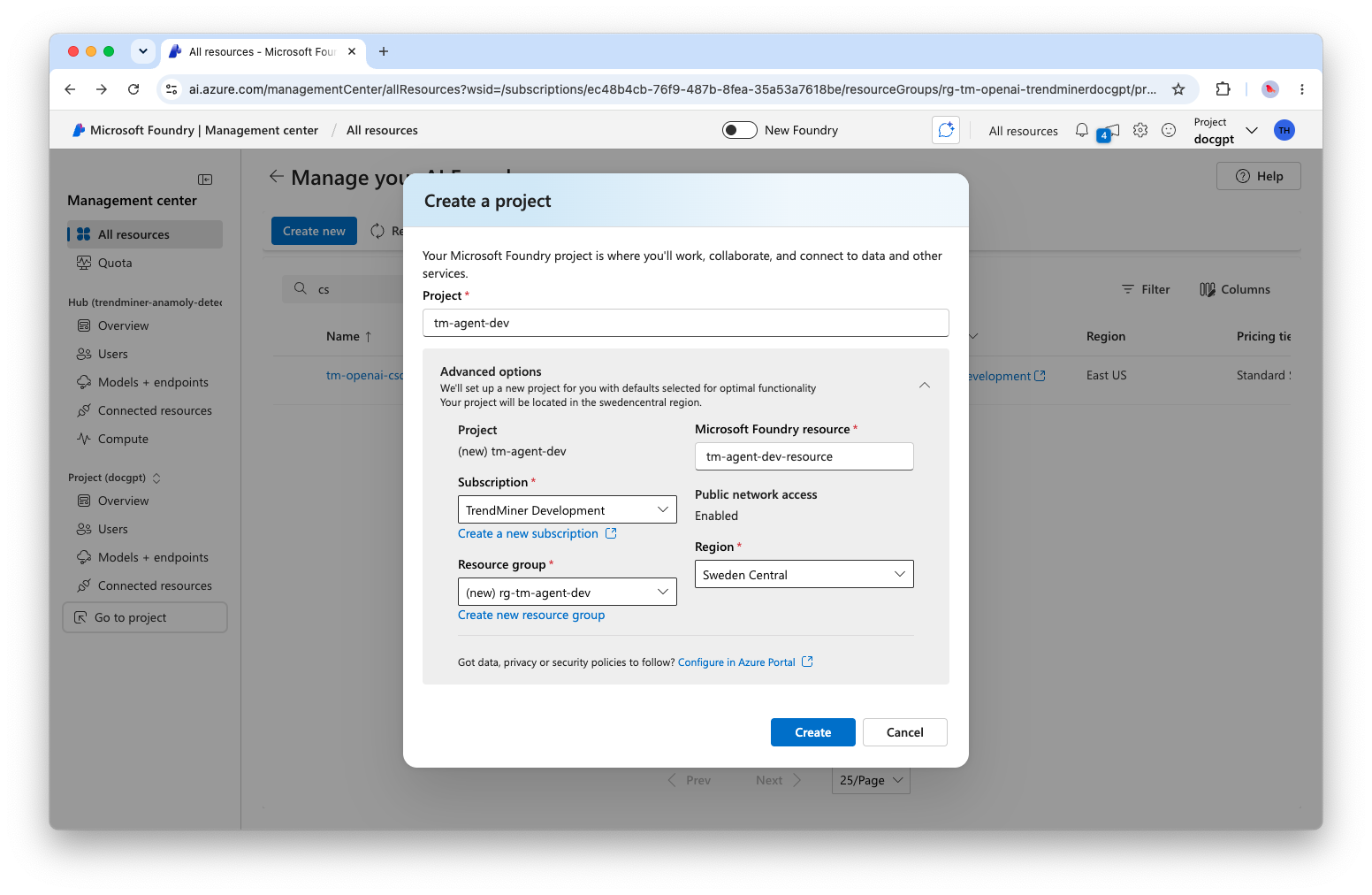
Click Create. Azure provisions the Foundry resource and project; this takes a minute or two.
Explore your project
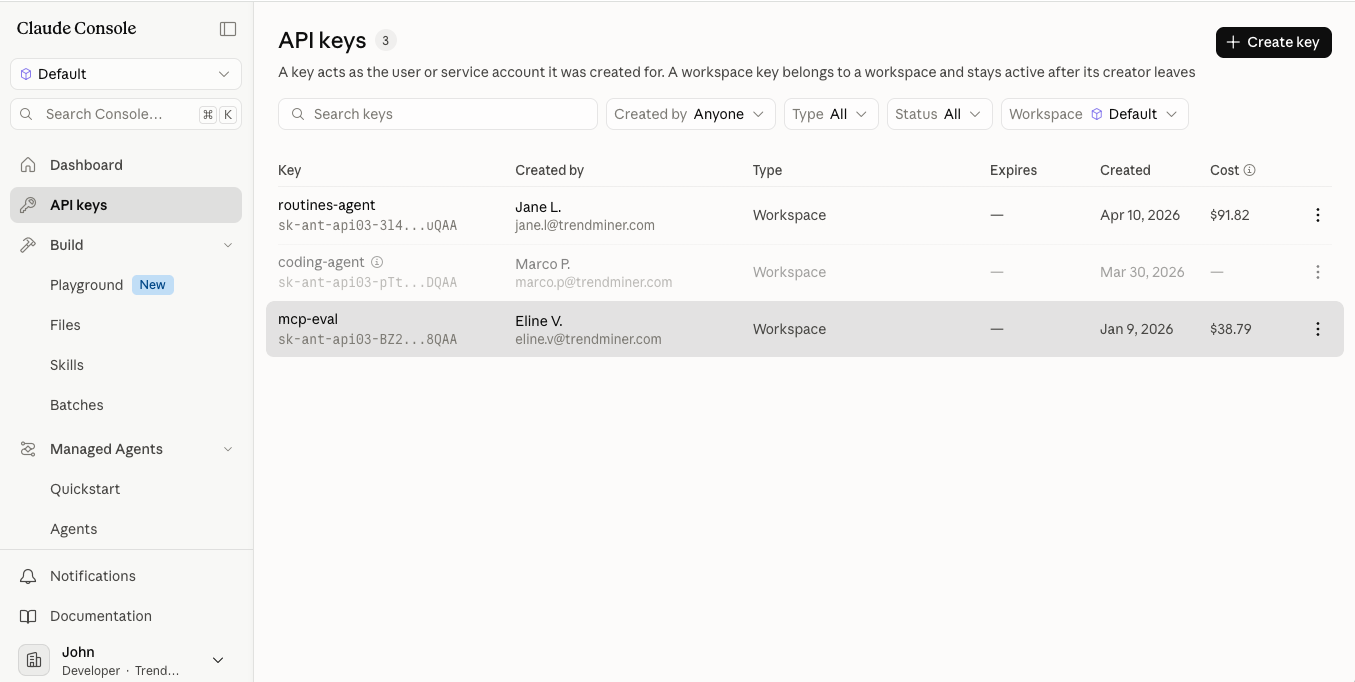
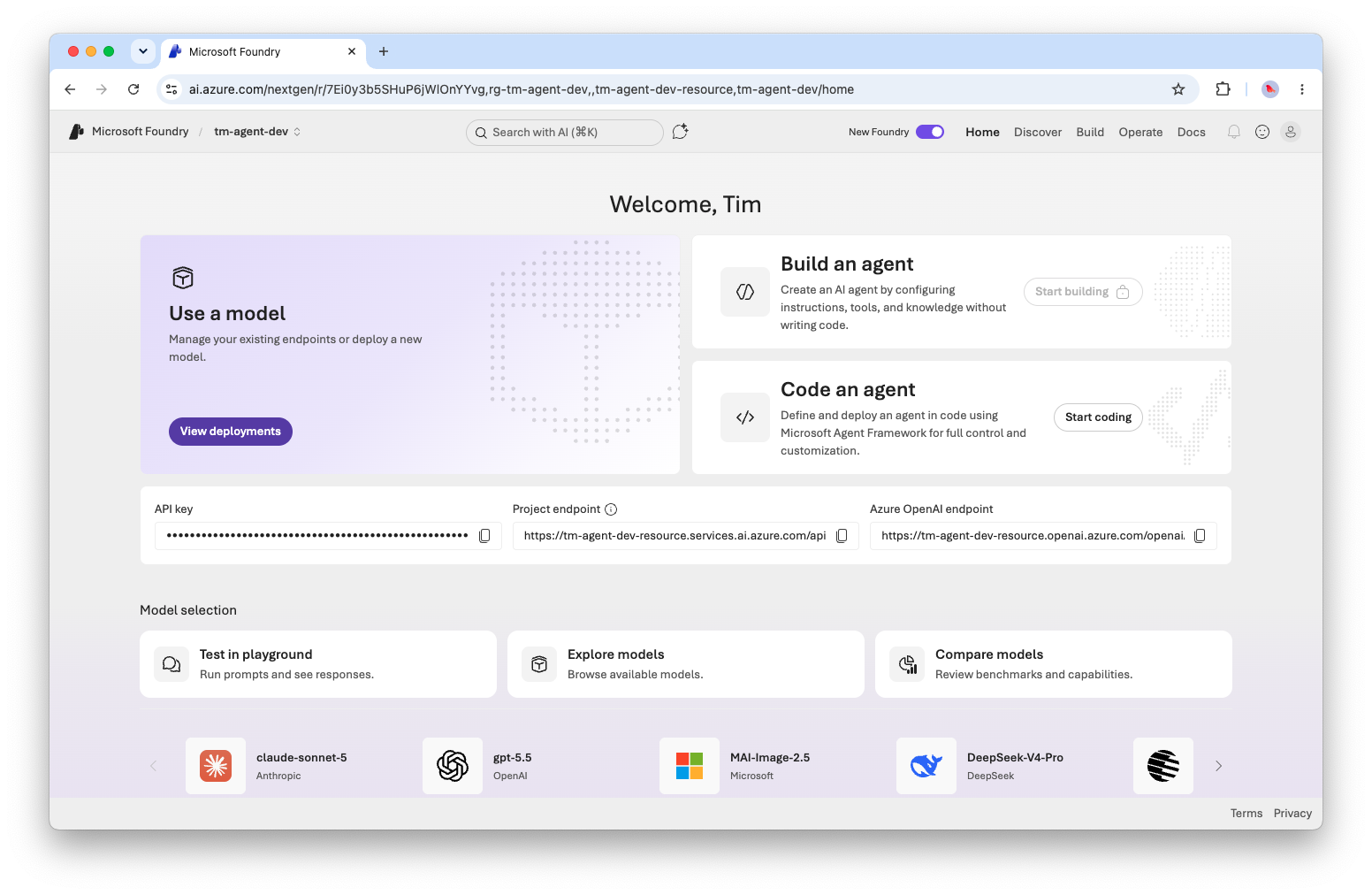
Once created, you land on the project home page. From here you can copy your API key, Project endpoint and Azure OpenAI endpoint; you’ll need these to call your deployed models later.
Browse the model catalog
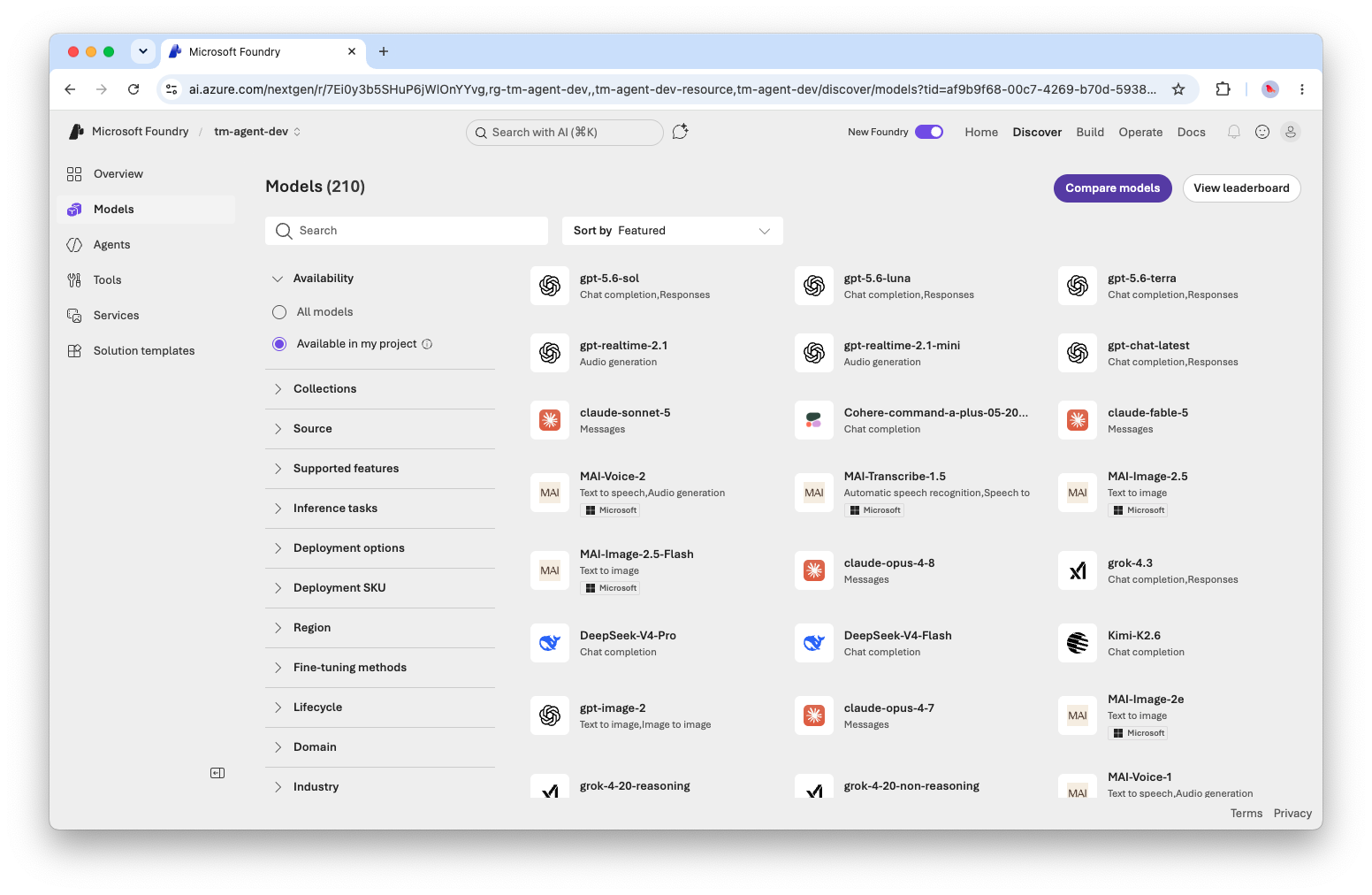
Go to Discover > Models to browse the full model catalog: hundreds of models from Microsoft, OpenAI, Anthropic, DeepSeek and other providers. Use the filters (availability, collections, supported features, deployment options, region, etc.) to narrow down your search.
Review a model
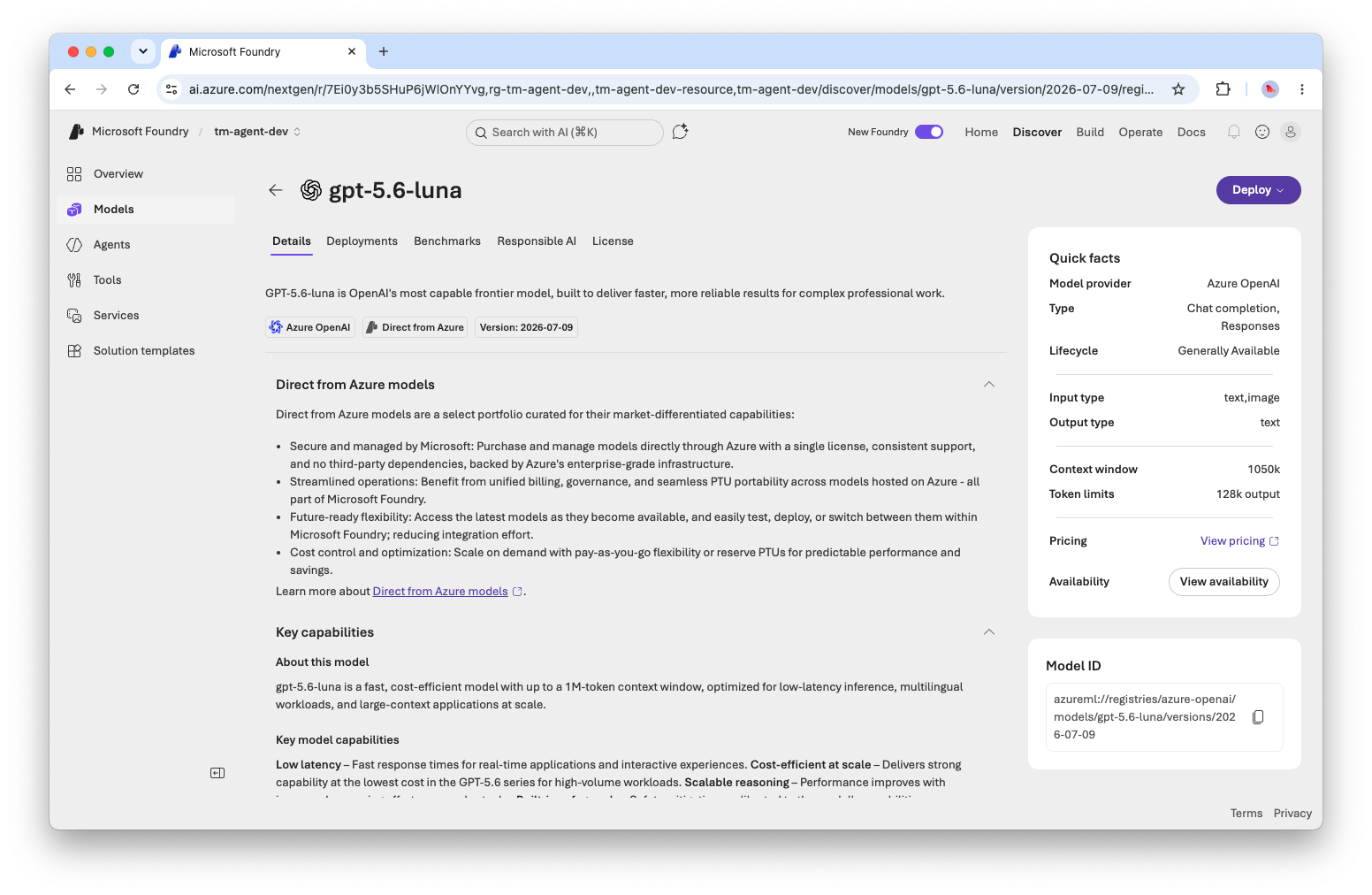
Click a model to see its details: description, quick facts (context window, token limits, input and output types), pricing and licensing. When you’re ready, click Deploy.
Deploy the model
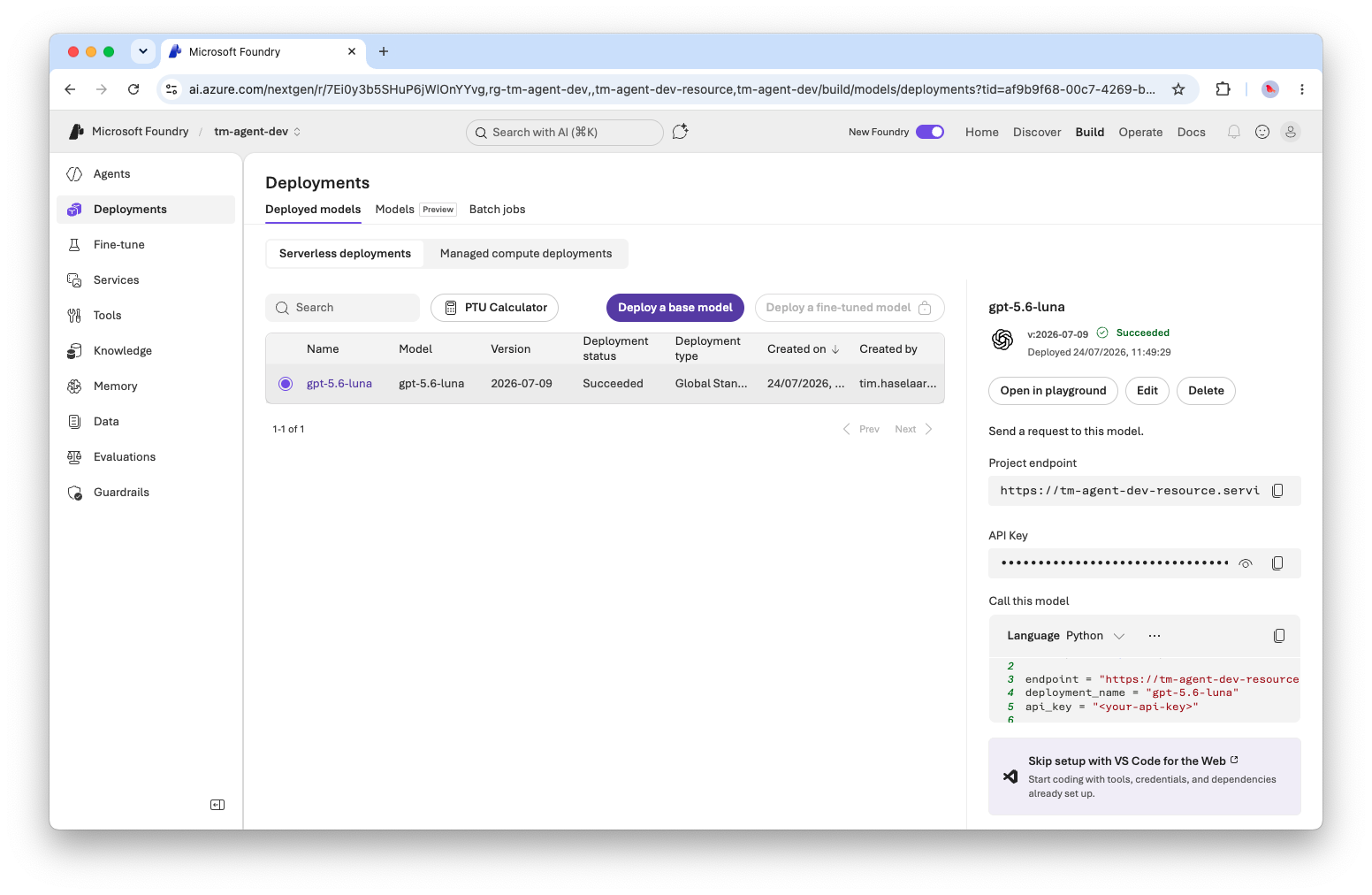
Choose a deployment type (serverless is the quickest way to get started) and confirm. Once the deployment succeeds, you’ll find it under Build > Deployments, together with the project endpoint, API key and a ready-to-use code snippet to call it.
View all deployments in your project
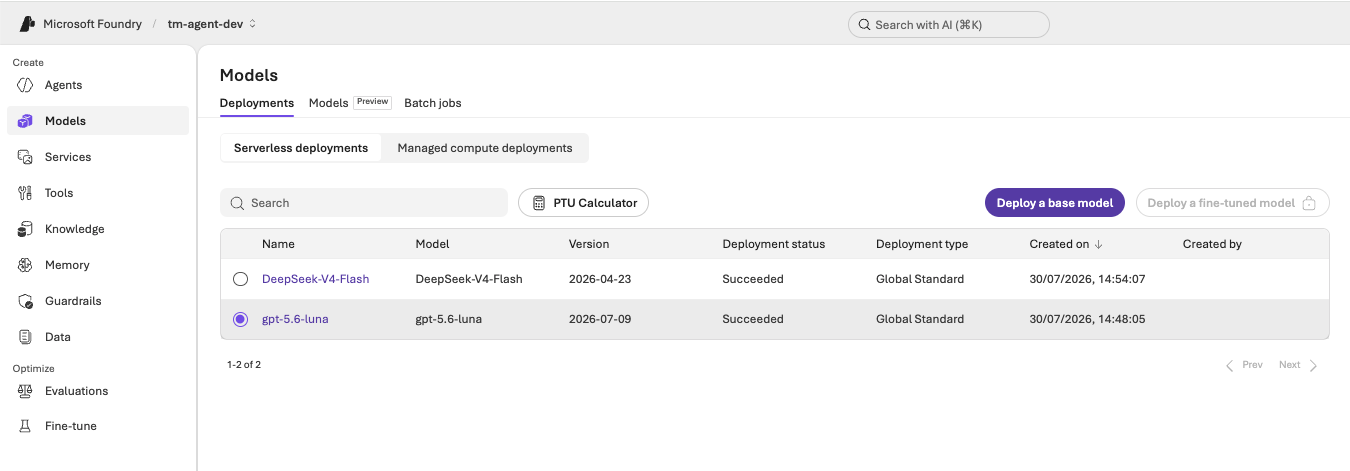
Go to Build > Deployments at any time to see every model deployed in the project, along with its exact model name, version and deployment status, which is useful when you need to reference a deployment name/version elsewhere (e.g. when configuring an agent or MCP client against it).