MCP Connection
Connect TrendMiner with a remote agent, such as Microsoft Copilot, Claude, ChatGPT, or a custom agent.
The remote agent can use a wide range of TrendMiner analytics tools that are exposed through the Model Context Protocol (MCP), a standardized, open interface.
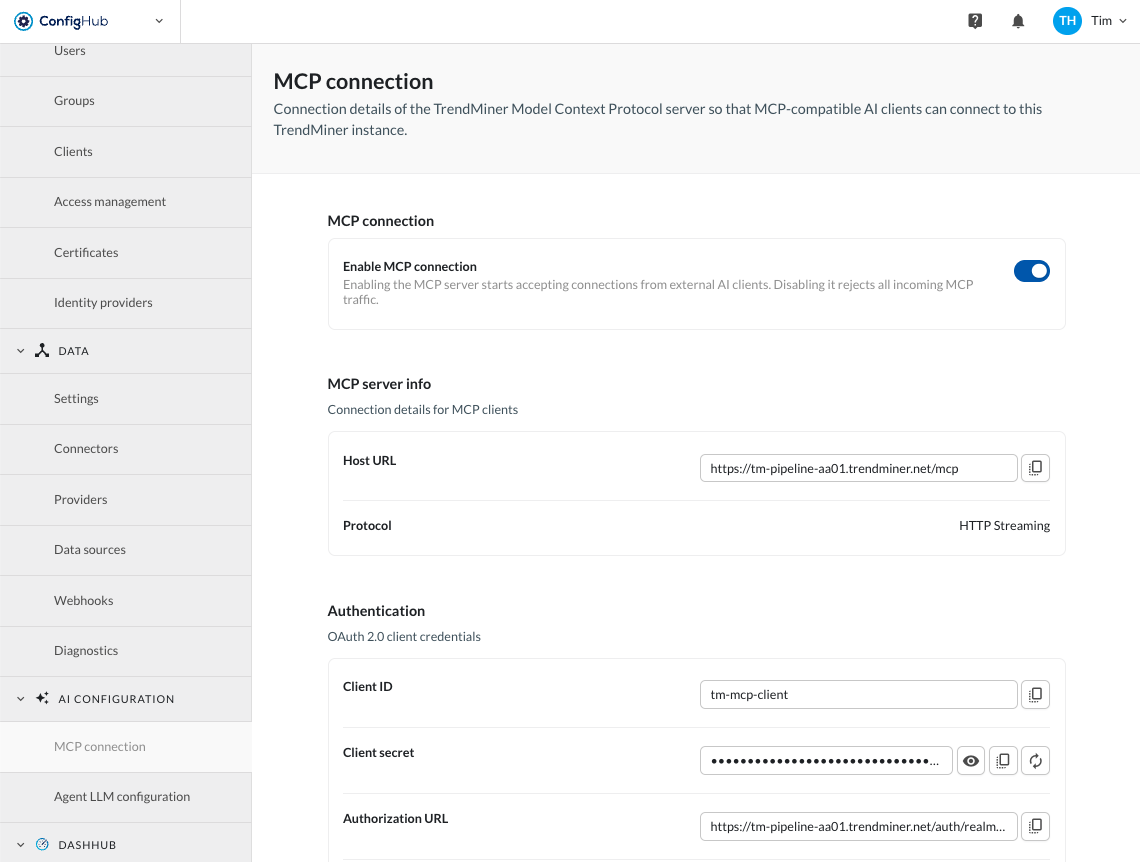
As an administrator, you find the connection details of the TrendMiner MCP server from ConfigHub > AI Configuration > MCP connection.
Note
The AI License must be installed on your instance before you can enable the MCP connection.
Enabling the MCP connection
Use the Enable MCP connection toggle to start or stop accepting connections from external AI clients. Enabling it starts accepting connections from external AI clients. Disabling it rejects all MCP tool execution.
MCP server info
Under MCP server info, you find the connection details for MCP clients.
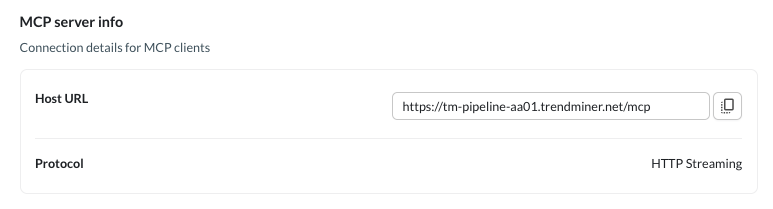
Click the copy icon next to a field to copy its value to your clipboard.
Configuration | Value (example) | Description |
|---|---|---|
Host URL |
| The endpoint MCP clients connect to. |
Protocol |
| The transport protocol used by the MCP server. |
Authentication
Under Authentication, you find the OAuth 2.0 client credentials that MCP clients use to authenticate with this TrendMiner instance.
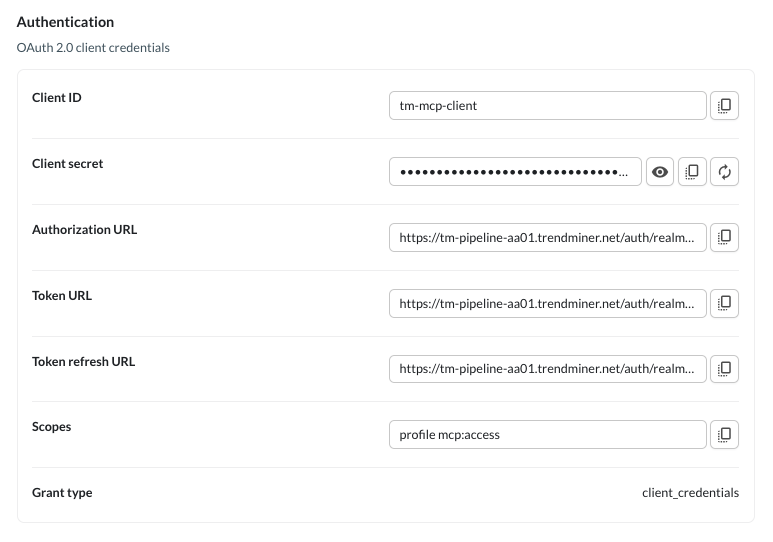
Click the copy icon next to a field to copy its value to your clipboard.
Configuration | Value (example) | Description |
|---|---|---|
Client ID |
| The OAuth 2.0 client identifier. |
Client secret | (hidden) | The OAuth 2.0 client secret. Click the eye icon to reveal it, the copy icon to copy it to your clipboard, or the rotate icon to generate a new secret. |
Authorization URL |
| The OAuth 2.0 authorization endpoint. |
Token URL |
| The OAuth 2.0 token endpoint. |
Token refresh URL |
| The OAuth 2.0 token refresh endpoint. |
Scopes |
| The OAuth 2.0 scopes requested by the client. |
Grant type |
| The OAuth 2.0 grant type used to authenticate. |
Note
Rotating the client secret invalidates the previous secret. Update any connected AI clients with the new secret to keep their connection working.
Connecting a remote agent
Use the Host URL and OAuth 2.0 client credentials on this page to configure the connection on the remote agent’s side.
For troubleshooting the MCP connection, use the logs in “Edge Manager” of the " tm-mcp-server" service.
Configure Microsoft Copilot
Microsoft offers several ways to connect TrendMiner to Microsoft Copilot. This guide covers the Copilot Studio approach: building a custom agent in Copilot Studio and connecting it to your TrendMiner MCP server as a tool.
Note
Before you begin
Make sure you have access to Copilot Studio and the Microsoft 365 admin center.
Get the Host URL and OAuth 2.0 client credentials for your TrendMiner MCP server from ConfigHub > AI Configuration > MCP connection. See the “MCP Connection” guide for more info.
Make sure your TrendMiner MCP server is accessible by Copilot, which requires a publicly available URL.
Create the agent in Copilot Studio
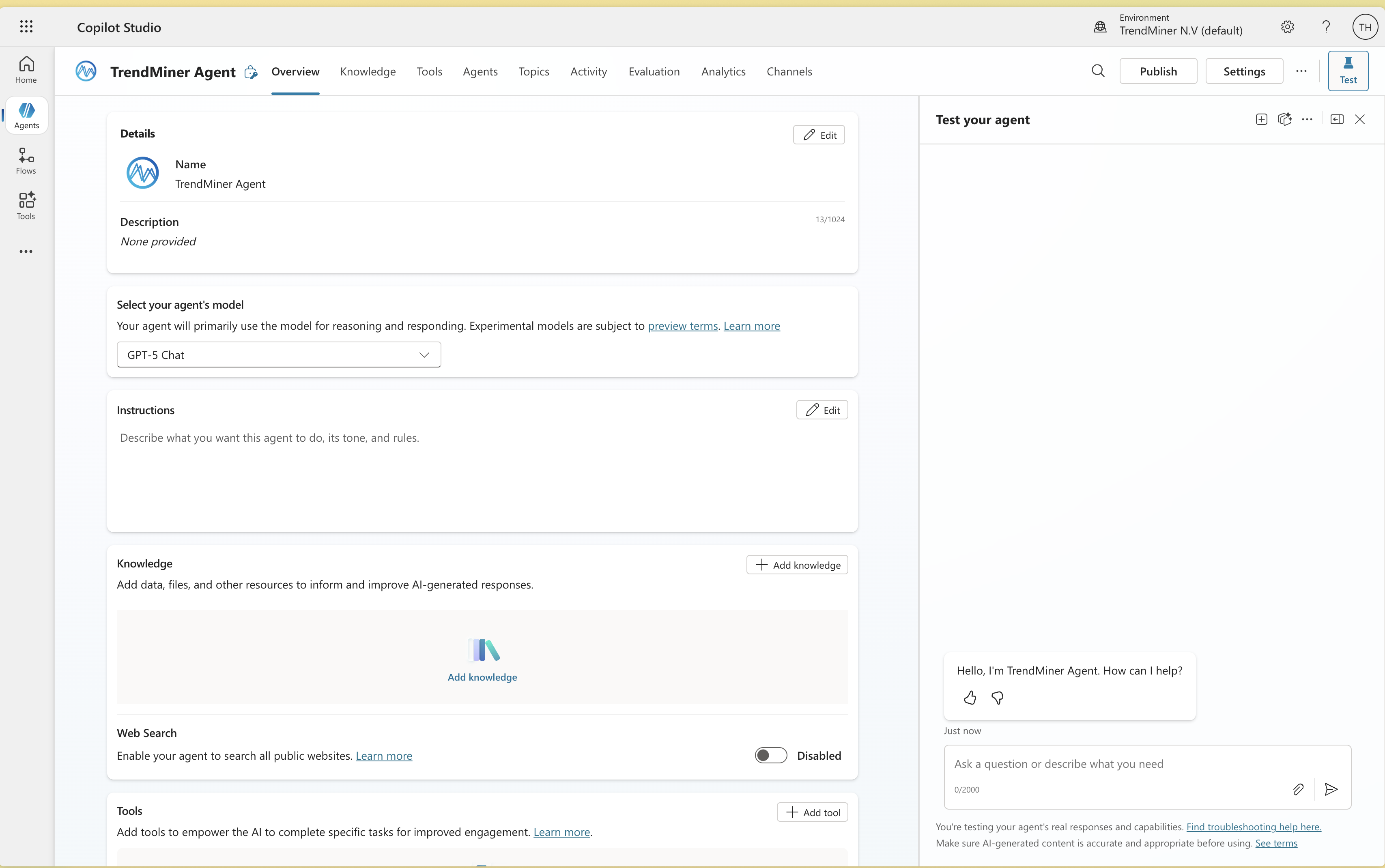
Go to copilotstudio.microsoft.com, navigate to the Agents section, and click Create blank agent.

Once created, configure your agent:
Rename the agent to something meaningful, for example TrendMiner Agent.
Choose the agent’s model. We recommend at least GPT-5-Chat, preferably Claude Sonnet or GPT-5-Auto.
Description and knowledge can be left empty or filled in as desired.
For the Instructions field, use a system prompt that covers best practices for the TrendMiner MCP tools, such as tag resolution, event search, statistics, and file export. Update it with your site’s tag naming convention, asset framework, timezone, and units. Ask your TrendMiner contact for a recommended template.
Connect the agent to TrendMiner MCP
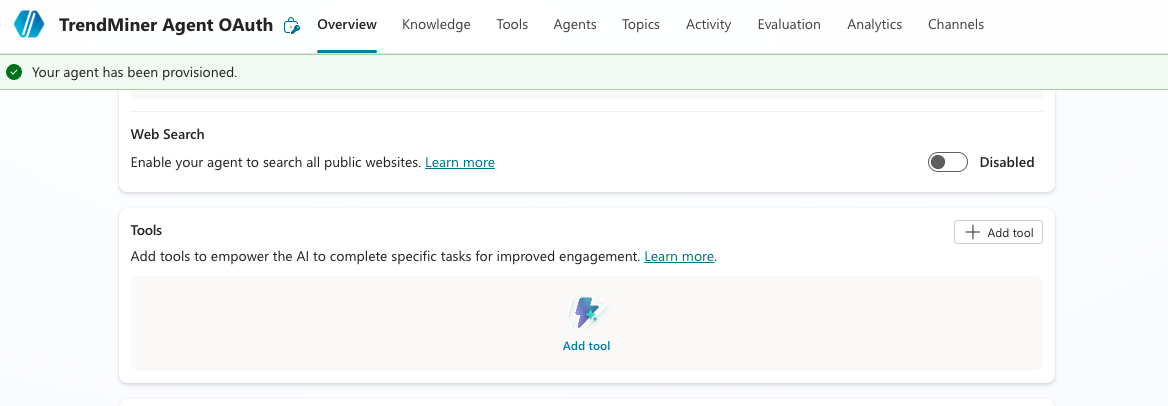
From the agent page, click Add tool.
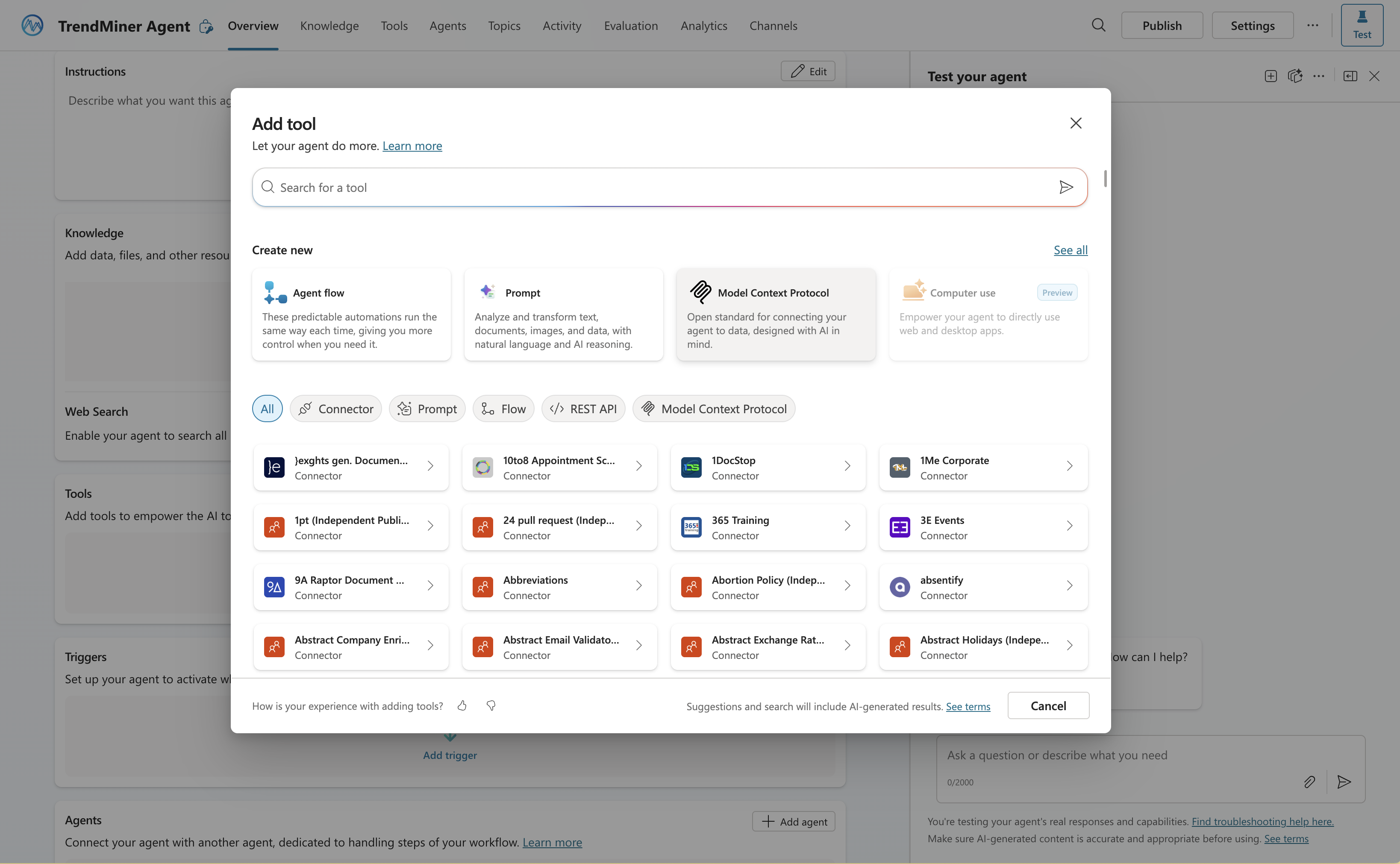
Select Create new, then choose Model Context Protocol (MCP).
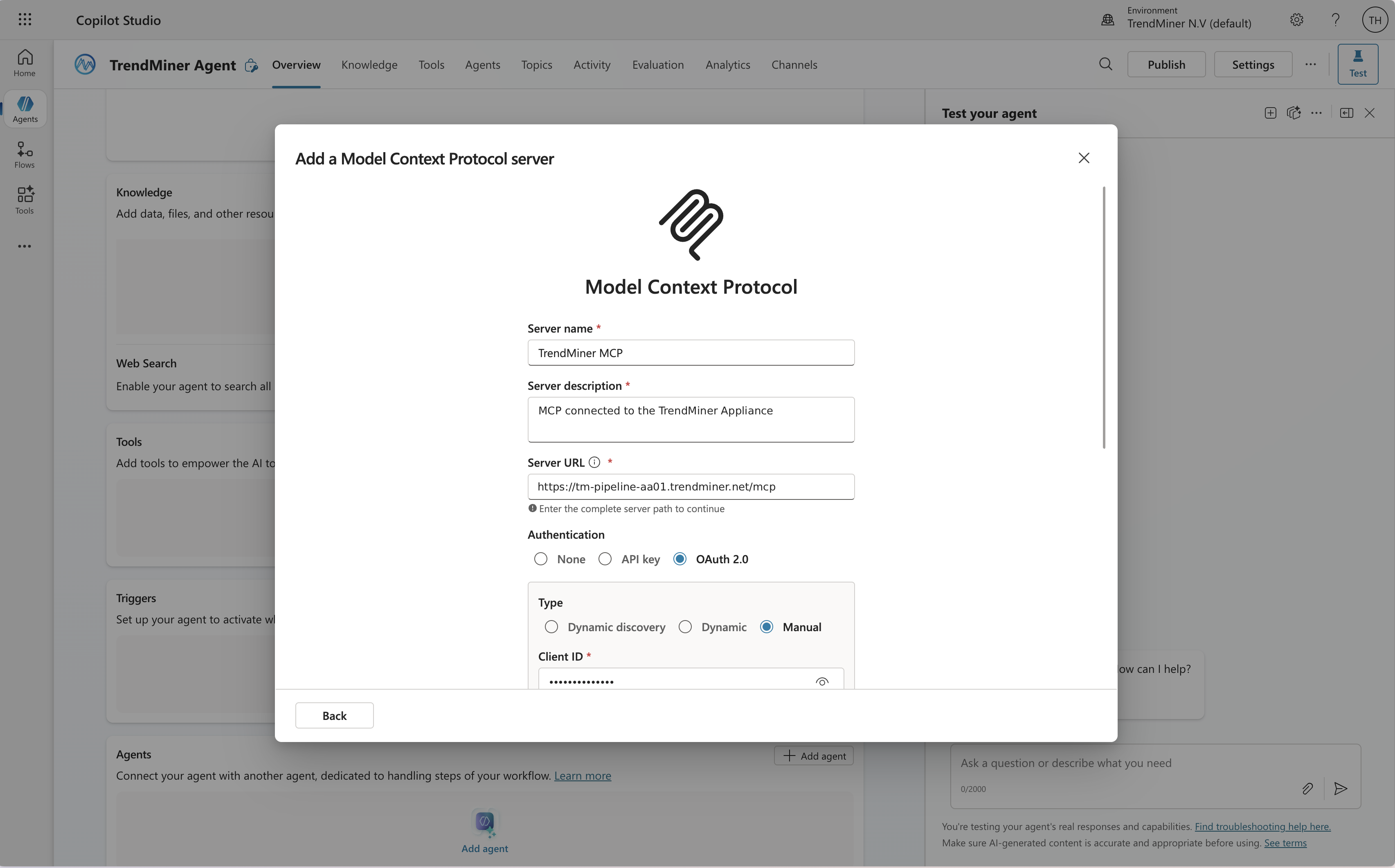
MCP connection configuration The MCP configuration window appears. Fill in your connection details, using the Host URL from ConfigHub.
Field
Value
Server name
TrendMiner MCPServer description
MCP connected to the TrendMiner Appliance
Server URL
The Host URL from ConfigHub > AI Configuration > MCP connection > MCP server info, for example
https://<mcp-service-public-url>/mcpOAuth 2.0 configuration Select the OAuth 2.0 option.
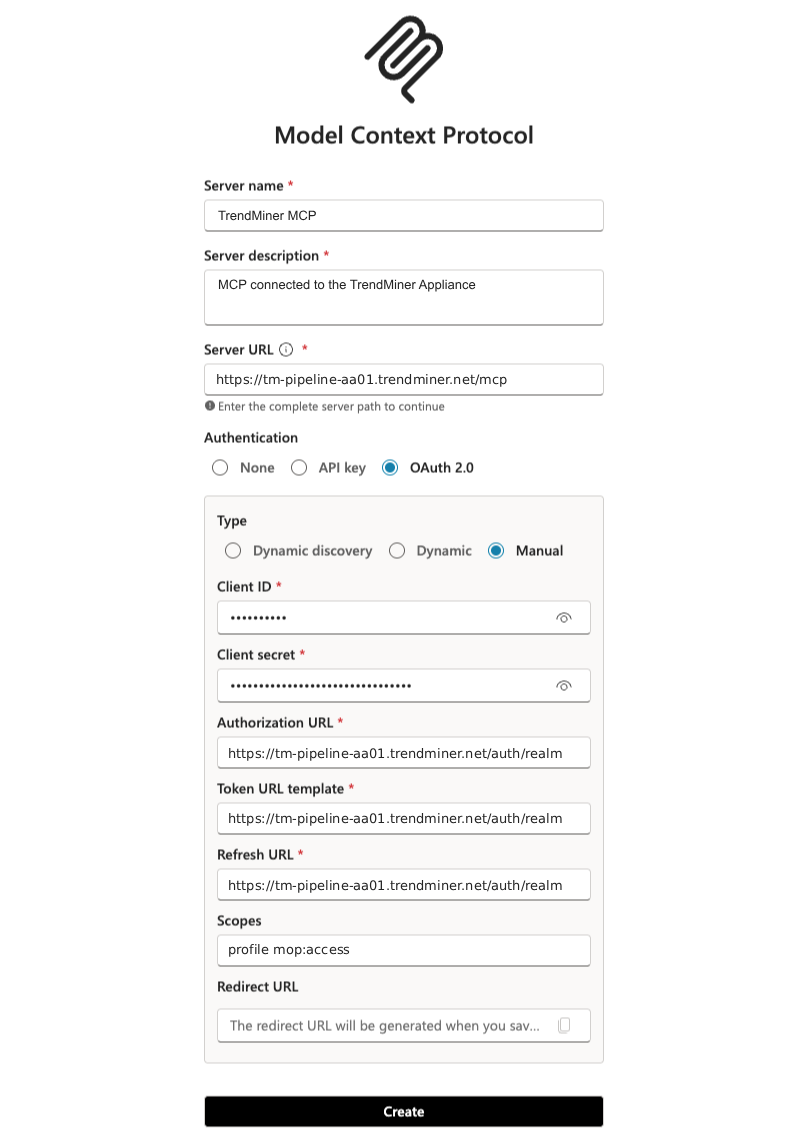
Enter the following configuration, using the values from ConfigHub > AI Configuration > MCP connection > Authentication.
Field
Value
Client ID
From MCP Connection > Authentication in ConfigHub
Client Secret
From MCP Connection > Authentication in ConfigHub
Authorization URL
https://<your-trendminer-url>/auth/realms/trendminer/protocol/openid-connect/authToken URL
https://<your-trendminer-url>/auth/realms/trendminer/protocol/openid-connect/tokenRefresh URL
https://<your-trendminer-url>/auth/realms/trendminer/protocol/openid-connect/tokenScopes
profile mcp:accessRedirect URL
Auto-generated by Copilot Studio after saving
Note
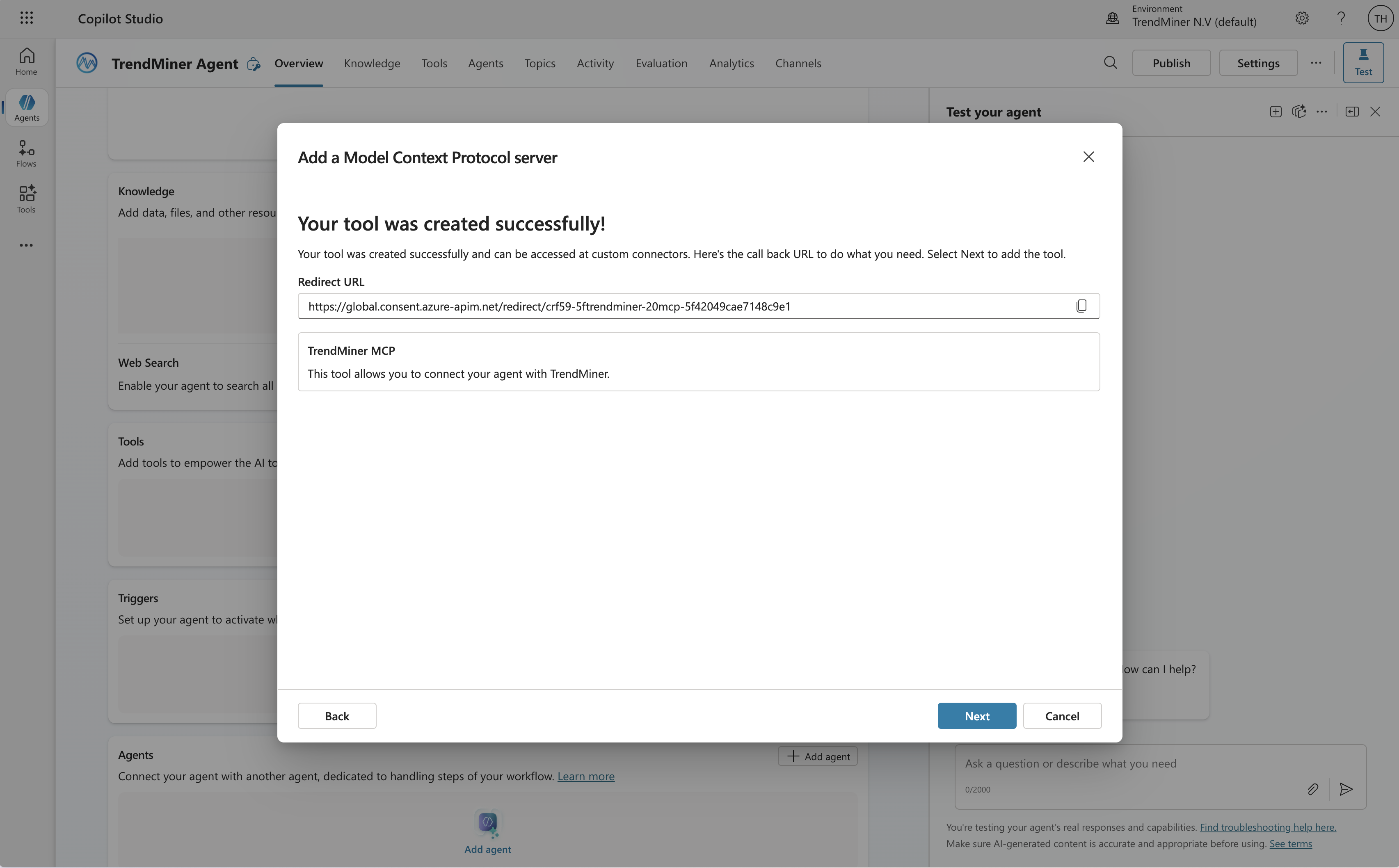
Copilot Studio uses the Authorization Code flow, where each user signs in individually, rather than the client_credentials grant shown in ConfigHub’s MCP Connection reference. Reuse the same Client ID, Client Secret, Authorization URL, Token URL, and Refresh URL. After saving, copy the auto-generated Redirect URL and have your administrator register it as an allowed redirect URI on the TrendMiner OAuth client.
After completing the form, click Create.
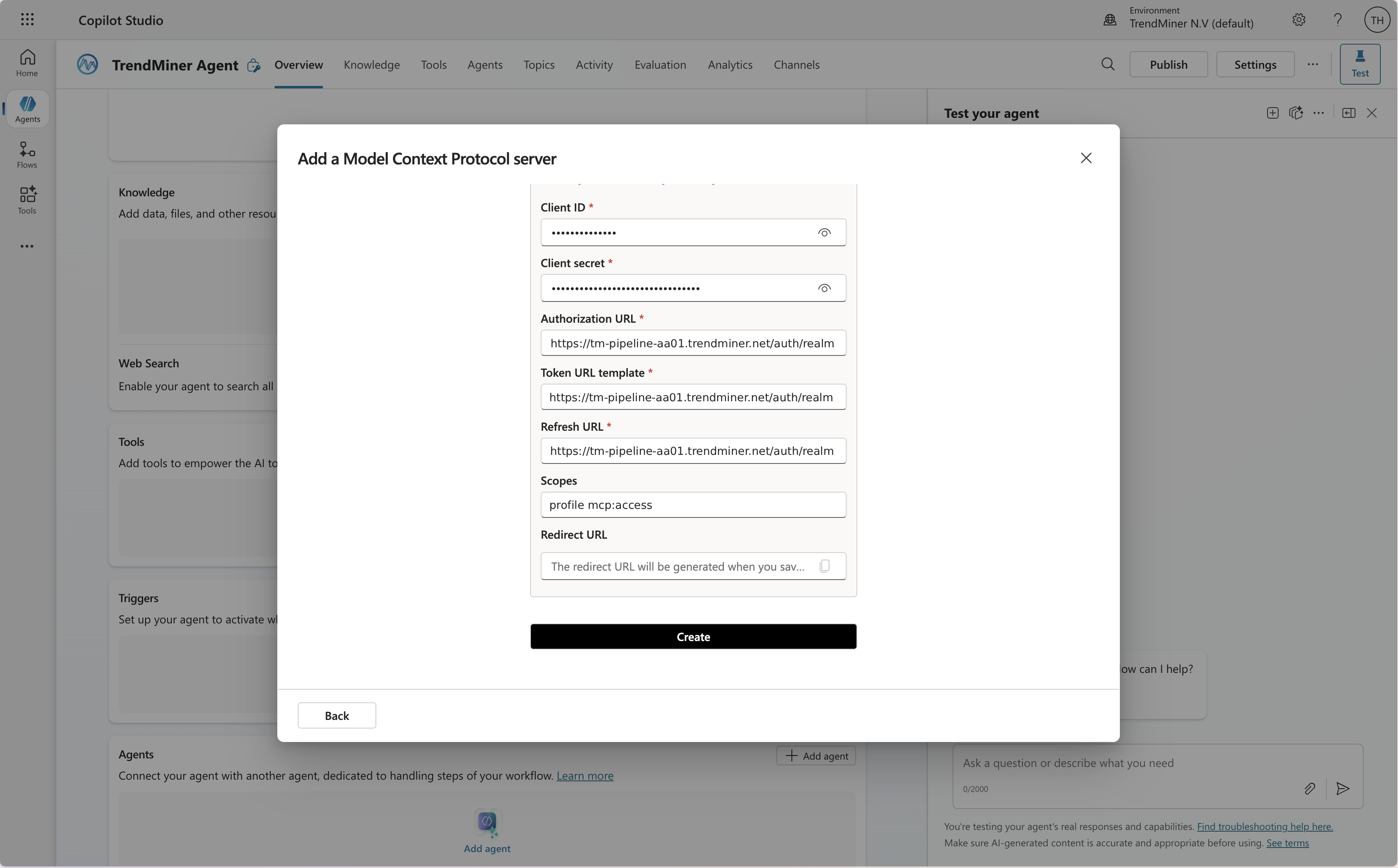
Click Next.
Click Not connected, then Create new connection.
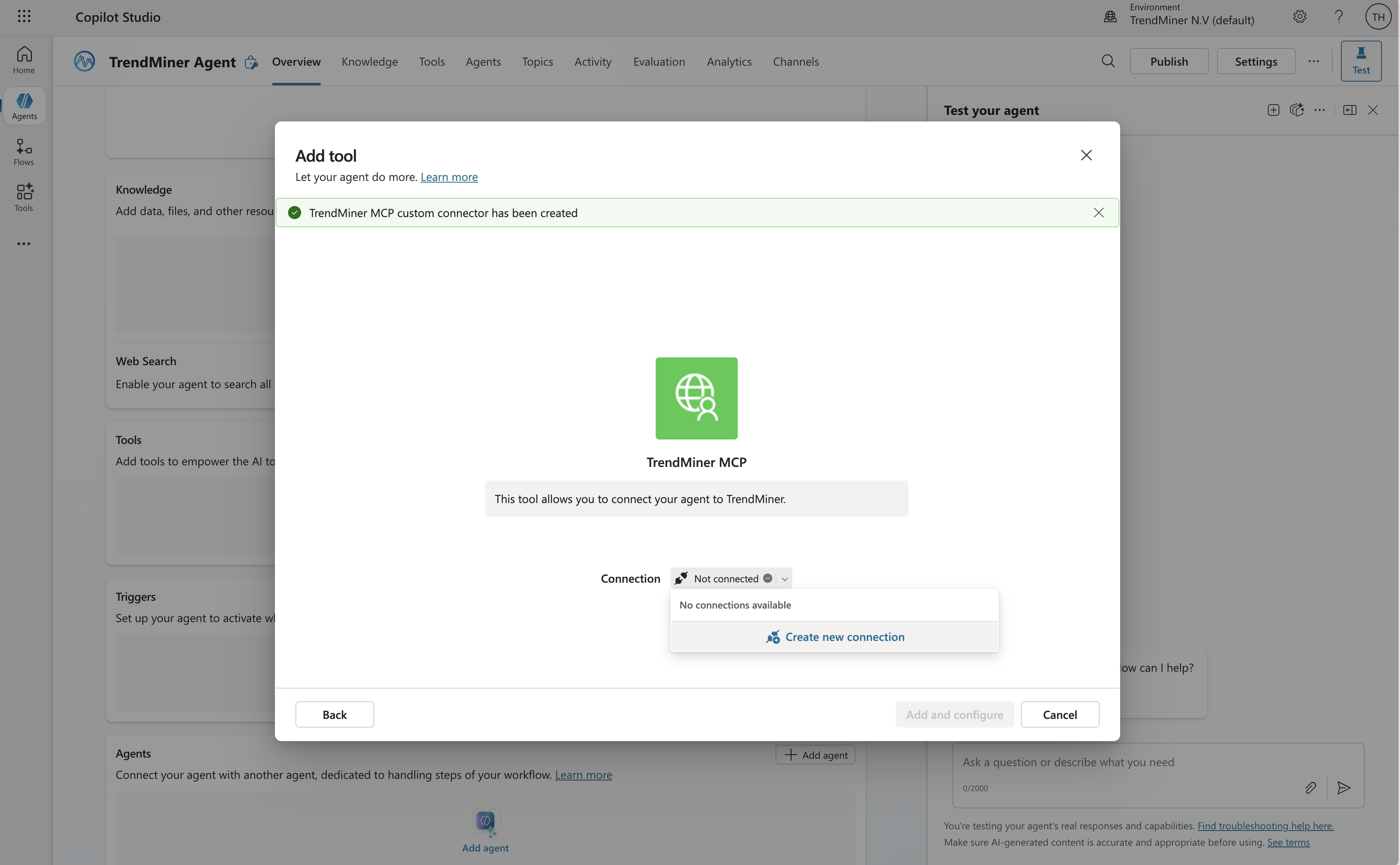
Click Create.
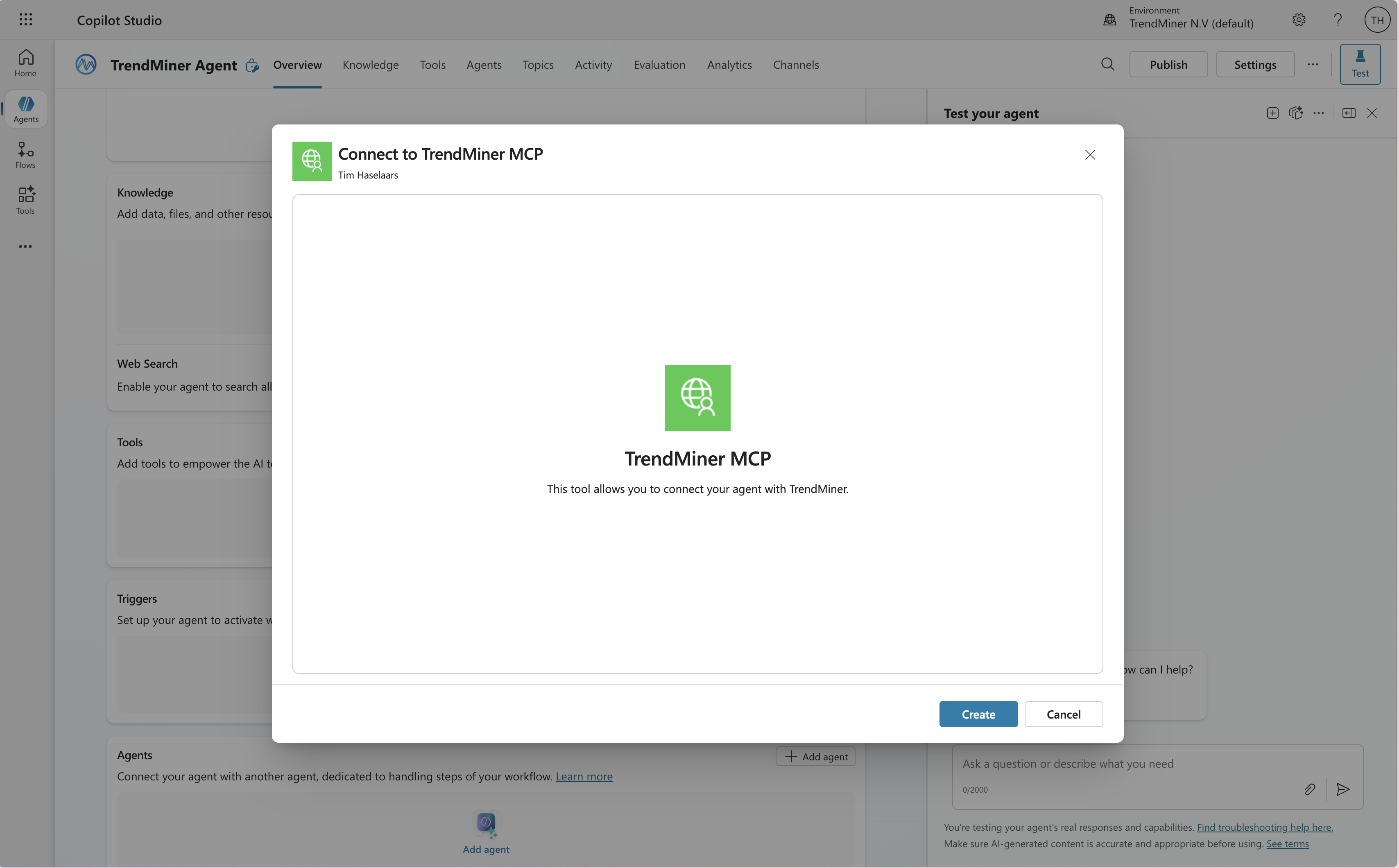
Warning
If the dialog closes and the tool still reads “Not connected,” the account is unlicensed. Connection creation requires a Power Platform or Copilot Studio license and fails silently without one, with no error and no message. Check Microsoft 365 admin center > user > Licenses and apps before investigating anything else.
Click Add and configure. Your tool is now connected to the agent.
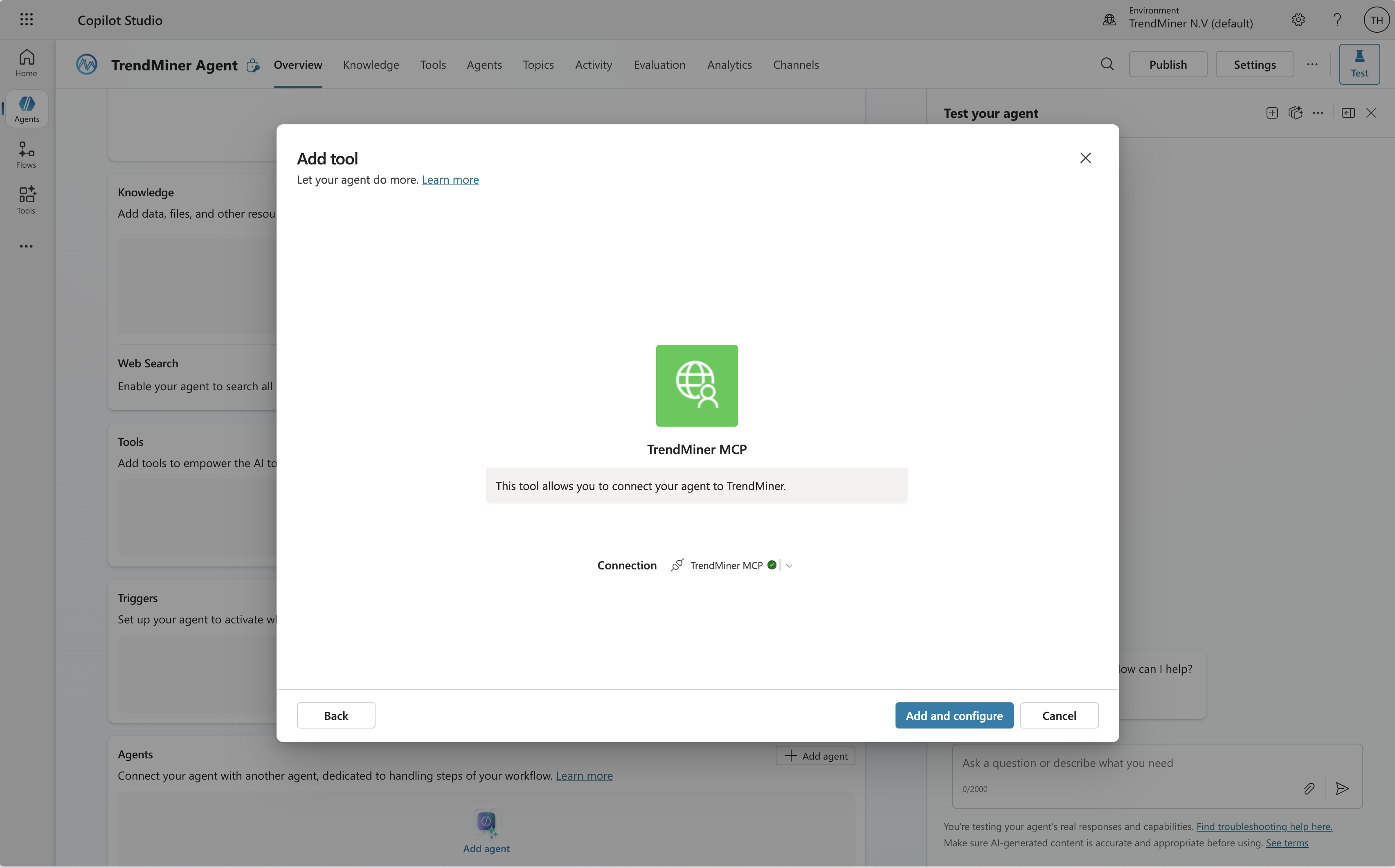
Configure the agent You can optionally add a system prompt or rename your agent. Both are optional but recommended for production use.
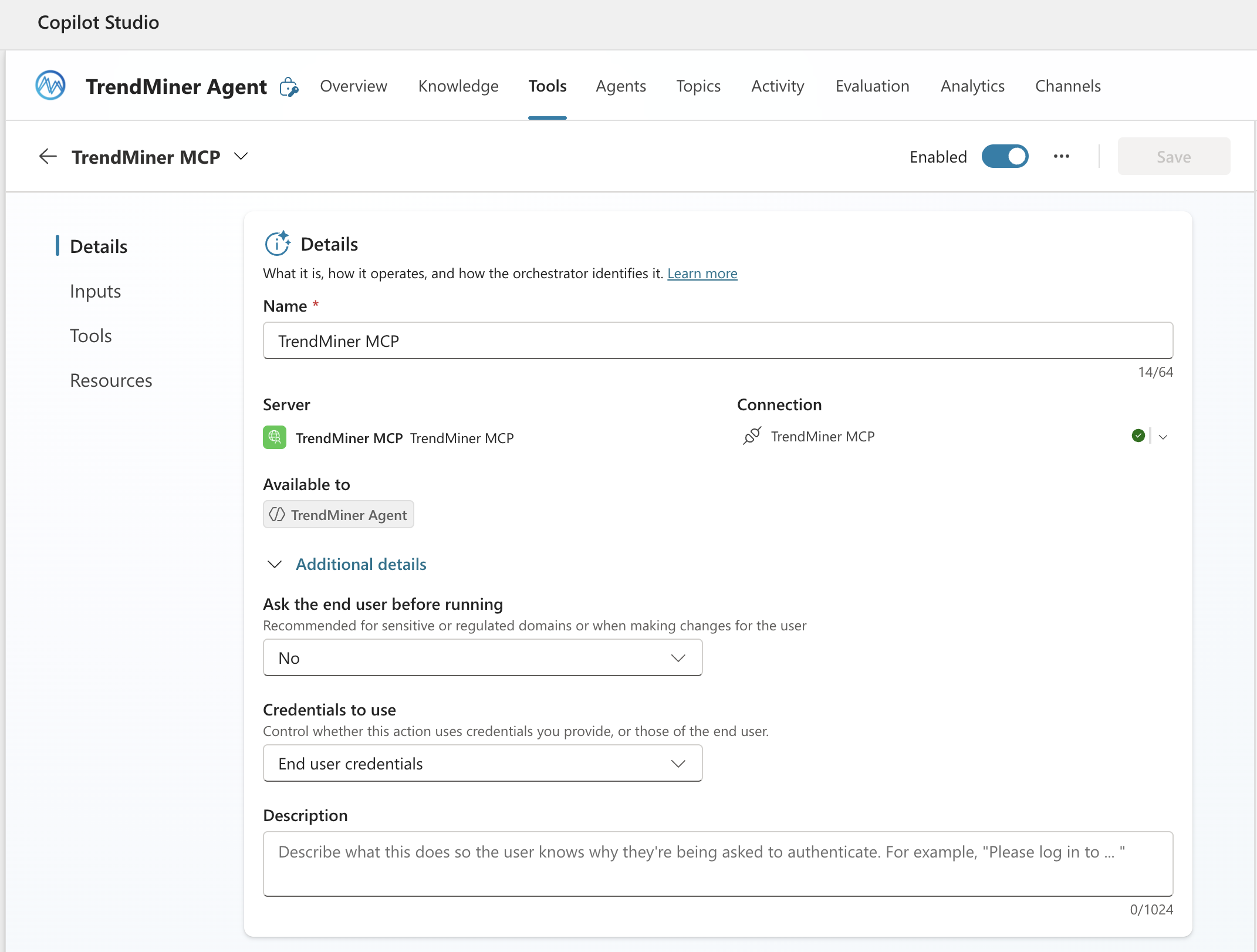
Changing the credentials to use In the Tools menu, expand Additional details.
If you used the OAuth flow: no changes needed here (keep ‘End user credentials’).
If you use local credentials: set Credentials to Maker provided credentials and click Save.
Tip
Never set credentials to “Maker provided credentials” when creating a production-grade agent.
Publish to Teams and Microsoft 365
The steps below cover the typical Teams and Microsoft 365 Copilot publication flow. For the full set of publication options, channels, and availability settings, see Microsoft’s documentation on publishing a Copilot Studio agent to Teams and Microsoft 365.
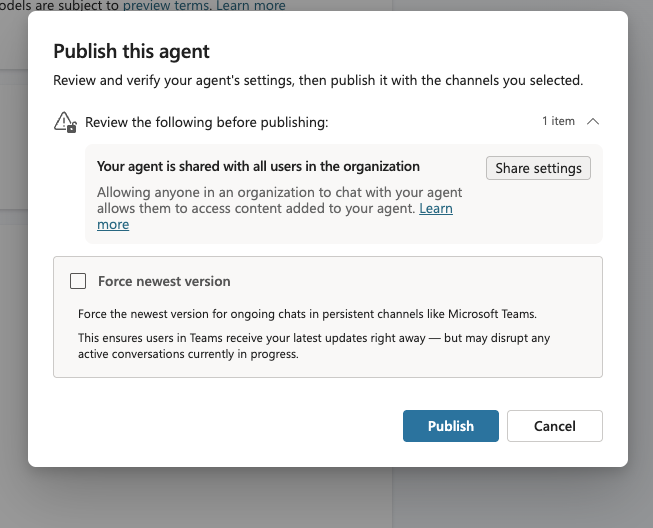
Click Publish to publish the agent.
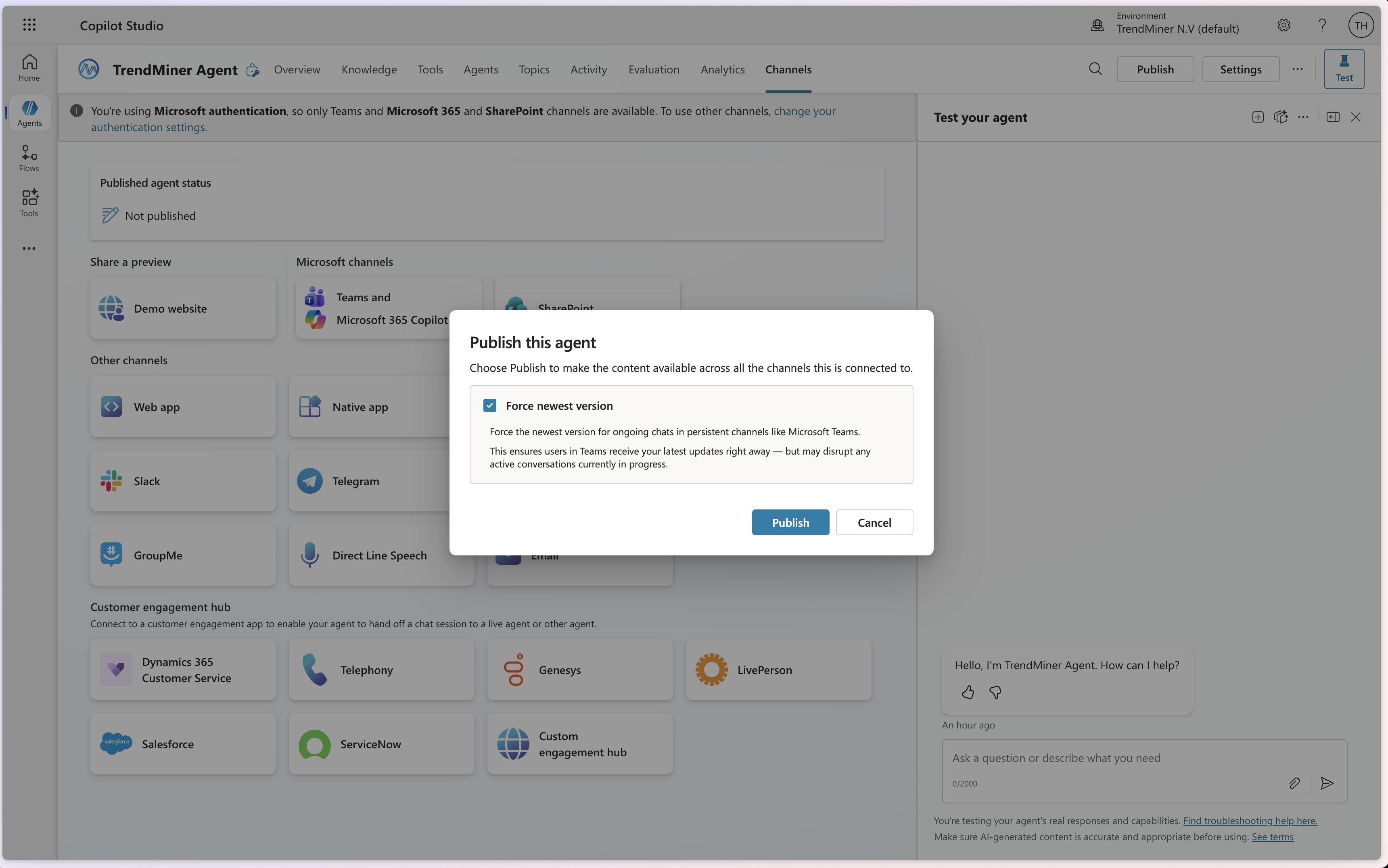
Review the publish dialog before publishing. Leave Force newest version unticked unless the change has to reach ongoing Teams conversations immediately.
Navigate to the Channels tab, click Teams and M365 Copilot, then select Add channel to make the agent available in Teams and Microsoft 365.
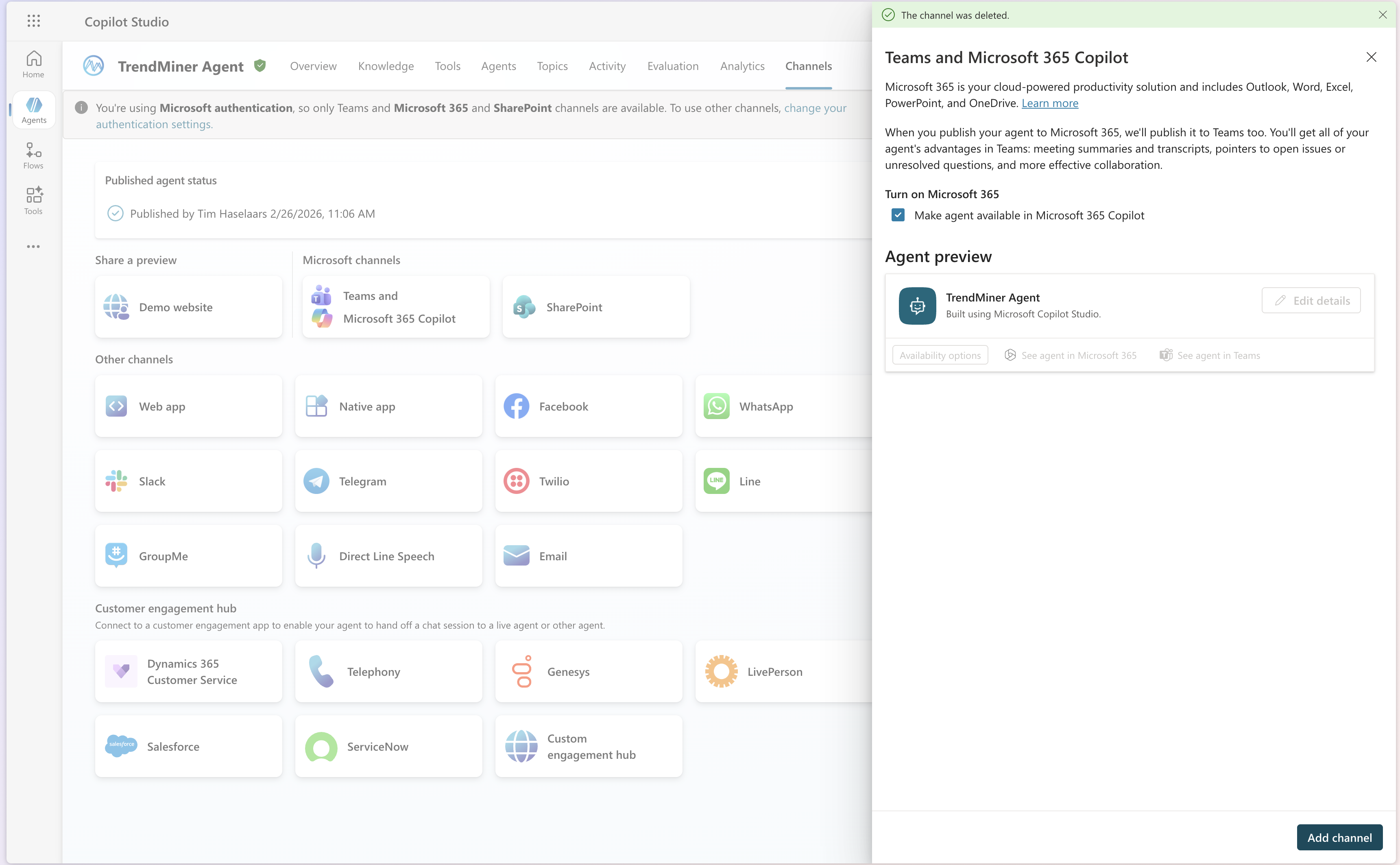
Your agent is now published to Microsoft Teams and Microsoft 365. Use the Edit details and Availability options to customize deployment and accessibility.
Note
Republish the agent after each change to Edit details or Availability settings.
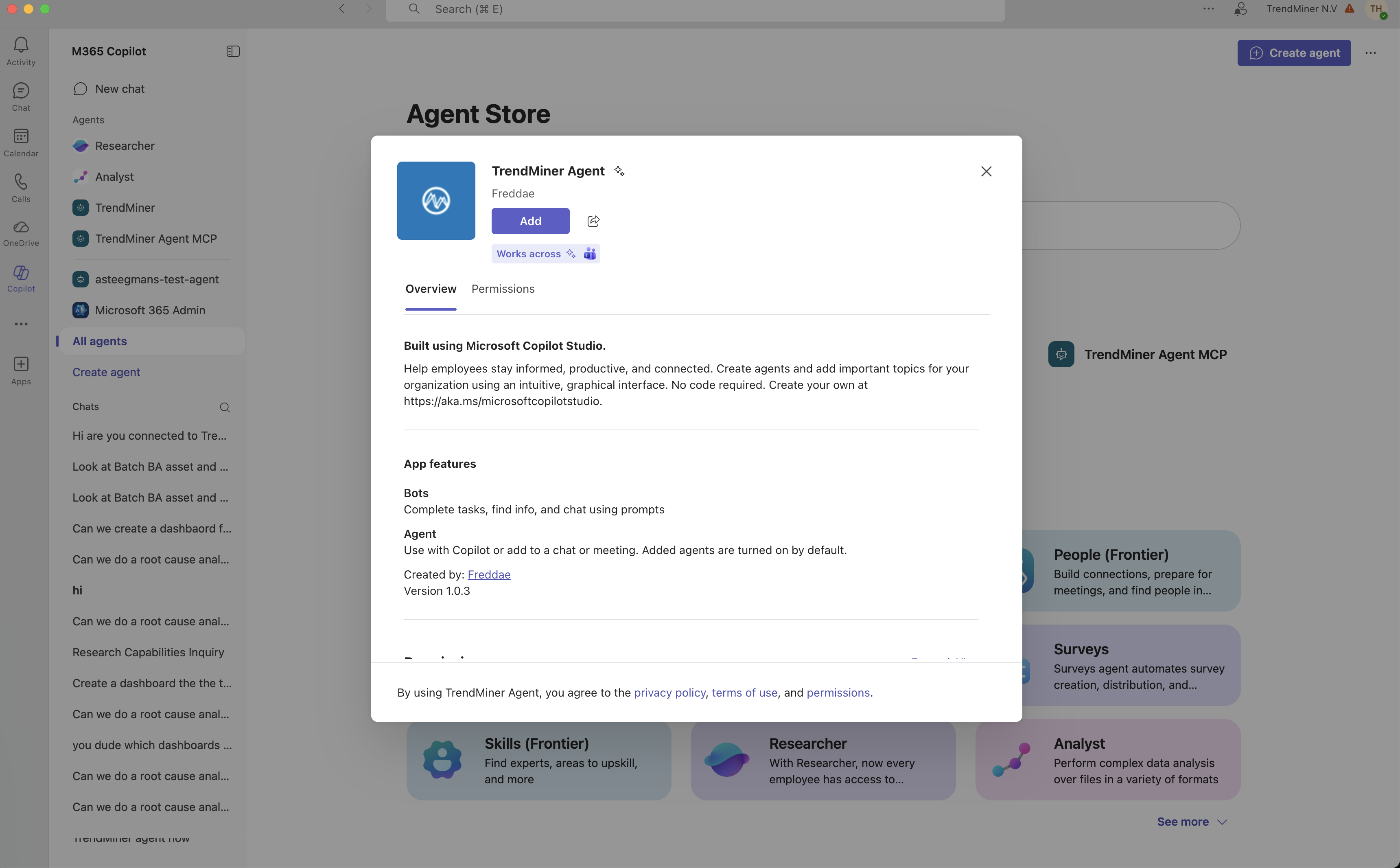
Publishing makes the agent available to the channel. It does not give any individual user access to it, that is the next step.
Giving users access
Every user additionally needs the agent shared with them, membership of the Teams security group, and, because each of them creates their own connection, a license and read access to the connector record. These are independent requirements, none of them follows from the others.
Publish the agent first, the Share dialog shares a published agent. Then open the Share dialog for the agent.
Add individuals, groups, or email addresses under New Users. For everyone not named, select Everyone in organization under My organization. The right panel then offers End user access for a tenant-wide rollout, or No permissions, unless specified (the default) for pilots.
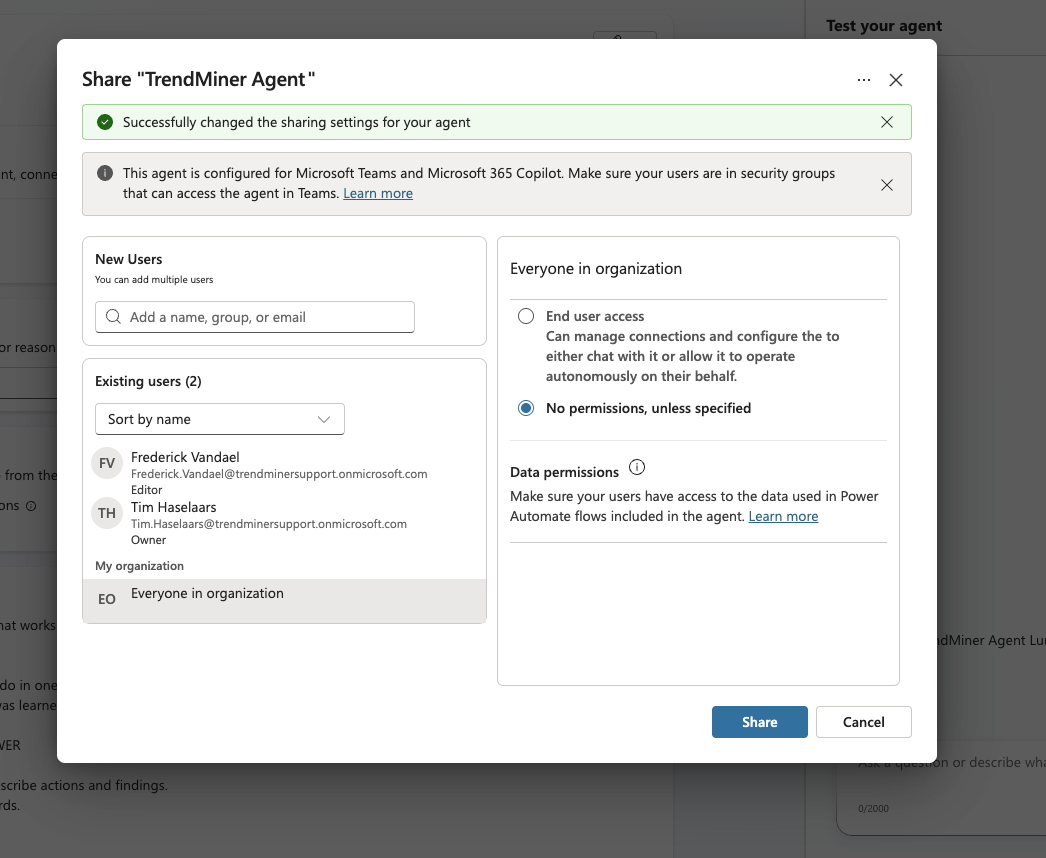
Add the users to the Entra security group governing the Teams channel. Sharing in Copilot Studio does not do this.
For every user, assign a license (Microsoft 365 admin center > user > Licenses and apps) and a security role carrying Read on the Connector table (Power Platform admin center > Environments > environment > Users > user > Manage security roles > System Customizer).
Role
Needs
Agent maker / author
Copilot Studio license
Every user of the agent
Power Platform or Copilot Studio license, each one creates their own connection
Note
Connection creation needs all three of an environment user record, a security role, and a license. End user access on the agent, which Microsoft describes as including “manage connections,” is a permission, not an entitlement, and does not substitute for the license. System Customizer is broad; for production, a custom role with read-only access on Connector is tighter under governance review.
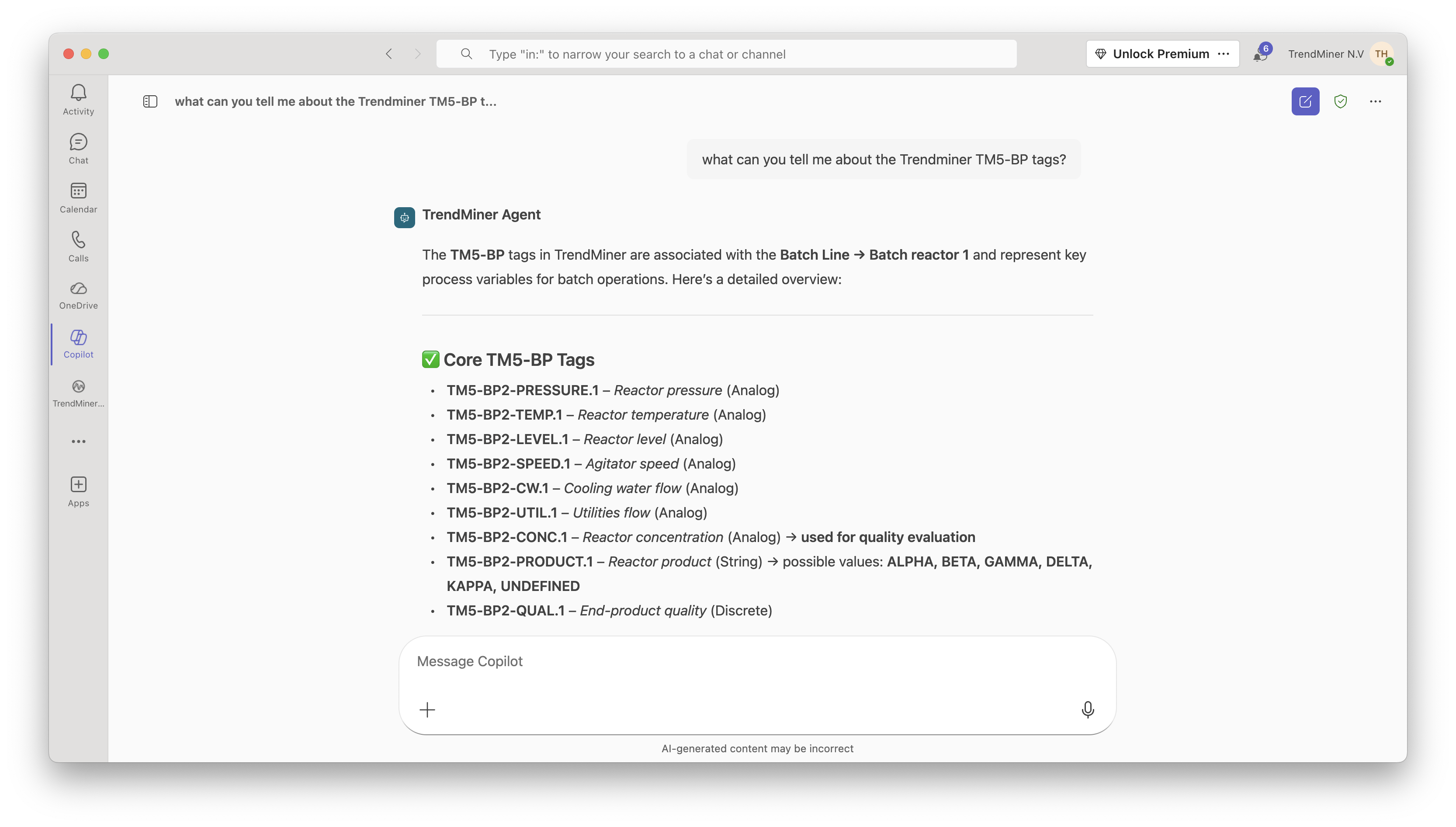
TrendMiner Agent in Microsoft Teams and Copilot Once published, the TrendMiner Agent is available in both the Microsoft Copilot app and Microsoft Teams. Query your process data using natural language without leaving your workflow.