Image deployment
Documentation is based on VMware ESXi 8.0.3 using the VMware ESXi Host Client 2.18.0 but other hypervisors or versions work in a similar way.
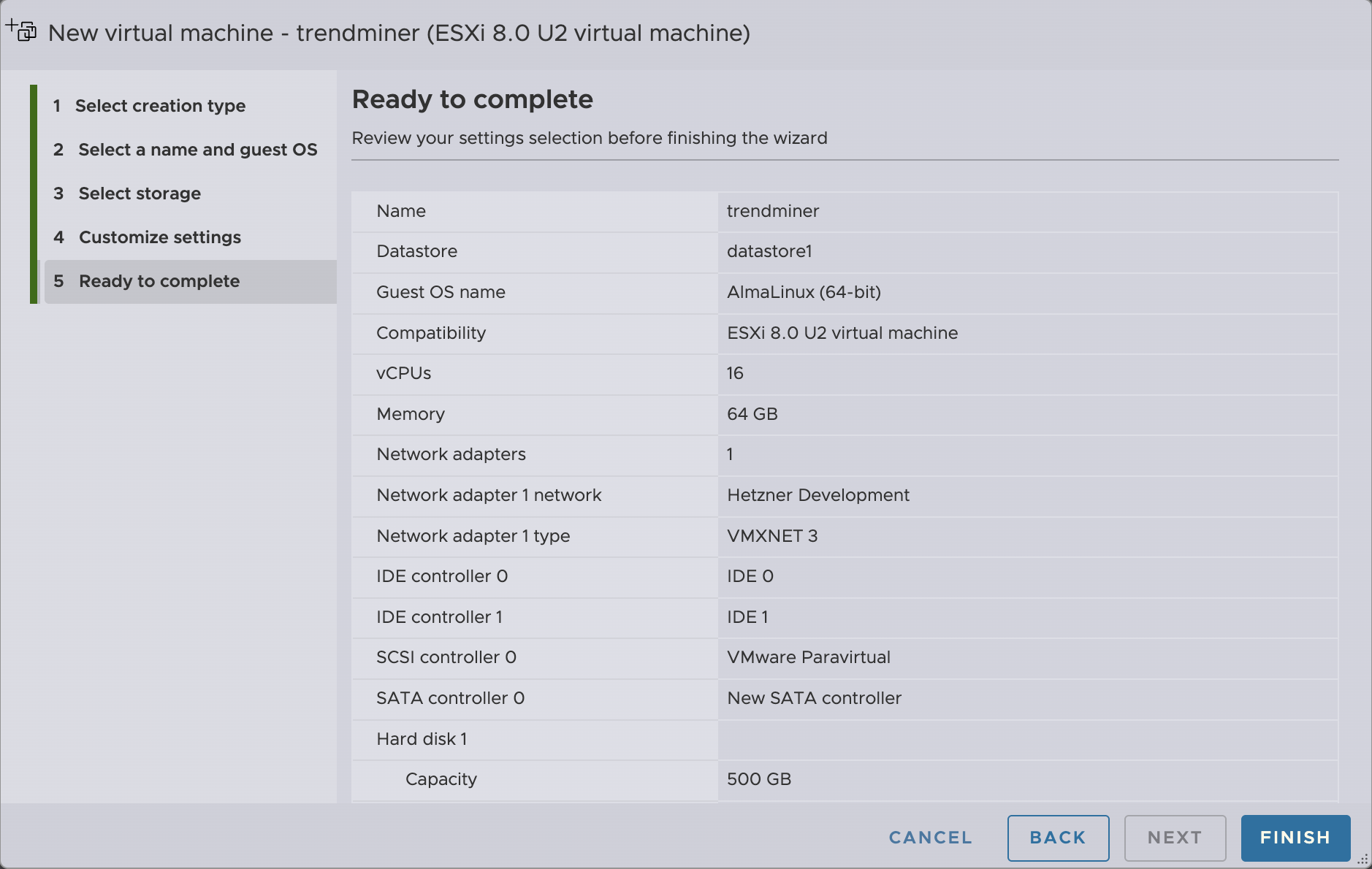
Create a new virtual machine which meets TrendMiner's minimal system requirements.
Download the AlmaLinux image from the official website. TrendMiner recommends the AlmaLinux 9.7 Minimal ISO.
Upload the AlmaLinux image (the .iso file) to the data store.
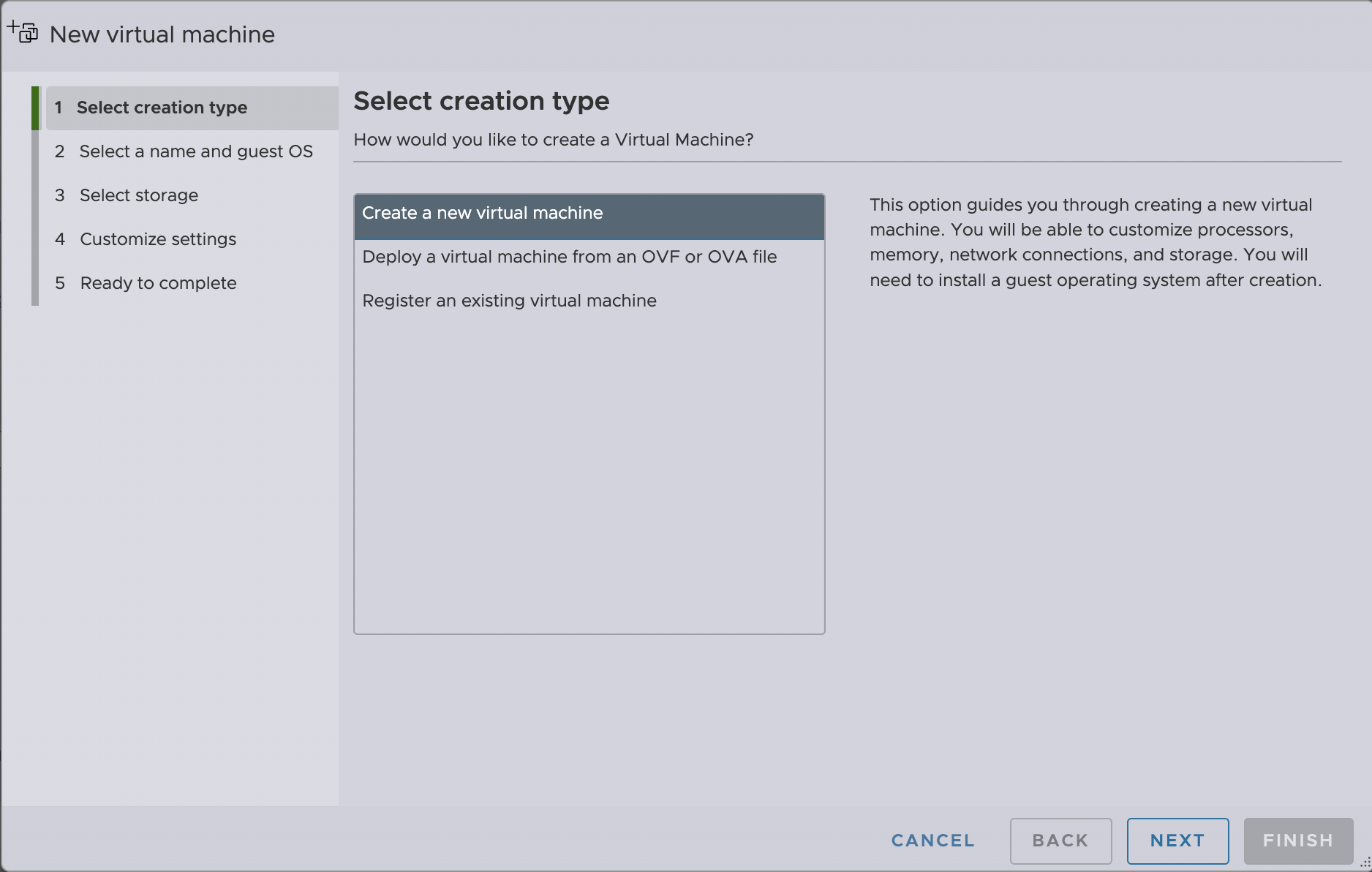
Open the ESXi Host Client and select "Create / Register VM". Select "Create a new virtual machine". Click "Next".
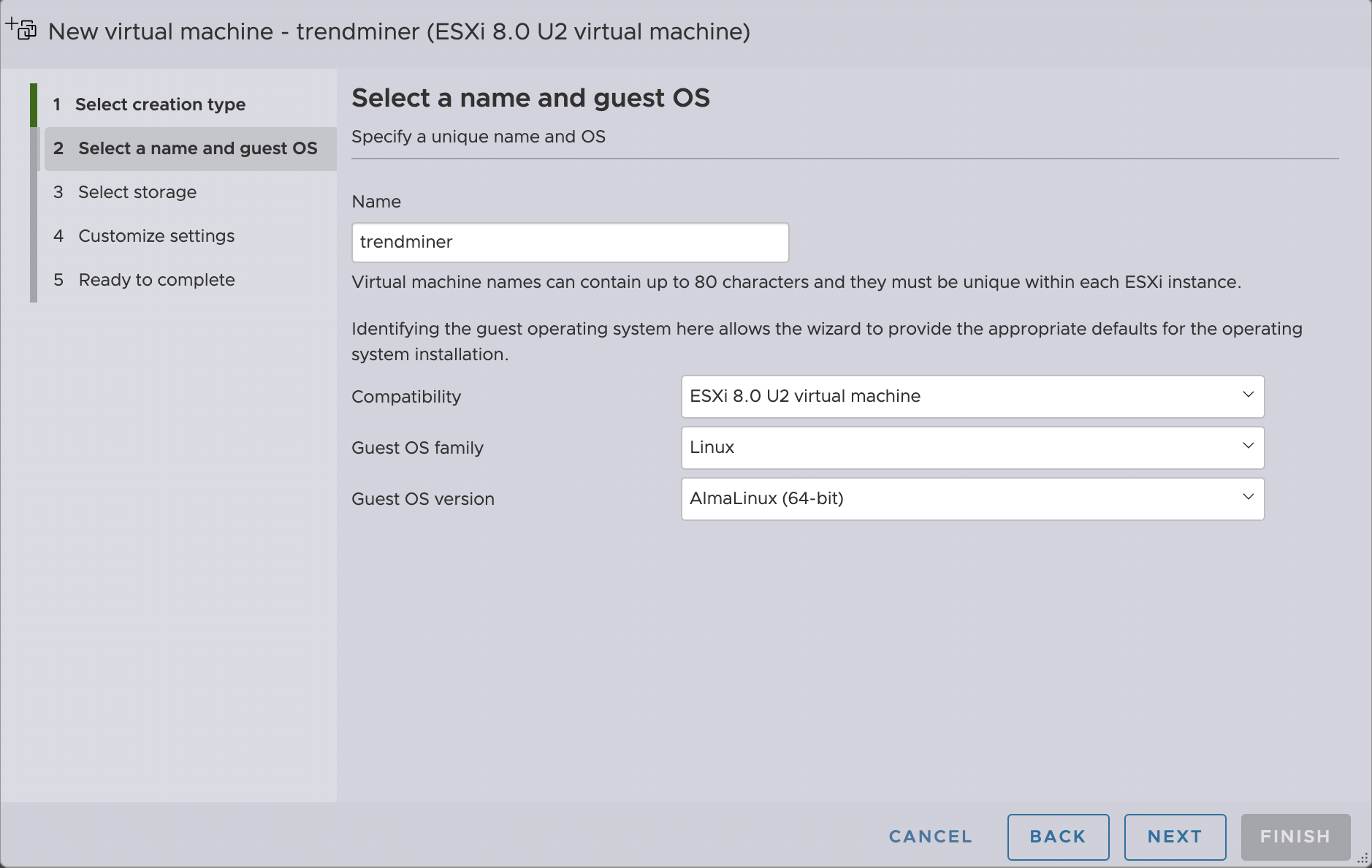
Choose a unique name for your virtual machine. Set "Guest OS family" to "Linux" and "Guest OS version" to "AlmaLinux (64-bit)". Click "Next".
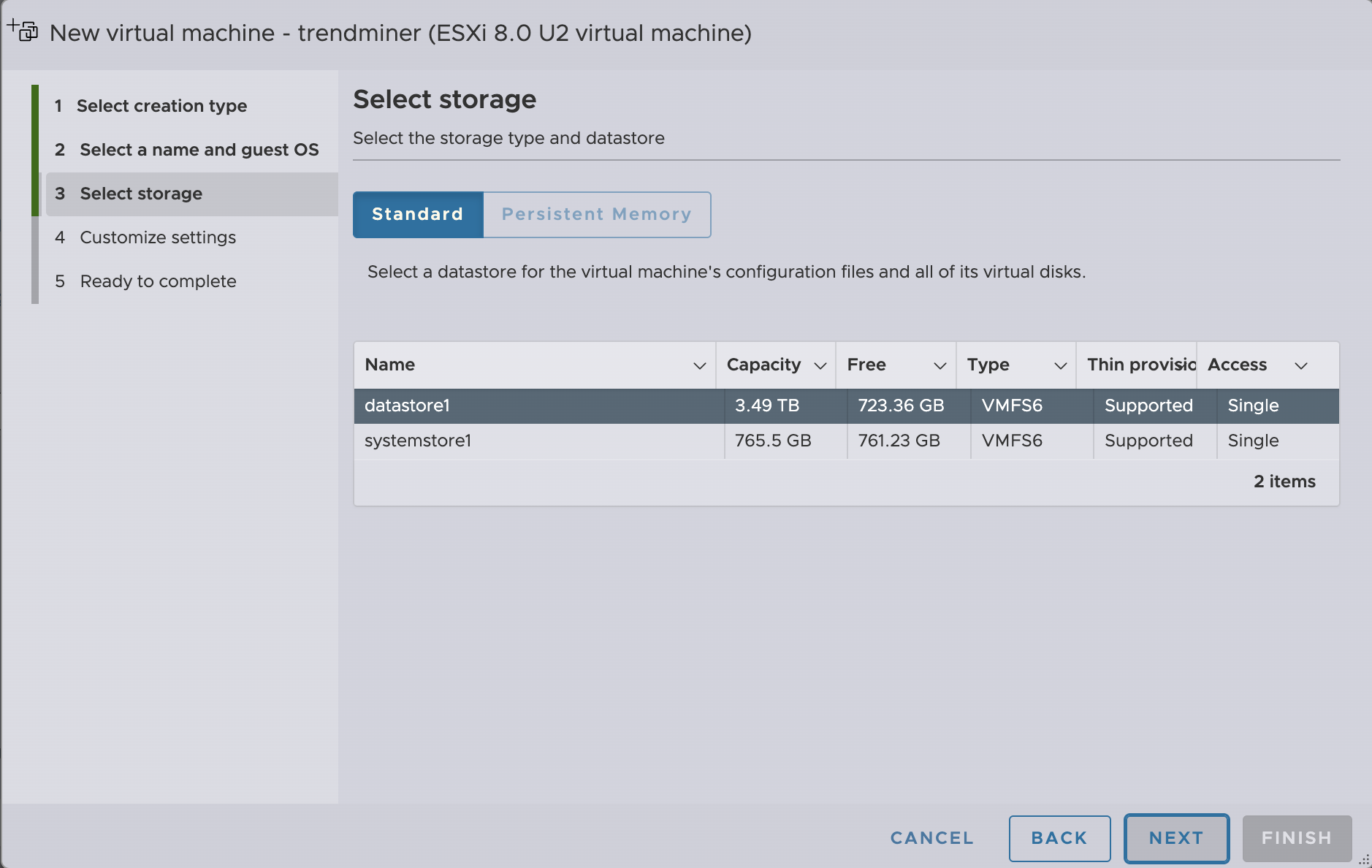
Select a storage location. Make sure there is sufficient free space for the initial installation (SSD, 10GB on root volume. 200GB +300GB on /mnt/data volume, 250MB/s) and the expected future usage. Click "Next".
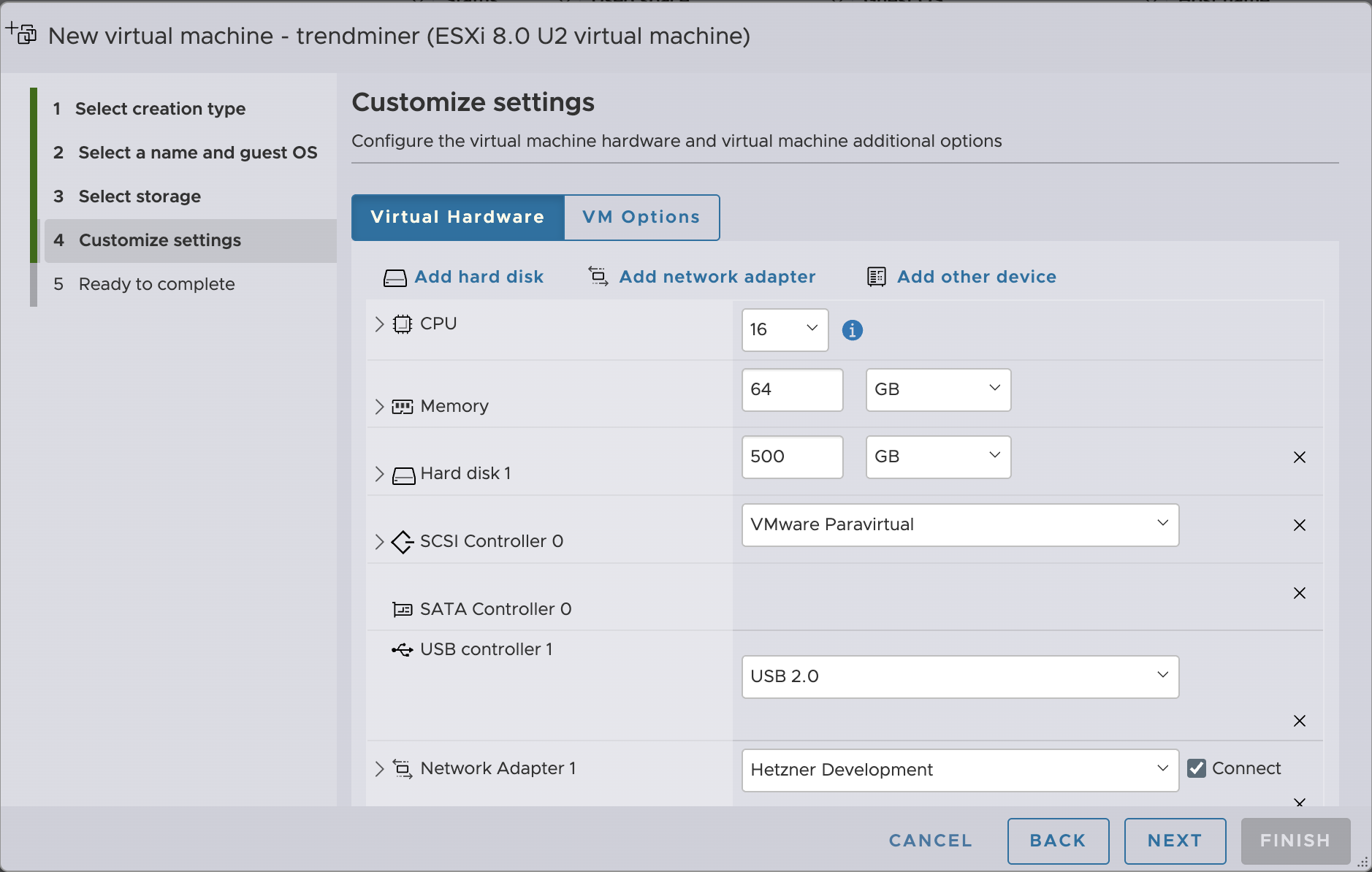
Configure the CPUs, Memory and Disk.
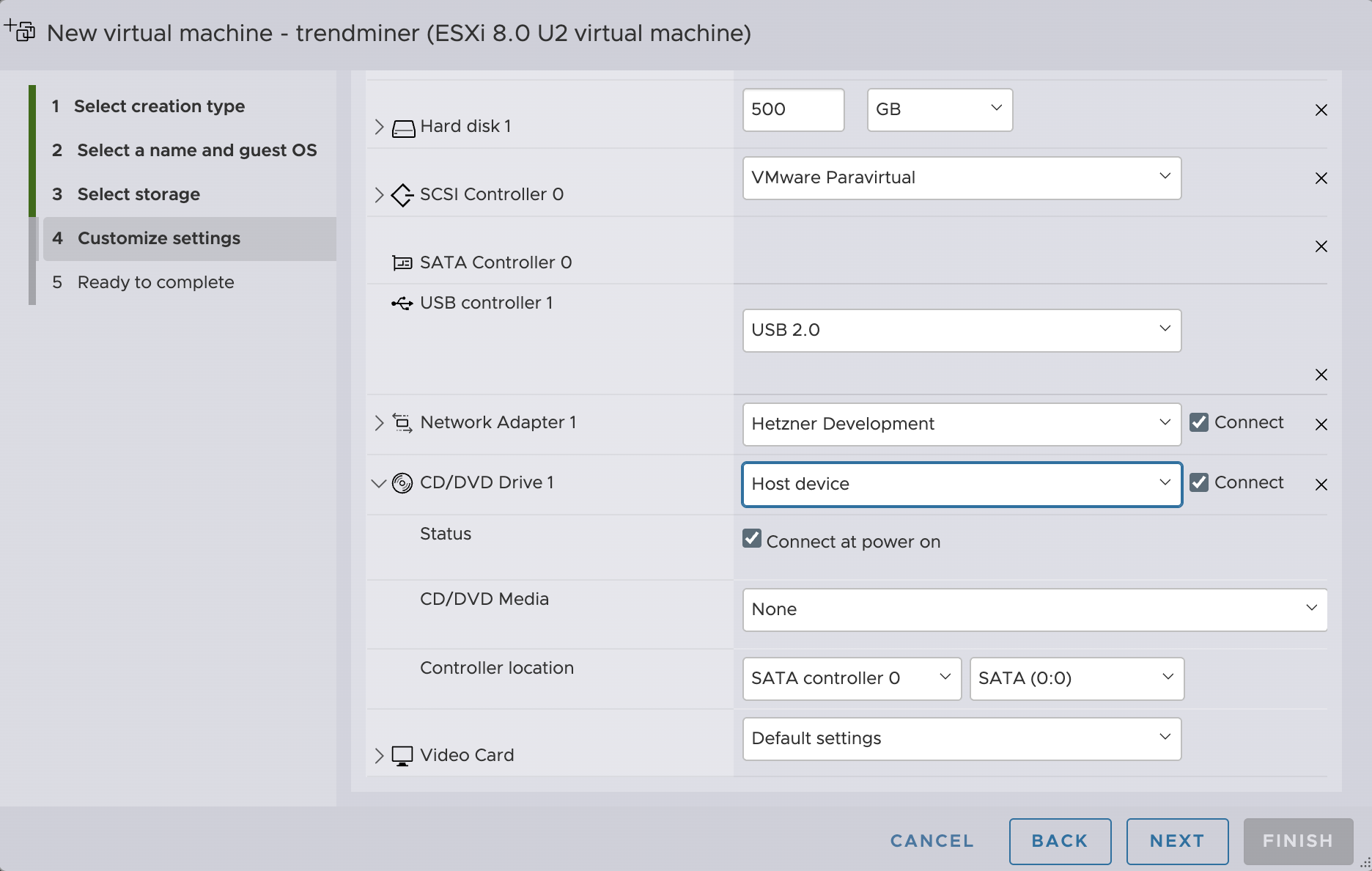
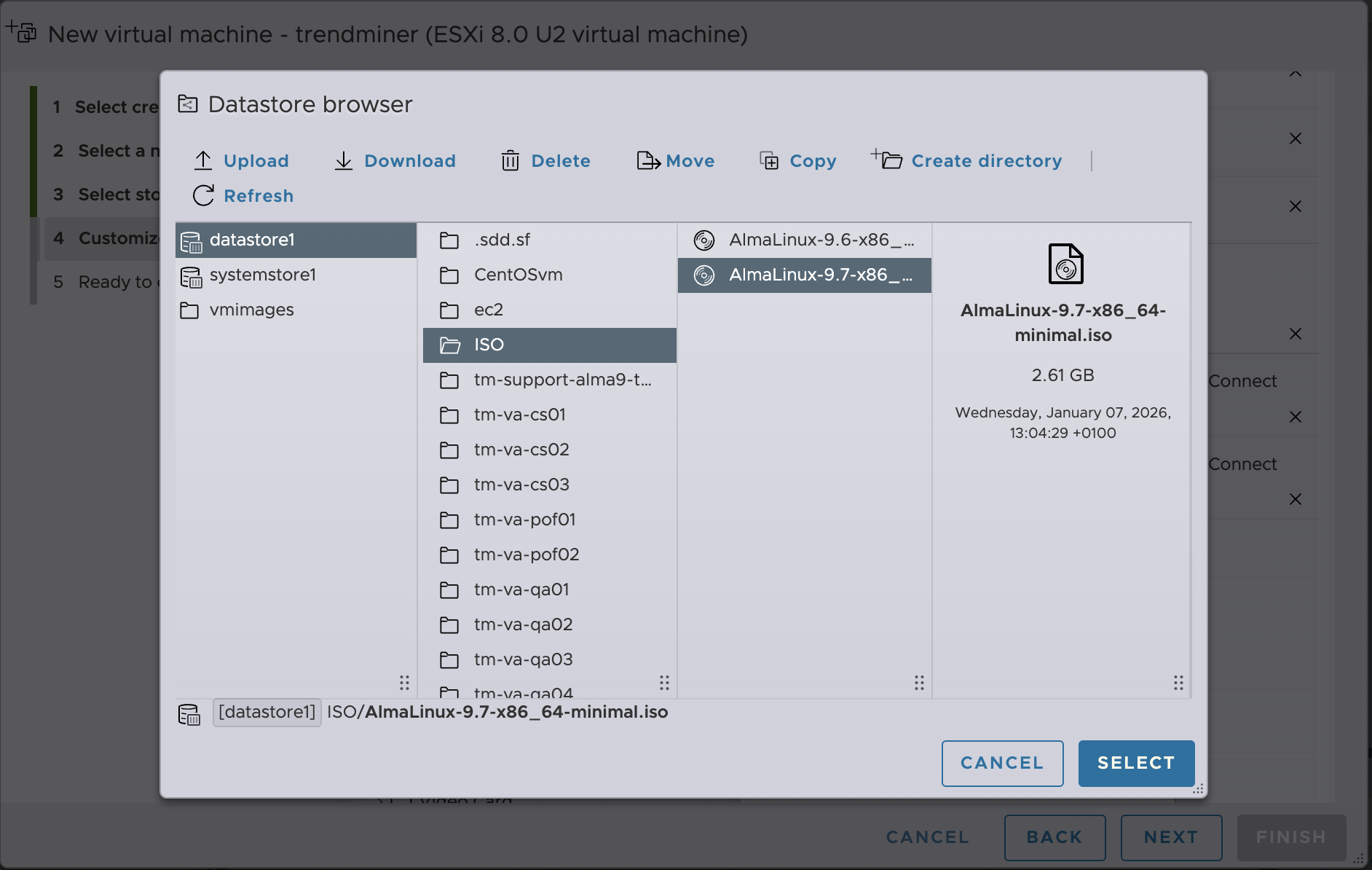
Scroll down to CD/DVD Drive and select Datastore ISO file. Select the AlmaLinux image (the .iso file) which you uploaded earlier to the datastore. Make sure "Connect" and "Connect at power on" are selected. Click next
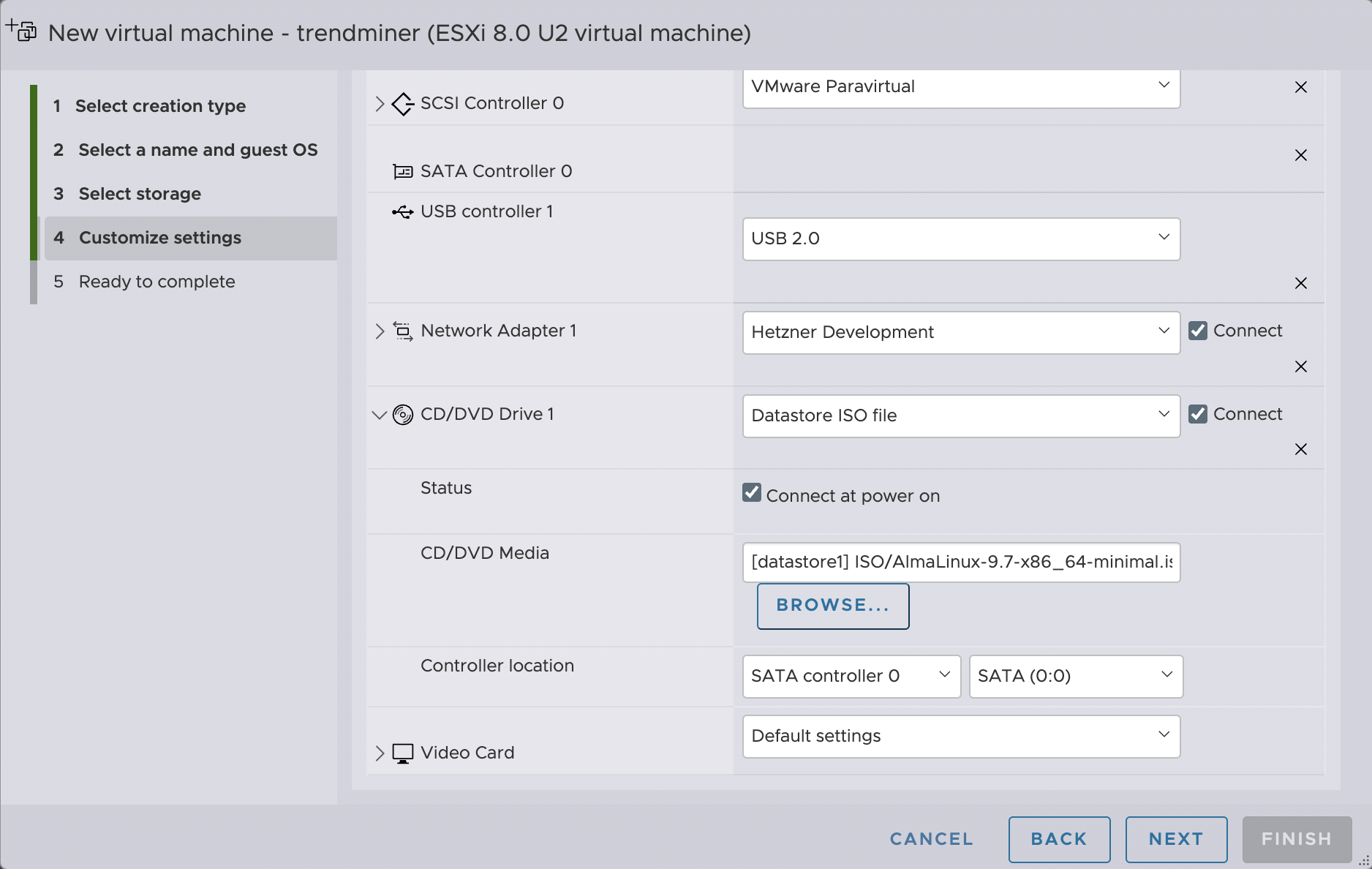
Verify and click "Finish".