Query Designer
As a ConfigHub administrator setting up a query-capable data source (Generic ODBC or Generic JDBC), the Query Designer is where you write, test, and validate the SQL queries the data source will use. Instead of only discovering a broken query when a sync fails, you can design each query, run it against the live source, preview the results, and fix problems before the data source ever goes active.
This article covers the parts of the Query Designer that work the same way regardless of provider. For the exact columns and template variables your specific provider expects, see the following articles: Generic JDBC and Generic ODBC.
Draft and active data sources
Setting up a query-capable data source is a three-step process:
Set up the connection: name the data source, choose the provider, and enter connection details and required properties per capability.
Design and test queries: open the Query Designer to write and validate each query.
Activate: once the required queries are configured, activate the data source so it starts syncing.
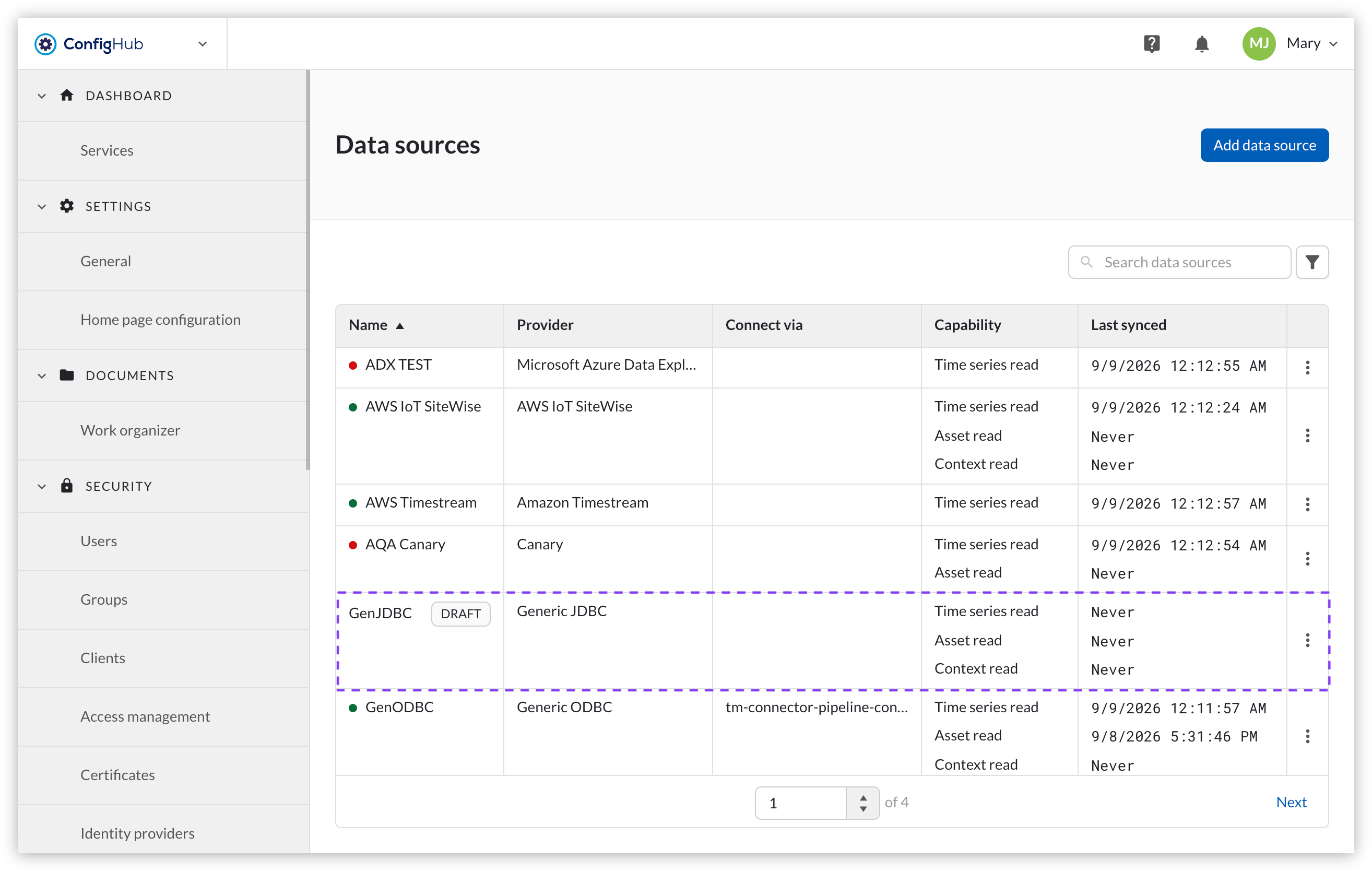
A data source stays in Draft state until it is activated. While in Draft, it does not sync any data, so queries can be written, run, and rewritten without any impact on the TrendMiner installation or the users. A label on the data source overview page indicates when a data source is still in Draft.
Note
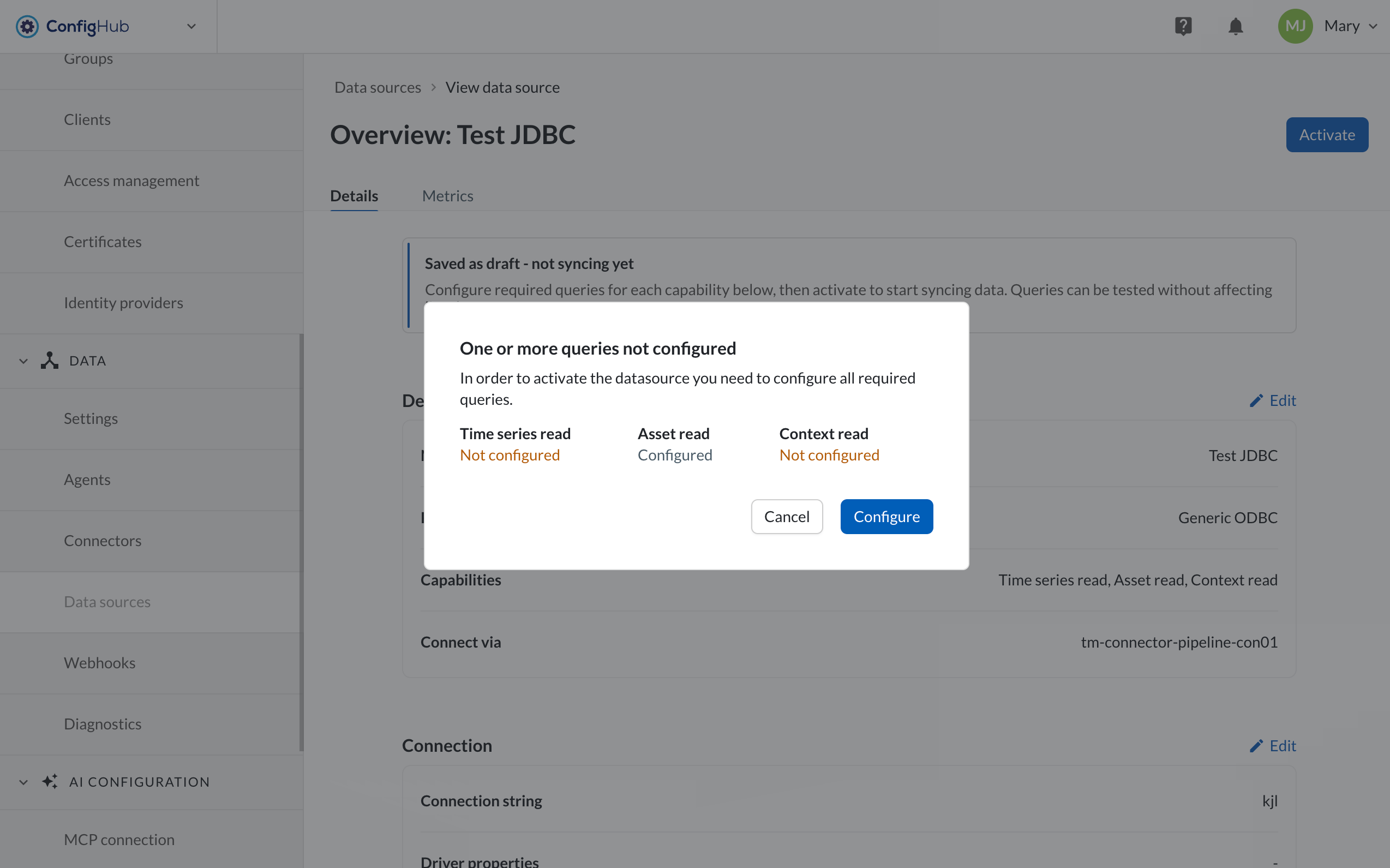
If you try to activate a data source before all required queries are configured, a dialog will be shown that lists which capabilities (for example Time series, Asset or Context) are configured and which are not, with a "Configure" button that opens the first unconfigured capability.
Opening the Query Designer
When creating a new data source, the Query Designer opens automatically once the connection and capability properties have been configured and saved - there is no separate step to find it.
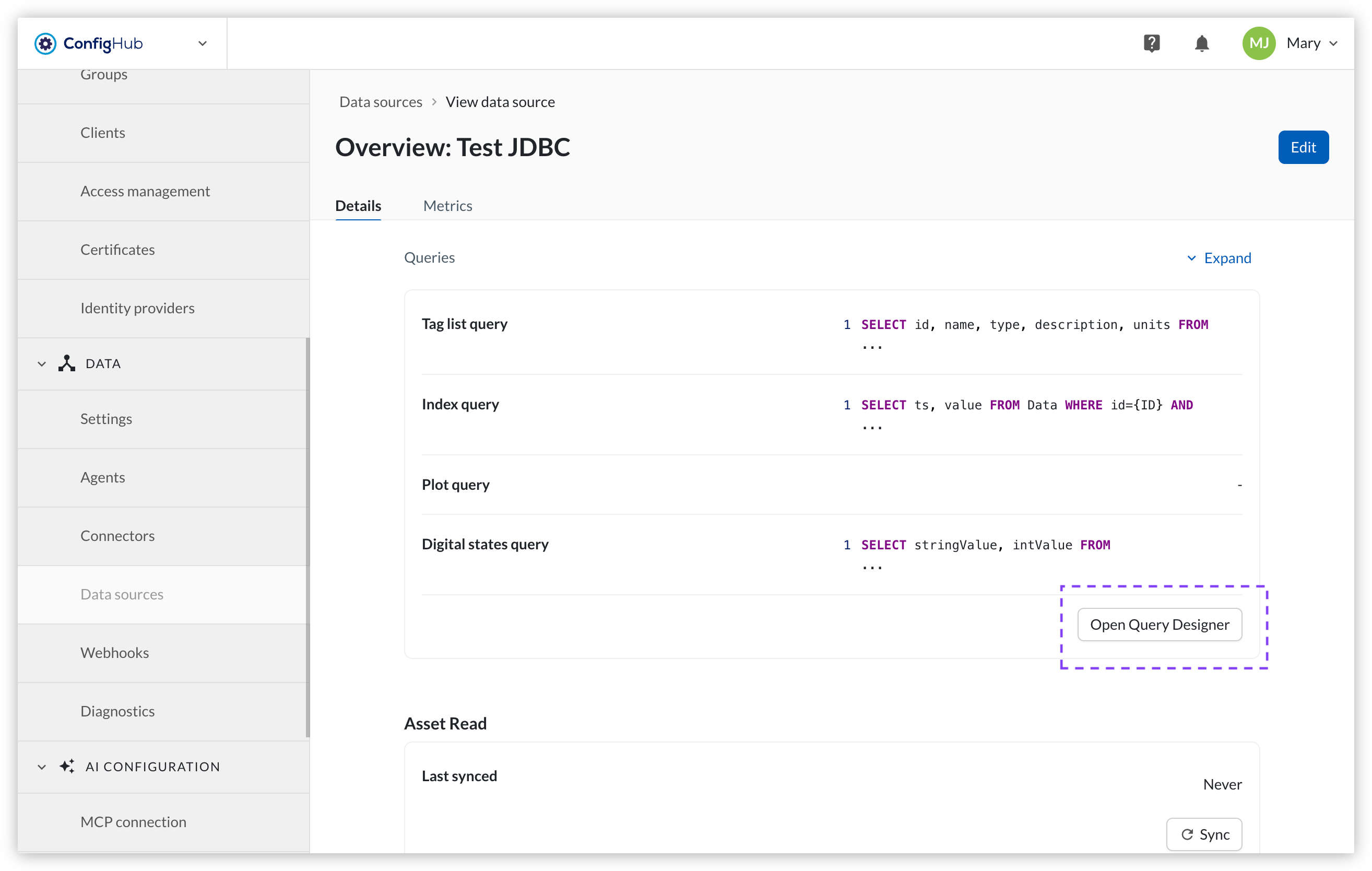
For an existing data source, open the Query Designer from the query section of the data source's detail page, per capability the data source supports (Time series, Asset, Context). The page title and breadcrumb reflect which capability is being configured, for example "Time series - Query Designer".
Navigating queries
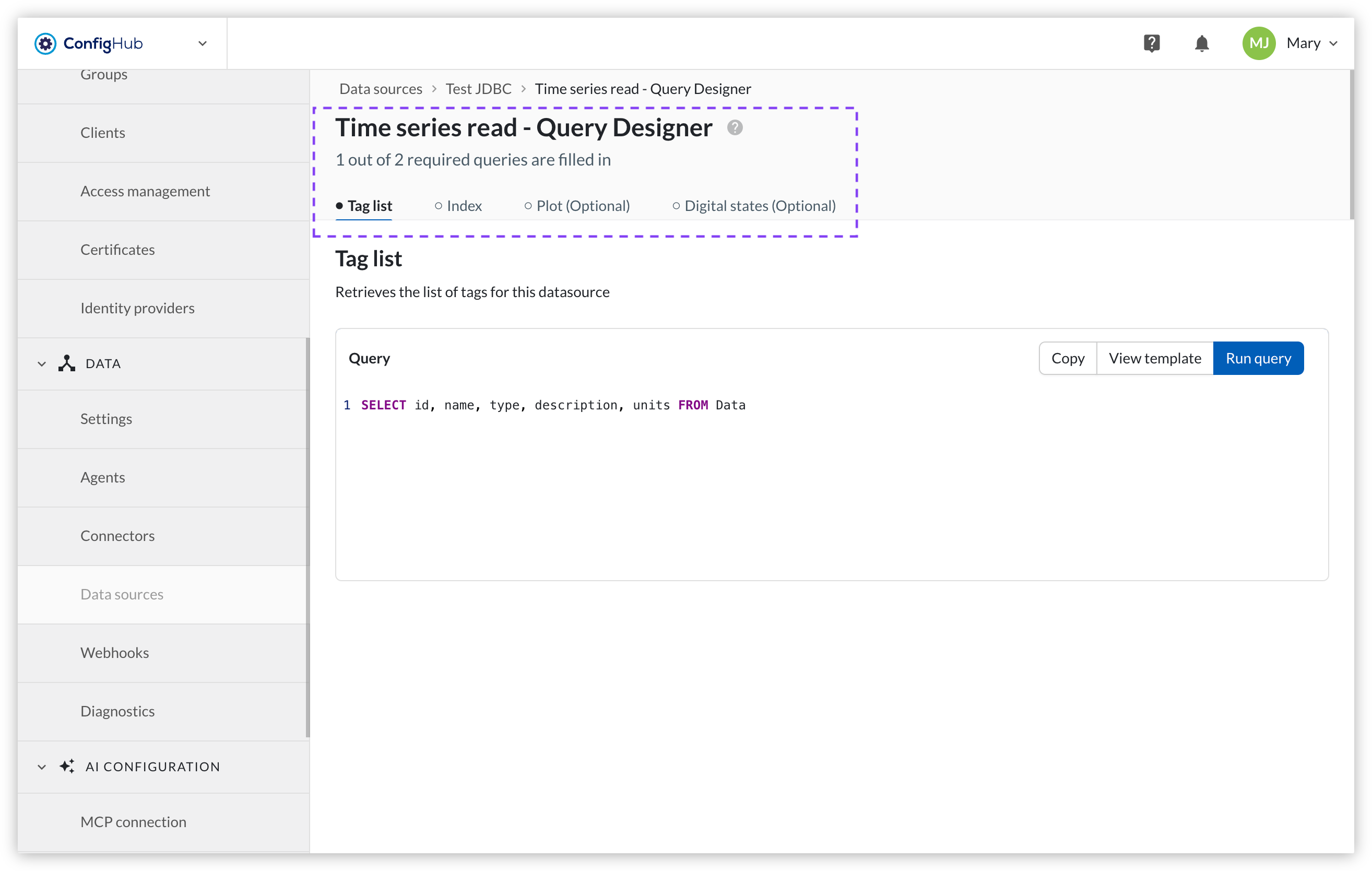
Each query for the selected capability is shown in its own tab. Tabs are ordered the same way the queries are expected. A progress summary above the tabs shows how many required queries have been completed, for example "2 out of 3 required queries filled in".
Each tab has a small dot next to its name: filled once that query has been filled in, empty if it still needs attention.
Optional queries are labeled "(Optional)" next to their name.
Hovering over a tab shows a short description of what that query is used for.
Writing a query
Each query has a syntax-highlighted SQL editor.
View template: opens a reference example for the query type in a syntax-highlighted popover. The template can be copied to the clipboard, but it does not overwrite what is already in the editor - paste it in manually if you want to use it.
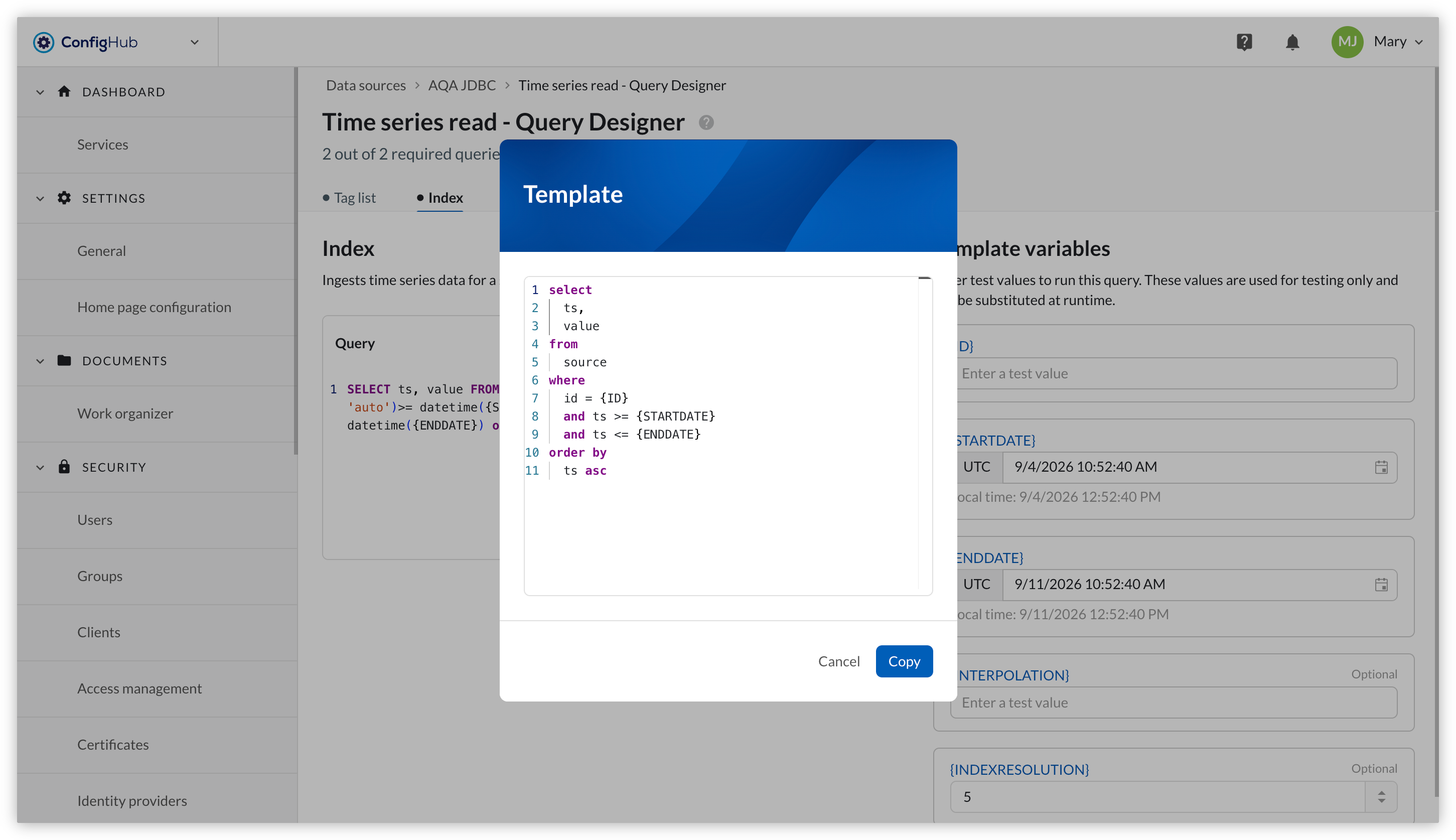
Copy (editor toolbar): copies the full contents of the editor, useful for sharing a query or pasting it elsewhere for troubleshooting.
Run query: validates and executes the query against the live data source - see 'Running a query' below.
Note
Which columns a query needs to return, and which of those are required versus optional, depends on the query type and the provider being connected - see the Generic JDBC or Generic ODBC provider page for that detail.
Template variables
Most queries support variables that are substituted with real values when the query runs, for example a date range or a specific record ID. The panel on the right lists every variable available for the query that is open.
Each variable card shows its name and a test value used only for trying the query out in the Query Designer - the real value is substituted at runtime.
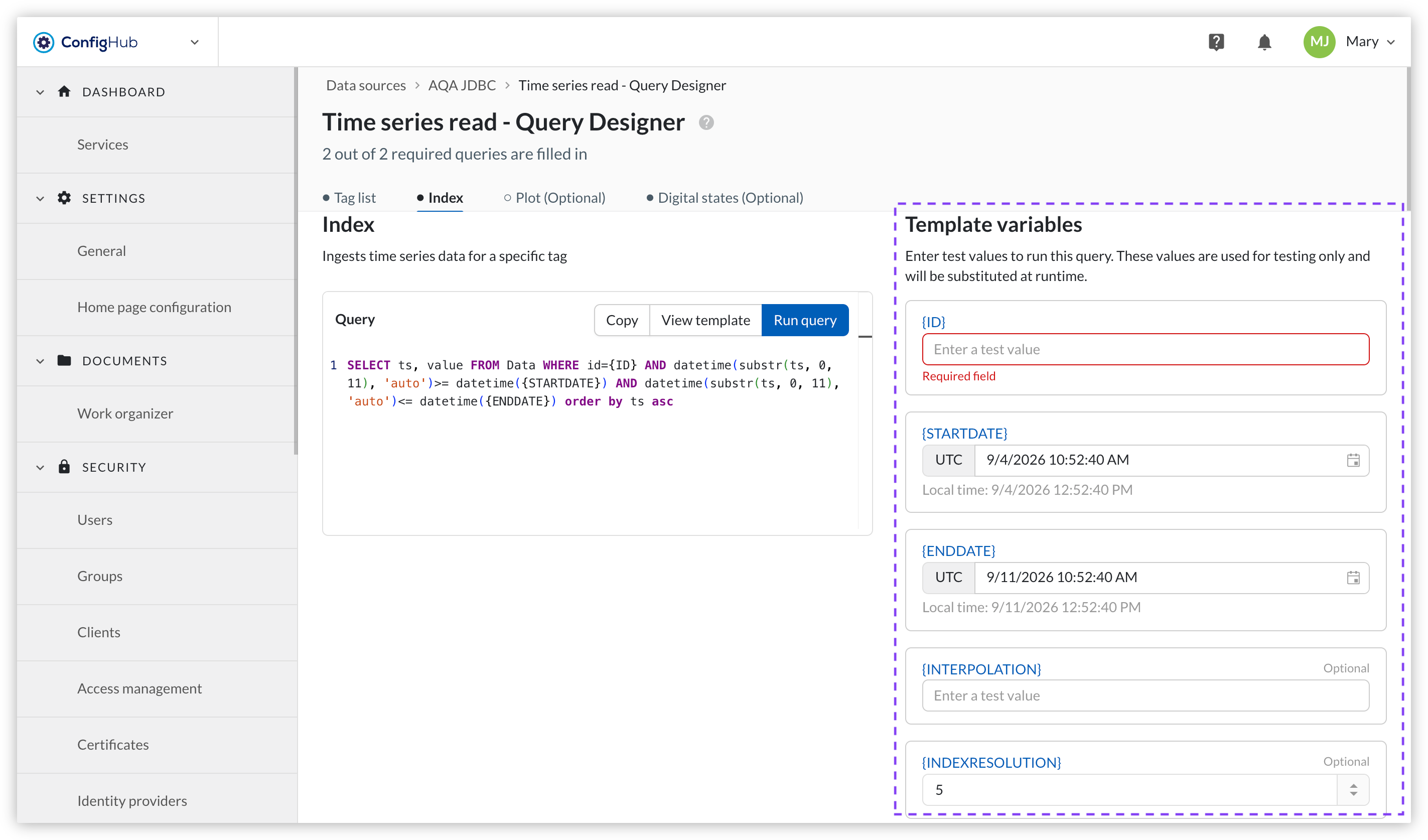
Clicking a variable card inserts it at the cursor position in the editor. If no cursor position is set, the variable is added to the end of the query instead.
Date-range variables come with defaults (the current time, and seven days before it) that can be overridden.
Other variables start out empty with a "Fill this in" placeholder. Running the query without filling one in shows a validation message.
Note
Test values only last for the current session. They reset to their defaults the next time the query designer is opened.
Tip
Which variables exist for a given query, and what they represent, is provider- and query-specific. See the Generic JDBC or Generic ODBC provider page for the full list.
Running a query
Fill in test values for any variables the query uses.
Click Run query in the editor toolbar. This validates the query and executes it against the live data source using the test values.
Review the result:
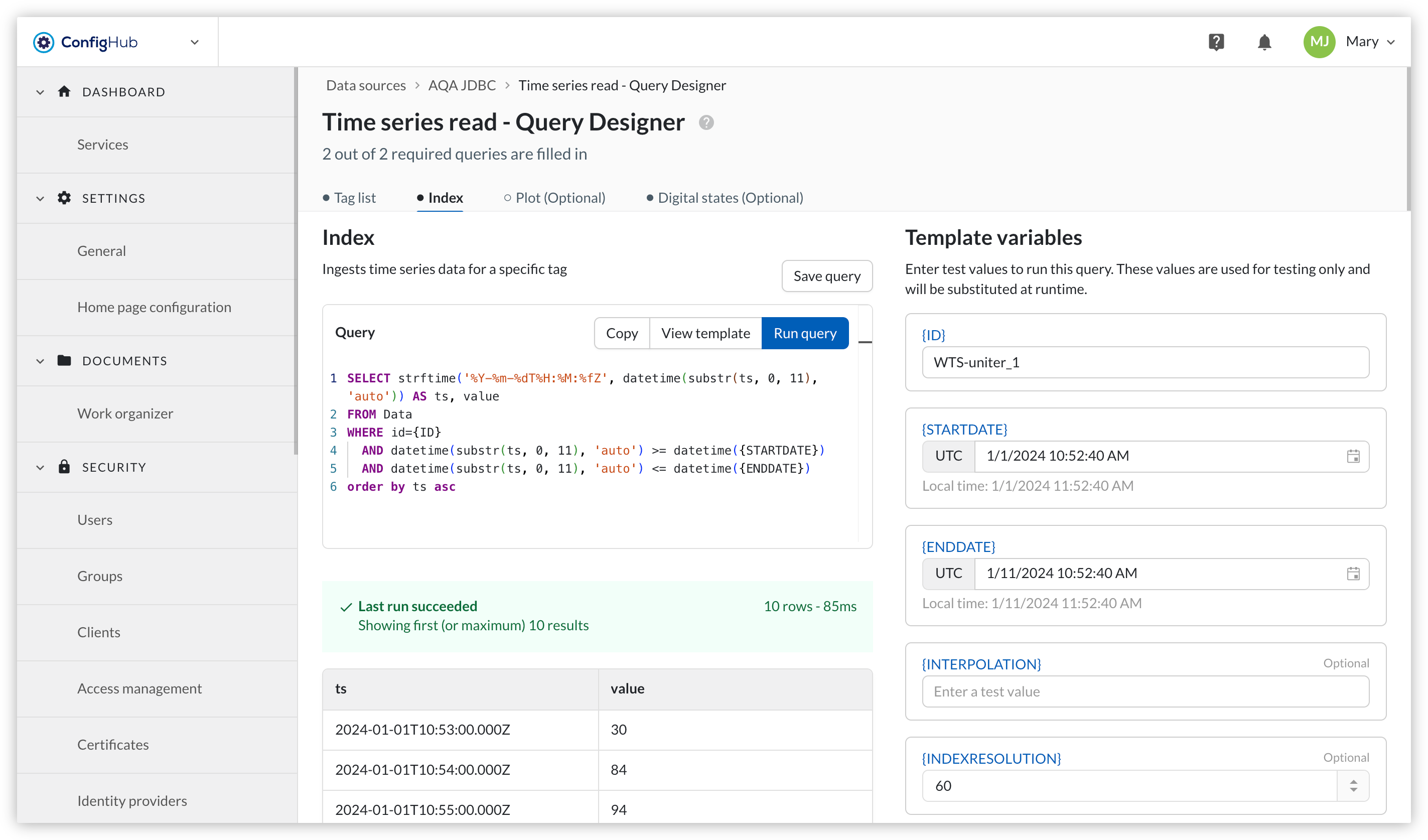
On success, a green bar reports the row count and execution time (for example "5 rows - 234 ms"), and the results appear in a table below. A query that legitimately returns no rows still shows the success bar, with "0 rows".
Note
Results are capped at 10 rows. If a query would return more, "Showing first (or maximum) 10 results" appears underneath the success message.
Important: The reported duration reflects only the time to return the capped result set, not the query's actual performance.
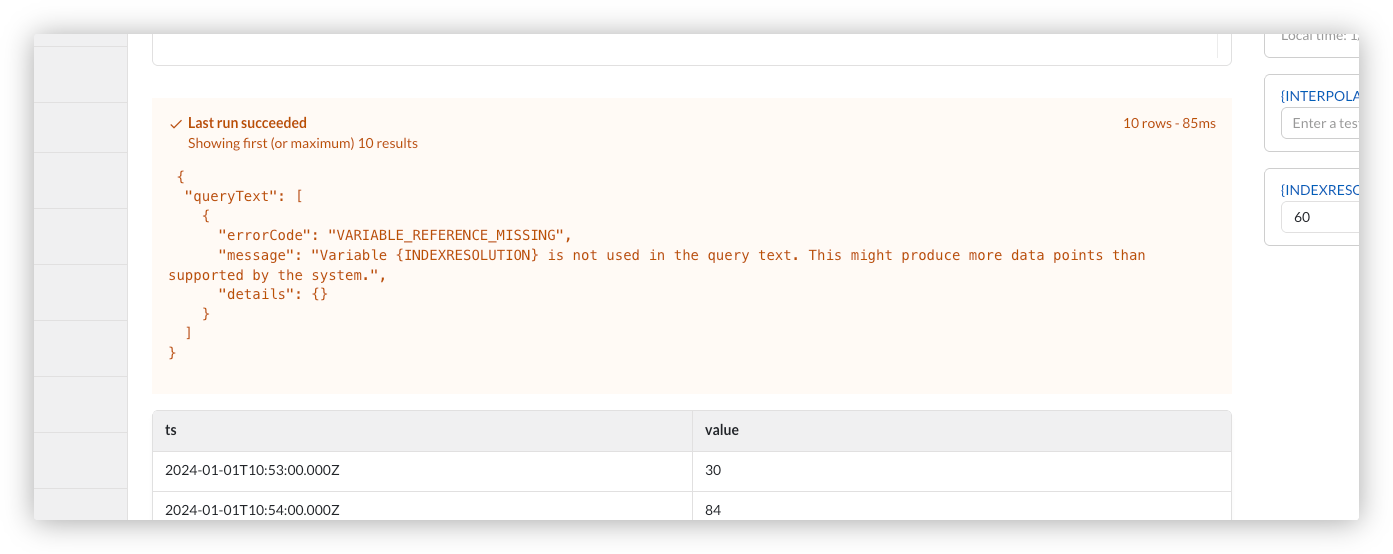
On warning, the results are still returned since the query is correct, but something about it might not be optimal - an orange block appears below the results as a hint how to improve the query, for example when an optional variable is set up in the panel but not actually referenced anywhere in the query text.
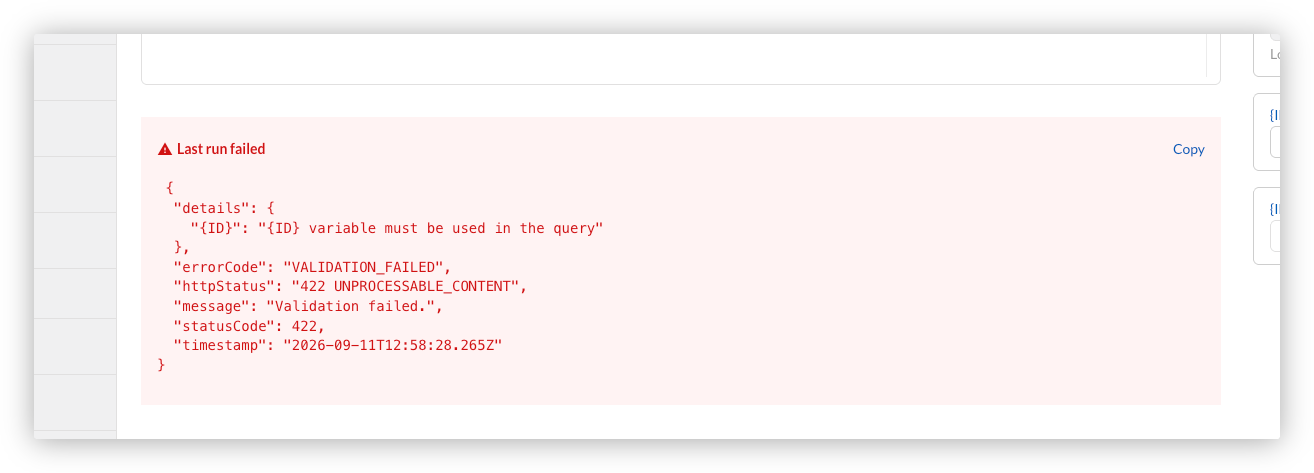
On failure, a red bar replaces the success bar. The error block below shows the full error detail (message, error code, HTTP status). A Copy button on the error block copies the error text.
Warning
We limit Preview queries execution to 20 seconds for all jdbc drivers. Due to the SQLite specific jdbc driver's logic - setting query timeout might not work as expected and long-running or inefficient query can continue well beyond 20 seconds.
Saving changes
A query can be saved independently of whether its last run succeeded, so progress on a query that is not yet passing can still be saved. Navigating away from the Query Designer, or switching tabs, while there are unsaved changes prompts a confirmation to save, discard, or go back.
Caution
Passing validation and a successful test run in the Query Designer is a strong signal a query is correct, but it does not guarantee sync will never surface an error - some checks only run once syncing actually starts.