How to enable basic authentication for the connector?
Access to the TrendMiner connector can be restricted by configuring basic authentication. This will require to authenticate with a username and password to execute API calls on the connector. This article describes the minimal configuration steps for enabling basic authentication on the connector.
Tip
It is advised to secure the connection between the TrendMiner appliance and the TrendMiner connector via SSL (HTTPS) to prevent that the username and password are sent over the network in plain text. The following article describes how to secure this connection: How to enable HTTPS/SSL connection to the Connector?
On this page:
Basic auth on the AppHost version
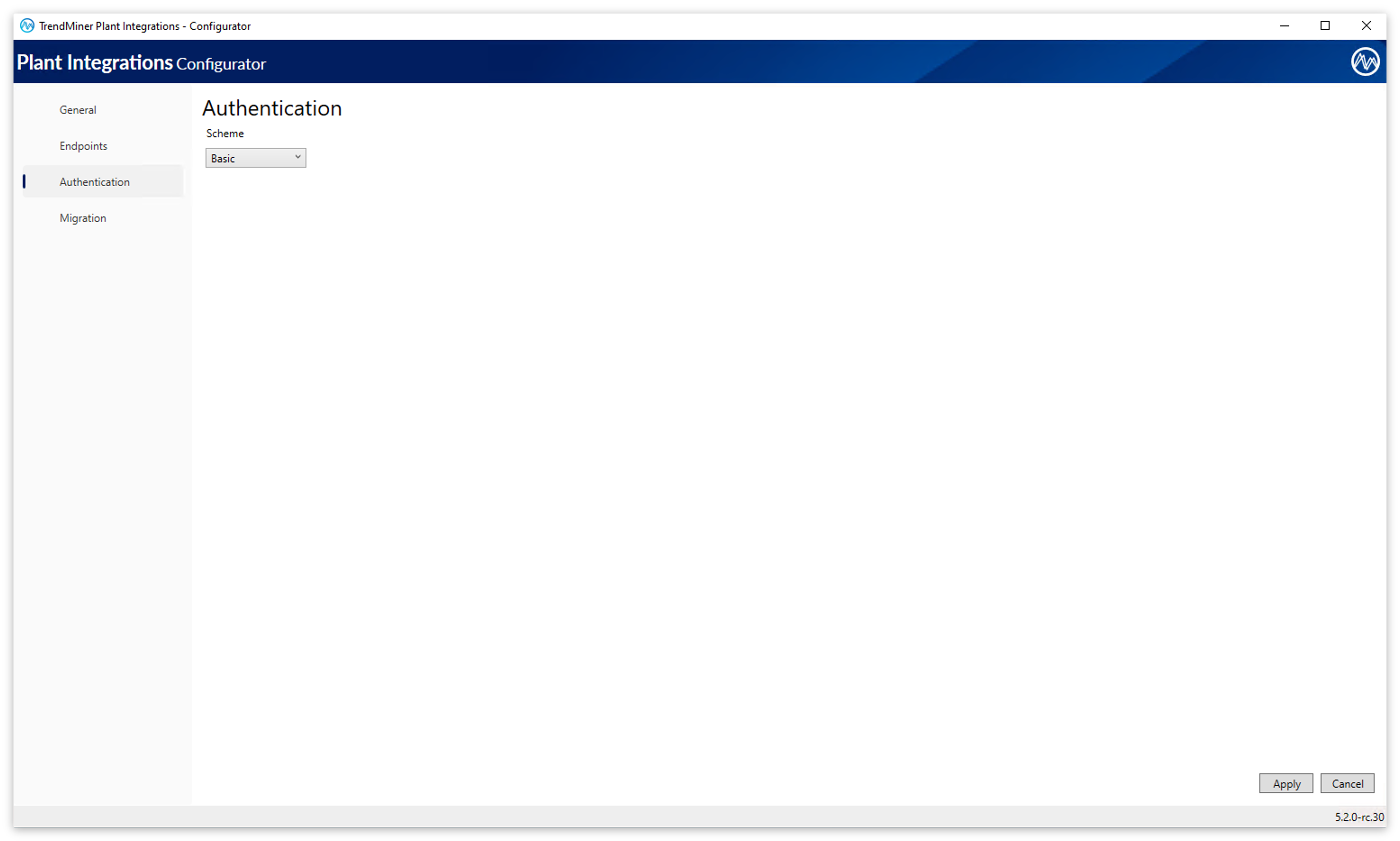
Open the Configurator.
Go to the Authentication screen.
From the Scheme dropdown, select Basic.
Click Apply to save the configuration.
Once enabled, all API requests to Plant Integrations must include valid Windows user credentials. Update the connector configuration in TrendMiner ConfigHub to include the username and password so that the TrendMiner server can continue to communicate with Plant Integrations.
Basic auth on the WebHost version (IIS)
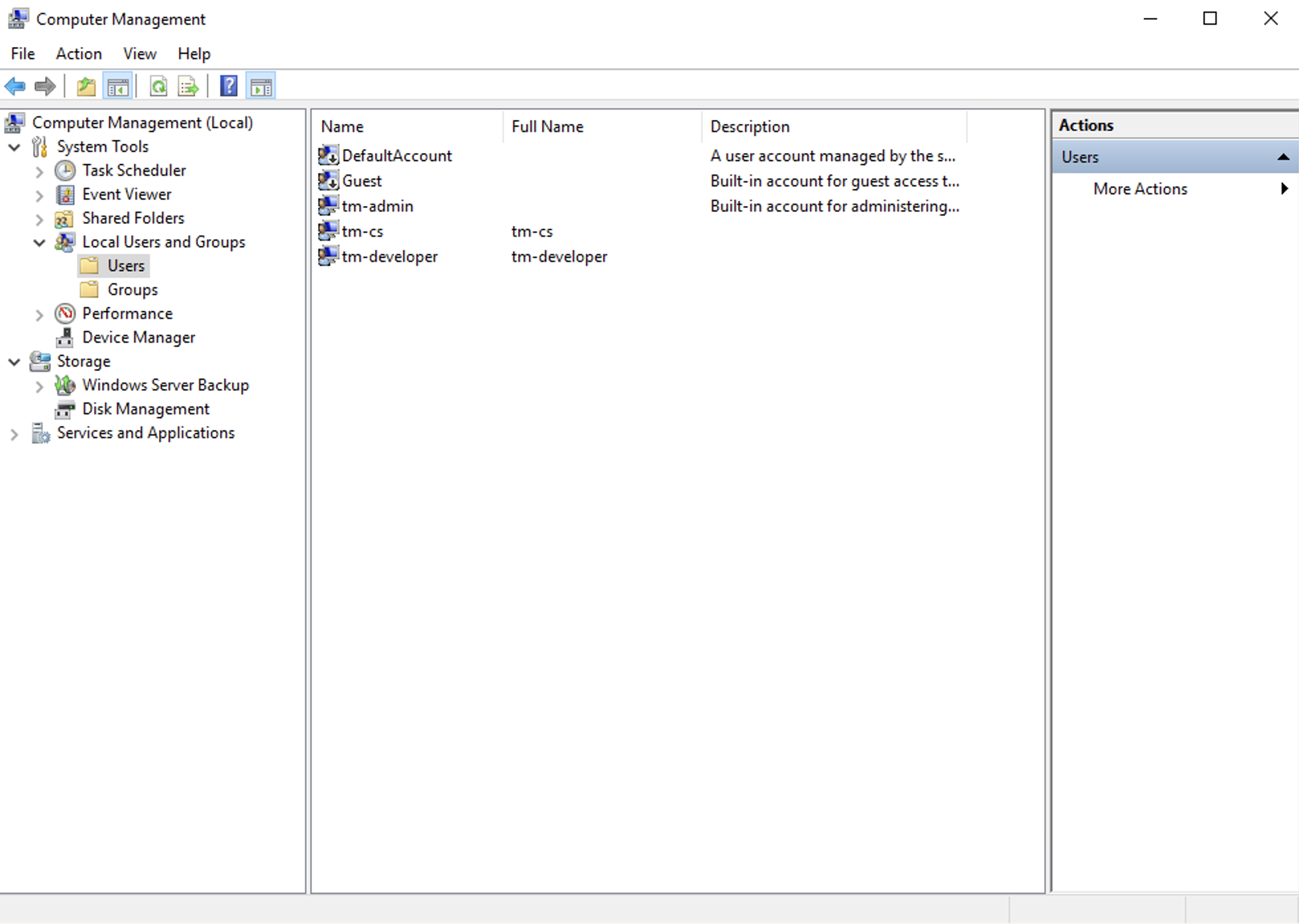
On the Windows server, open 'Computer Management' -> 'Users' to add, remove and edit users and set passwords.
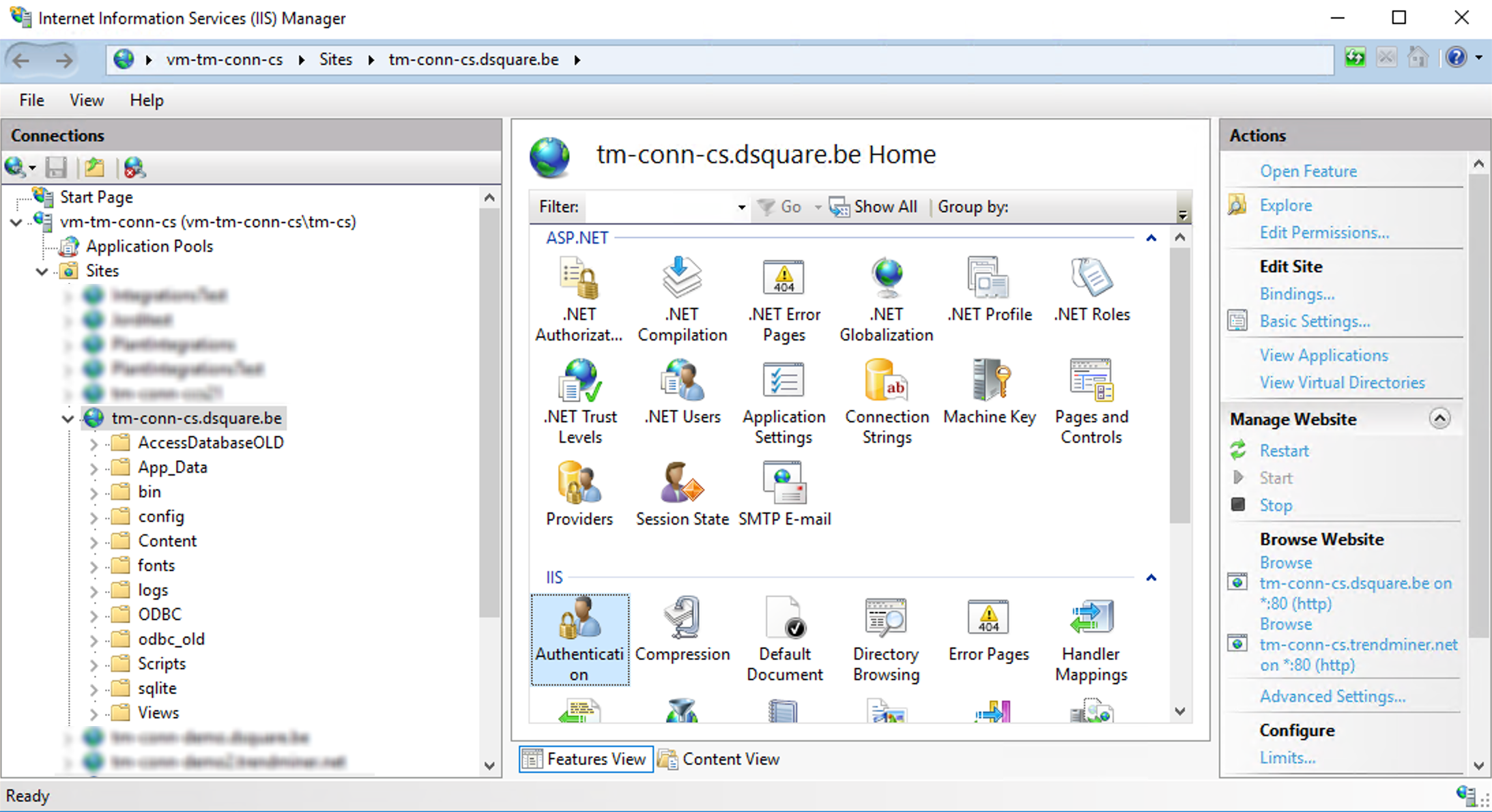
In IIS, click on the connector (website) for which you want to enable basic authentication and open the 'authentication' menu.
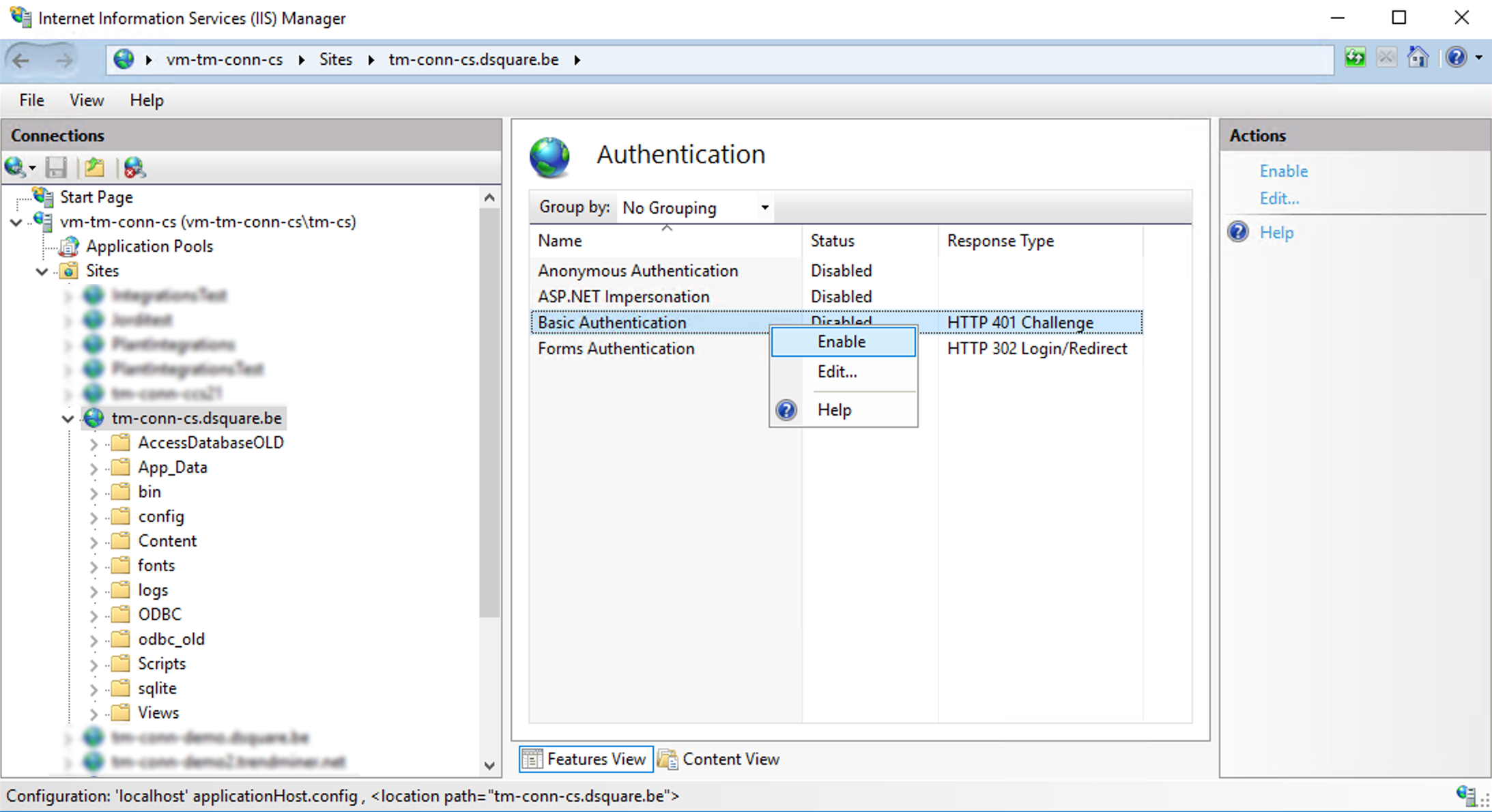
Disable 'Anonymous Authentication' and enable 'Basic Authentication'.
In TrendMiner's ConfigHub -> Connectors, edit the connector details and configure a username and password.
