How to set up an Aveva PI AF data source?
Tip
To connect both time series and AF or EF data from an Aveva PI data source, 2 separate data sources need to be configured, one for the time series data and one for the AF and/or EF data.
Install the PI AF SDK 2017 or newer on the connector server.
Install a connector. If your connector is already connected this step can be skipped.
In ConfigHub select the tab "Connectors".
Click "+ Add connector" and fill in the details for the connector.
In ConfigHub select the tab "Data sources".
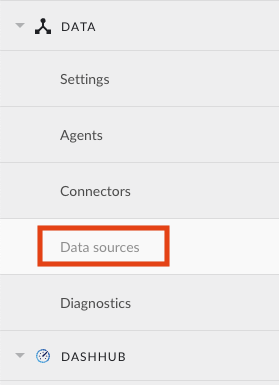
Click "+ Add data source". Data source creation modal will appear.

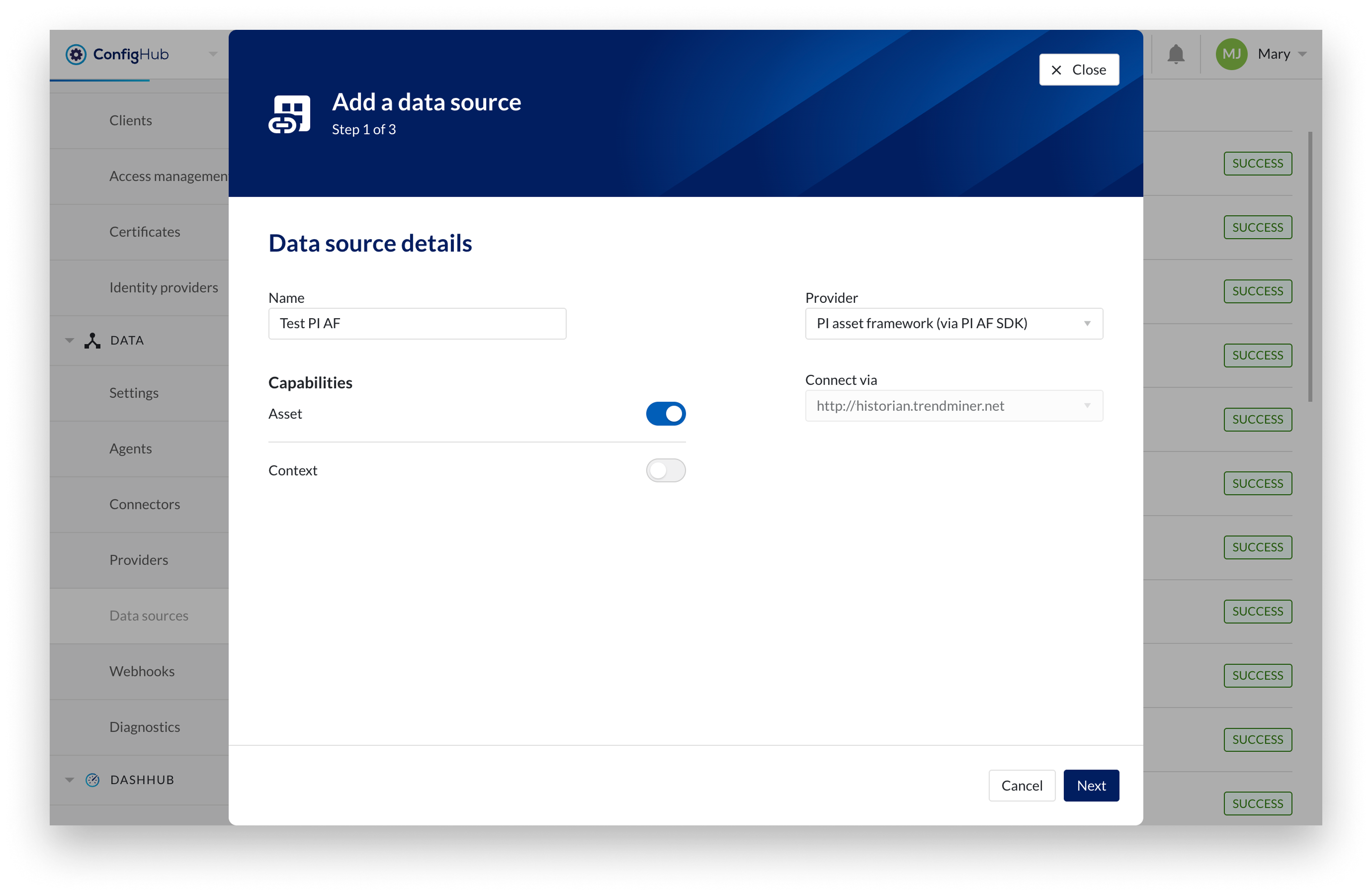
Fill out 'Data source details' step:
Name the data source.
Select the provider 'PI asset framework (via PI AF SDK)'.
Select the connector you want to use for connecting this data source via the 'Connect via' dropdown.
Make sure to select the "Asset" capability checkbox.
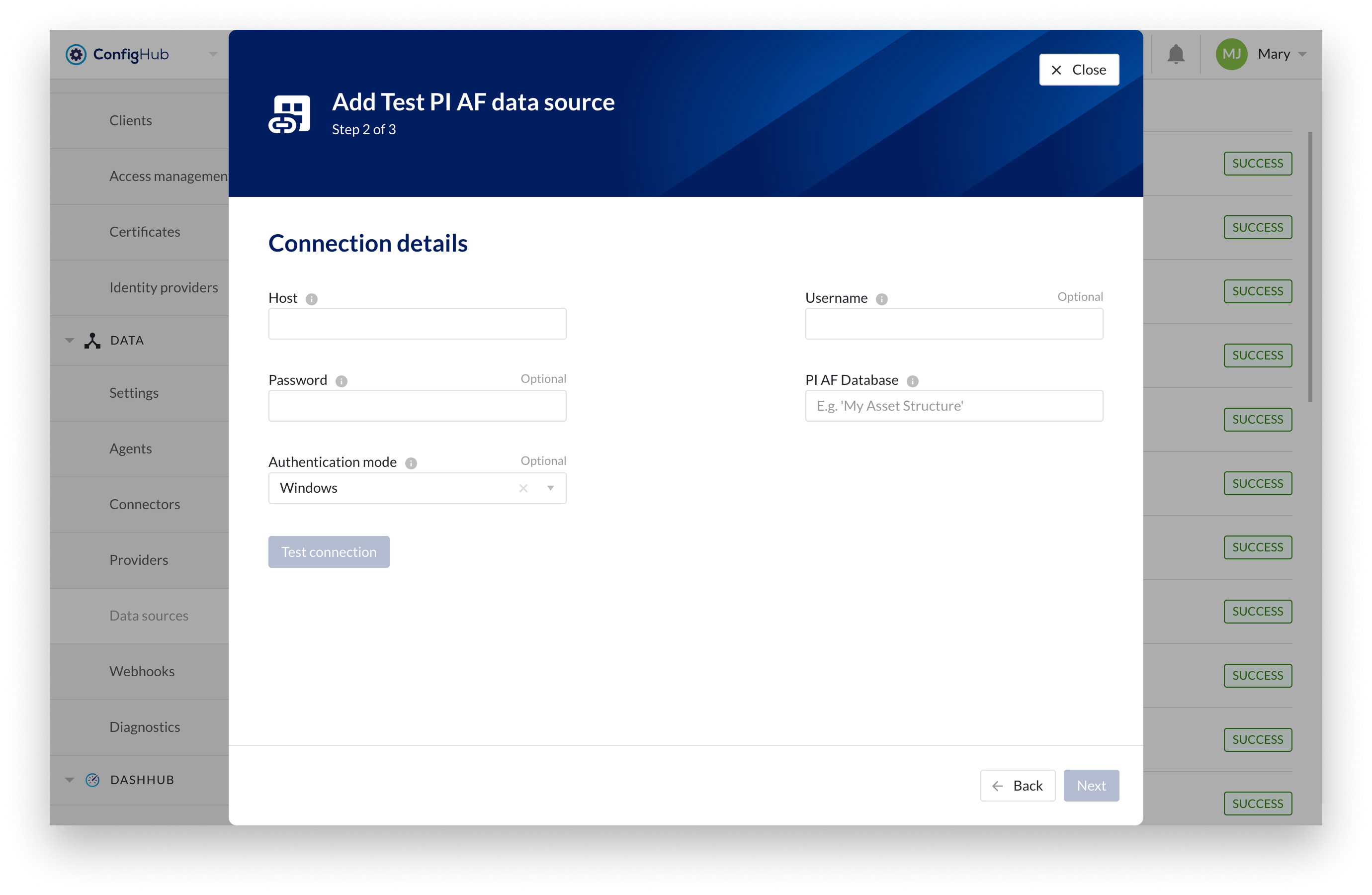
Fill out 'Connection details' step.
Note
When configuring a connection to an AVEVA PI historian in TrendMiner, you have following authentication options:
Active directory user account with read permissions - an Active Directory (AD) account can be used for authentication if the PI server is integrated with Windows security. Then in ConfigHub select authentication mode “
Windows” and fill in the username and password. Username must be entered in the following format:domain/usernameOpenID Connect (supported in PI2024 only) - OpenID Connect can be used for authentication through an identity provider (IdP) for Single Sign-On (SSO). In ConfigHub, select the authentication mode
“OpenID Connect”and enter the username and password fields with the values corresponding to the Client ID and Client Secret defined in the PI System.
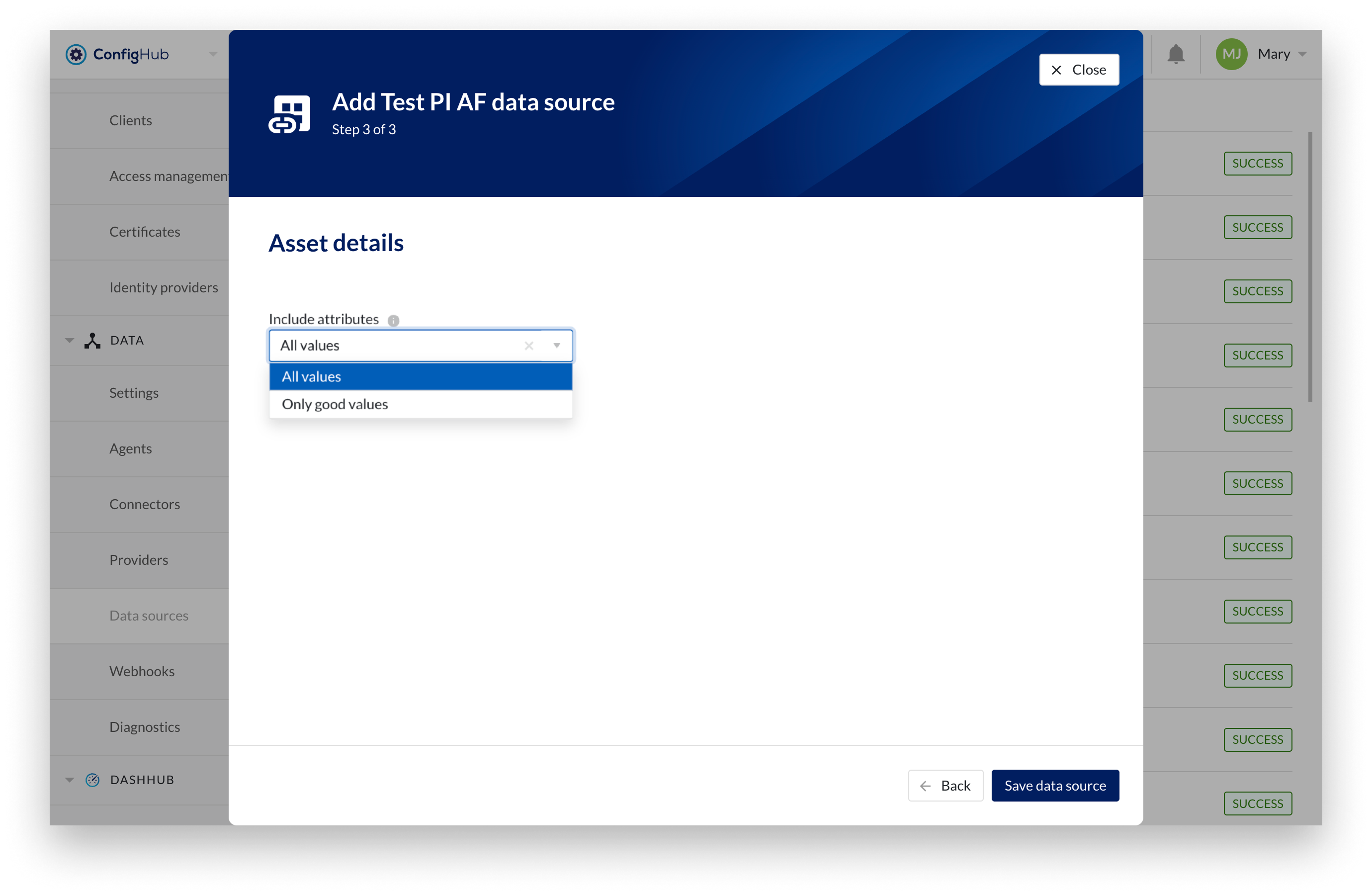
Fill out 'Asset details' step and click 'Save data source' button.
Note
Define whether PI attributes with non-good values should be included when syncing data into TM. Default values is All values.
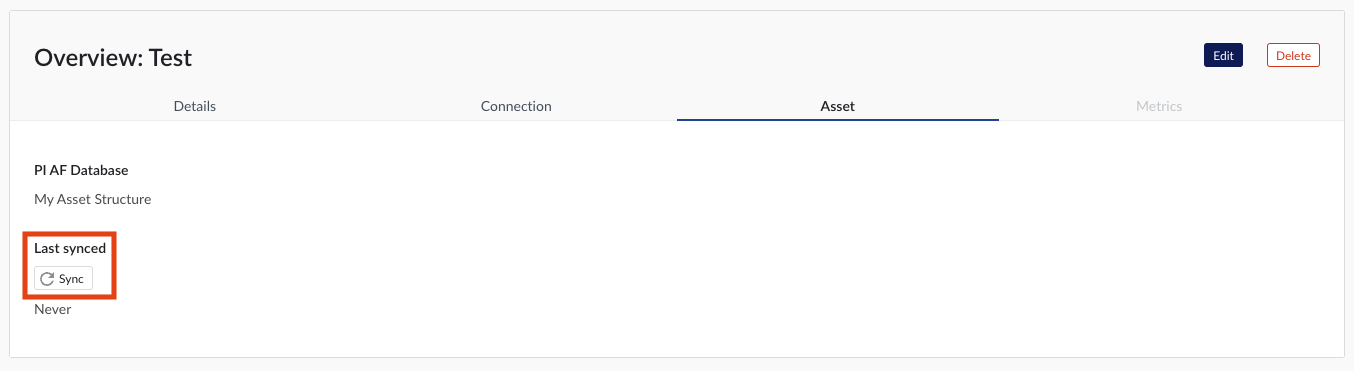
Newly created data sources can be reviewed in the overview section below the data sources grid. To sync the asset tree, click on 'Sync' button on Asset tab.