How to connect to Honeywell PHD?
Install PHD client tools on the Plant Integrations server.
Copy the PHDAPINET.dll that is part of the Client tools installation.
On the AppHost version of the connector: copy to (default location)
C:\Program Files\TrendMiner\Plant Integrations\Connectorand restart the connector services.On the WebHost (IIS) version of the connector: copy to the Plant Integrations bin folder. The default location would be:
C:\inetpub\PlantIntegrations\bin
TrendMiner connector (Plant Integrations server) by default uses port 3100 and 3150 to connect to the PHD server. Make sure these ports are not blocked by a firewall and the connector can connect to these ports.
Follow the instructions on How to connect to time series data sources?
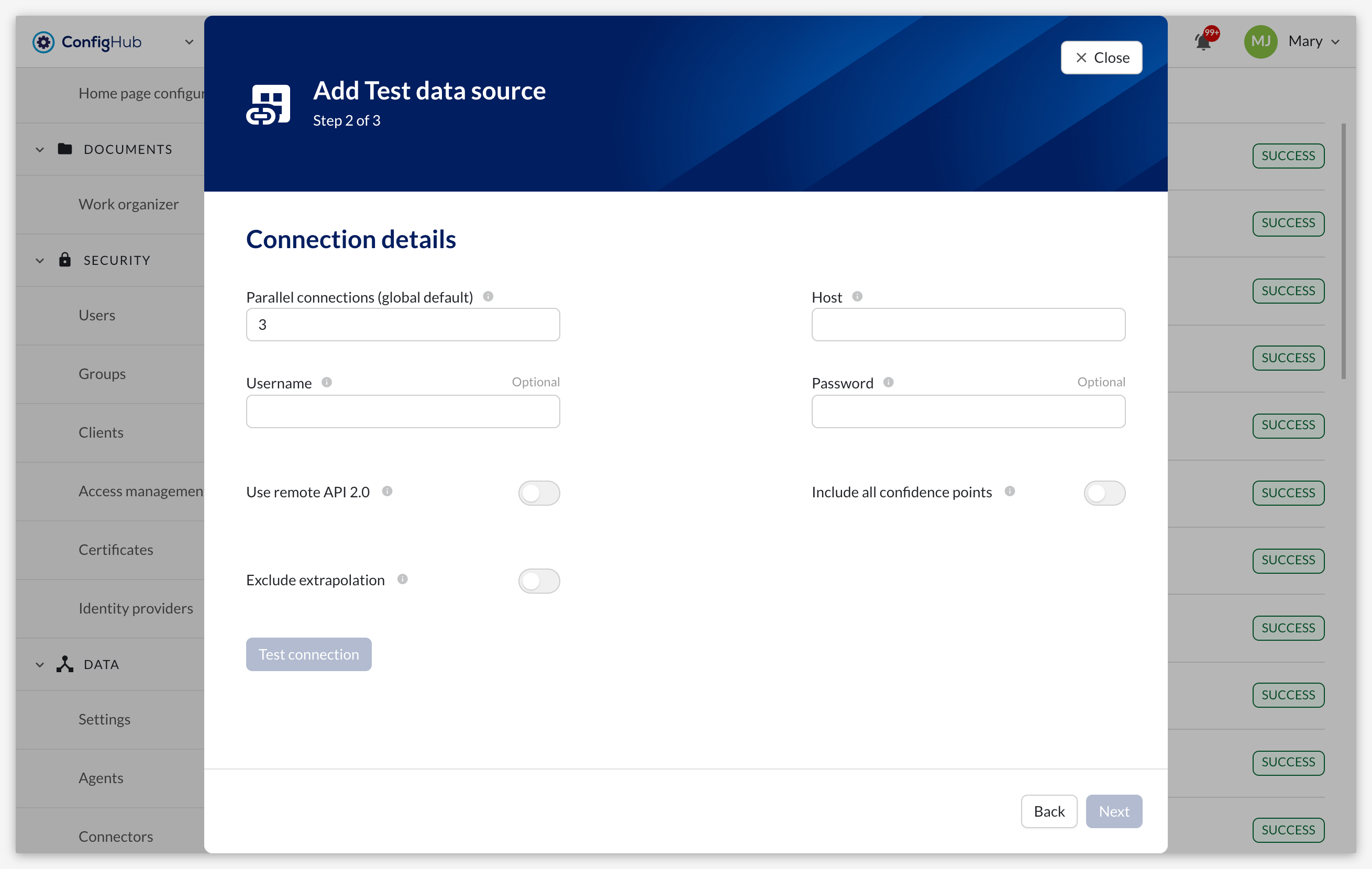
Configure the PHD-specific connection properties as described below.
PHD-specific connection properties
When configuring the connection details, the following PHD-specific properties are available:
Use remote API 2.0: Controls which API version is used when establishing a connection to the PHD historian. When set to false (default), the connector uses default PHD API. When set to true, the connector uses the Remote API 2.0 (RAPI200).
Enable this option if your environment requires communication over the Remote API 2.0 interface for the connector to successfully establish a connection.
Include all confidence points: Defines whether the provider should include data points with a confidence level below 100. The default value is false.
Enable this option if you want TrendMiner to retrieve and display data points that the PHD server has flagged with a confidence level lower than 100, for example uncertain or estimated values.
Exclude extrapolation: When enabled, the system will filter out any data points from the main result set that are newer than the most recent actual value, to avoid extrapolated results. The default value is false.
Enable this option to ensure that only actual, non-extrapolated values are returned. This is recommended for tags that update less frequently or irregularly. More details in PHD extrapolation article.
Maximum concurrency: Sets the maximum number of concurrent calls the connector allows to the PHD historian for this data source. Accepts a numeric value from 1 to 32; if left unset or empty, it defaults to 10. Values outside this range, or non-numeric values, are rejected with a configuration error. Changes to this property take effect immediately, without a connector restart. The current in-flight call count and the configured limit are visible in the connector diagnostics endpoint (see Using the connector API).