Migrating Plant Integrations from WebHost (IIS) to AppHost (self-hosted)
This guide walks you through migrating your existing IIS-hosted (WebHost) Plant Integrations installation to the self-hosted (AppHost) model.
FAQs on the migration
Q: Why migrate?
A: The AppHost model removes the dependency on IIS, simplifies upgrades, and now supports the same security features previously only available in WebHost — including HTTPS/TLS, Basic Authentication, and configurable endpoints.
Q: Can I run both side by side?
A: Yes. You can install the AppHost version alongside your existing WebHost installation. Both can run on the same machine at the same time (on different ports), allowing you to test and validate before decommissioning the WebHost version.
Q: What about my data?
A: The migration process preserves your data. The AppHost installer will copy the necessary configuration and data during setup.
Important notes
Before switching from WebHost to AppHost, please take into account the following considerations:
WebHost to AppHost migrations are only supported on connector versions v5.0.0 and higher. If you are still running a WebHost connector v4, please make sure to first upgrade it to the v5 WebHost.
Deprecated data source providers like "(Legacy) ODBC", "SQLite" and "OleDB" are NOT supported on the AppHost and therefore will also not be migrated.
Their productized counterparts like "Generic ODBC" are supported on AppHost. More info on supported providers can be found in our connectivity overview.
In case you are using a deprecated provider manually migrate to a supported provider or contact TrendMiner support to support you with the migration.
Running multiple AppHost connectors on 1 server is currently not supported out of the box. Contact TrendMiner support in case you want to run multiple AppHost connector installations on 1 server.
Migration
In this section, we use the term origin application as the web hosted installation (WebHost), and we use the term target application as the self-hosted installation (AppHost).
The migration steps described below are performed using the Configurator's Migration module.
When you clicks on the Migration menu option, the Configurator scans the current system for existing WebHost installations and presents them as available origin applications. Once you select an origin and start the migration, the Configurator will automatically:
Copy application data from the origin to the target application.
Copy vendor assemblies from the origin to the target application.
Start the AppHost services.
Stop the origin WebHost application.
Important
If multiple WebHost (origin) applications are detected during migration, note that only one origin can be migrated automatically to the AppHost target at a time. Migrating a second origin application will overwrite any previously migrated configuration, which may result in data loss.
Ensure you select the correct origin application before proceeding. This limitation will be addressed in the future releases.
Migration Steps
Caution
If you plan to migrate to AppHost and port 8001 is currently in use by an IIS website, you must stop that website before proceeding with the installation. The AppHost installer defaults to port 8001 and will fail if the port is still occupied.
Steps before proceeding:
Open IIS Manager
Stop the website bound to port 8001
Then launch the AppHost Configurator and proceed with migration.
To migrate an origin application:
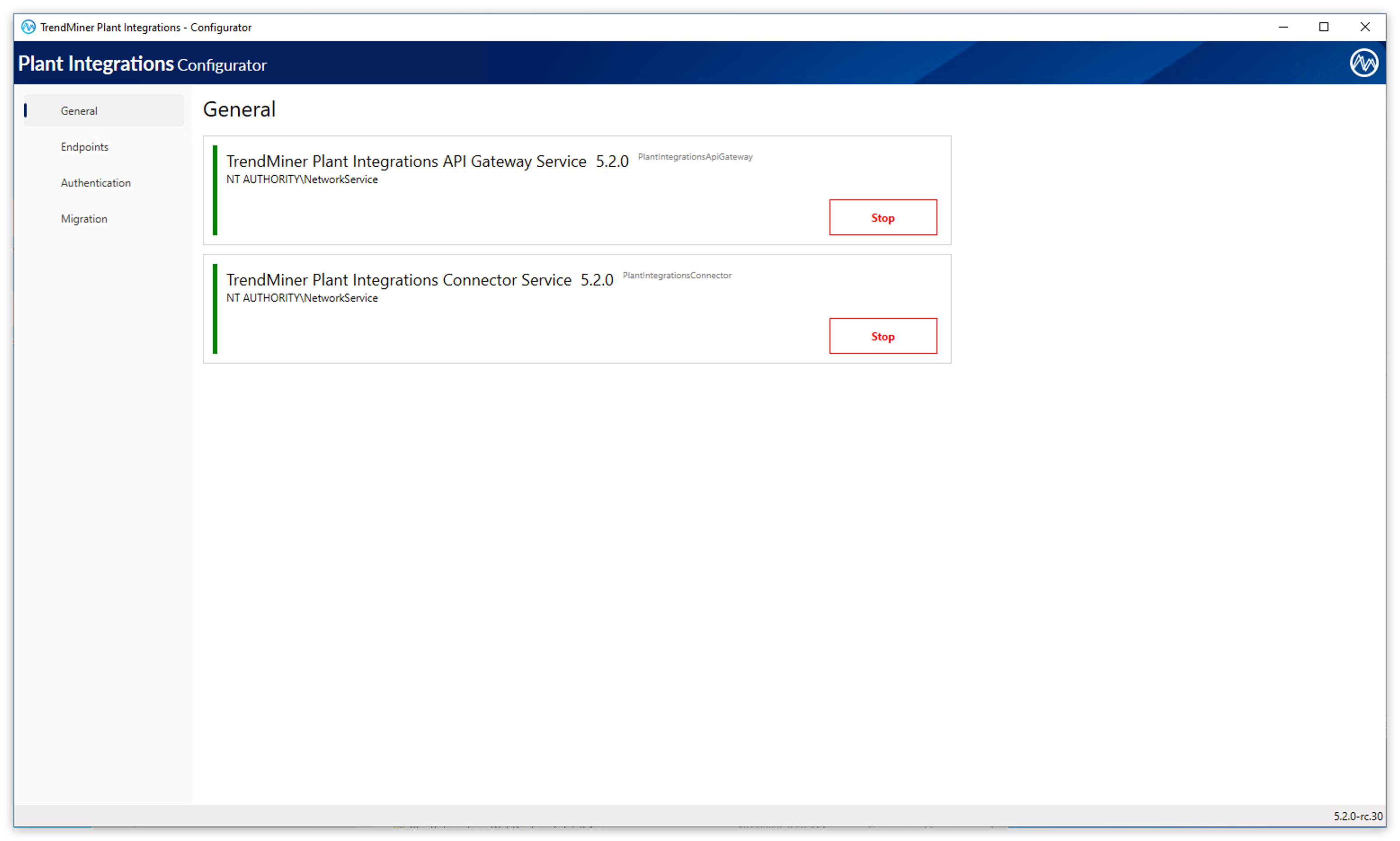
Launch Configurator application
By default, Plant Integrations listens on
http://+:8001/. You can change the port and url on the Endpoints configuration screen before running the migration:Go to the Endpoints configuration screen.
Set the desired URL and Port for the HTTP endpoint.
Click Update to confirm the new endpoint entry.
Click Apply to save the configuration.
The Configurator will automatically update the URL reservation and the Windows Firewall rule to match the new settings.
Click Migration in the navigation panel on the left.
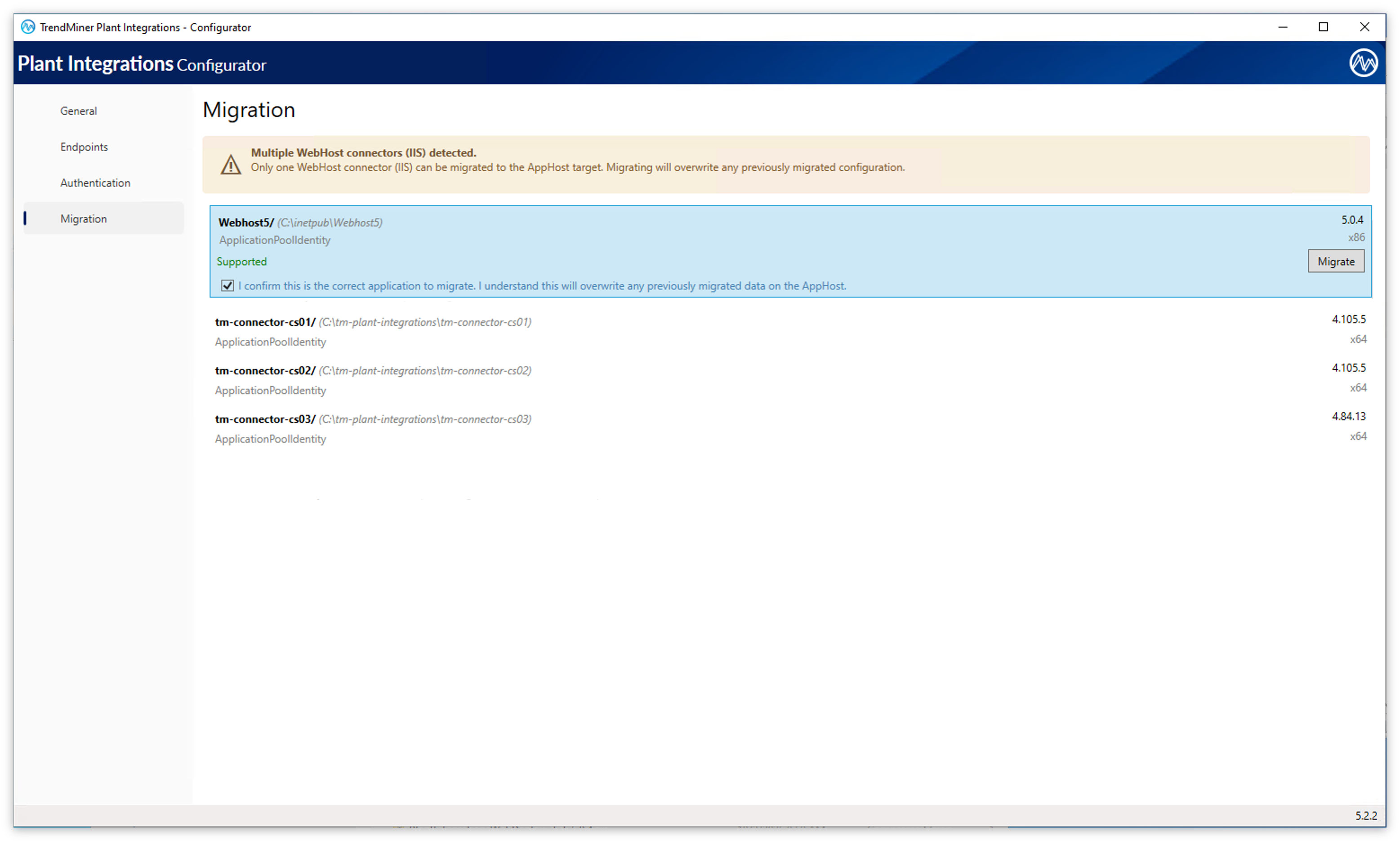
4. Select the installation and click the 'Migrate' button to start the migration.
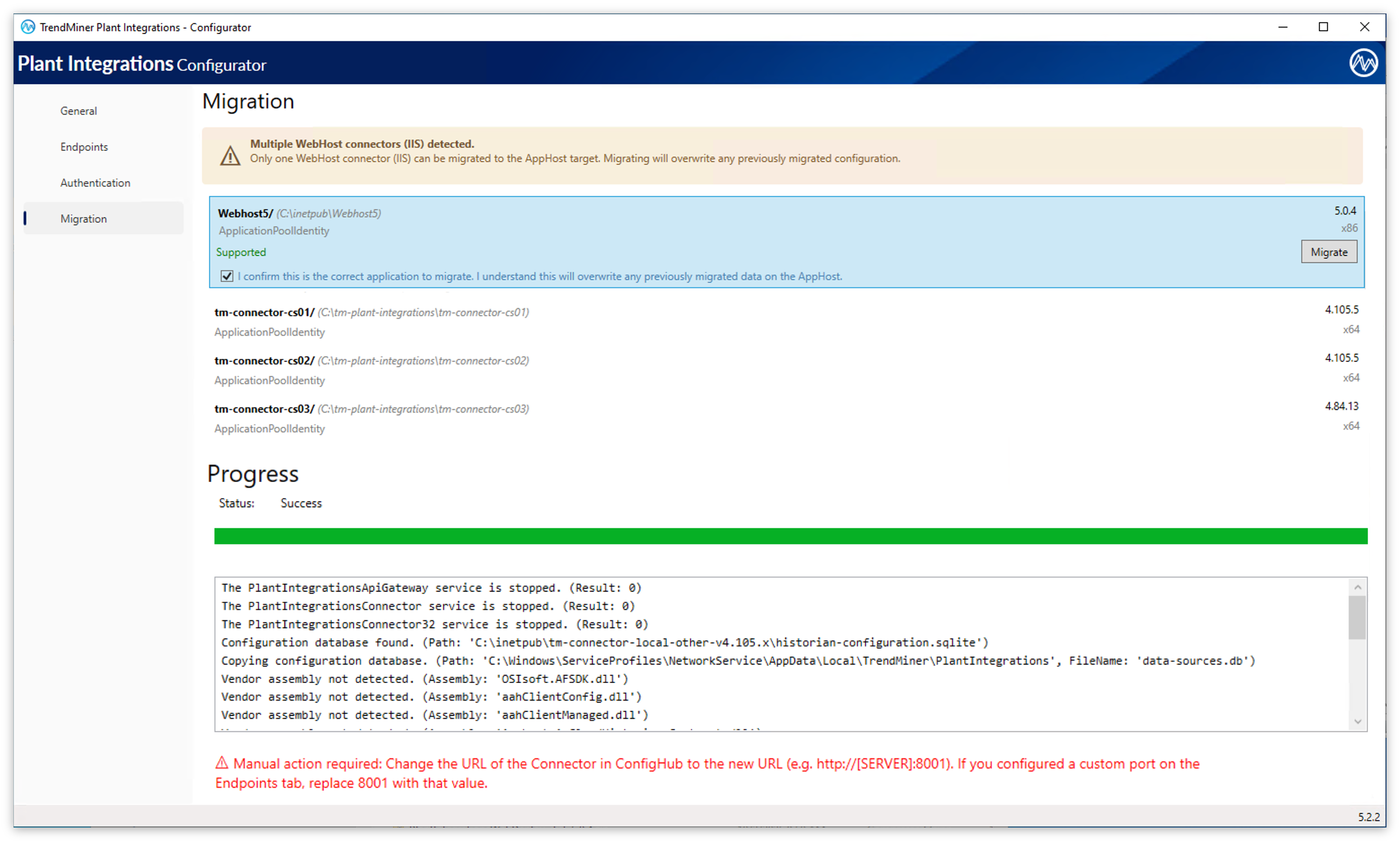
5. Important! Go to ConfigHub and change the URL of the connector to the new URL (e.g. http://[SERVER]:8001). If you configured a custom port on the the endpoints tab, replace 8001 with that value.
To validate the AppHost installation
After the migration process successfully finished, open the Services management console (services.msc) and verify that the following services are running:
TrendMiner Plant Integrations API Gateway Service
TrendMiner Plant Integrations Connector Service
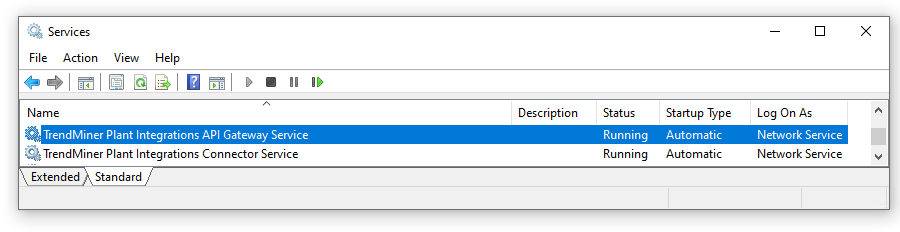
You can also browse to the Swagger endpoint to confirm the API is responding:
Plant Integrations API, default URL:
http://localhost:8001/Swagger UI, default URL:
http://localhost:8001/swagger
Rolling back to WebHost
The migration process does not remove or modify the original WebHost installation — it only disables it. This means you can re-enable the WebHost if you need to revert.
To roll back:
Stop the AppHost Windows Services.
Re-enable the IIS site hosting the original Plant Integrations.
Update the connector URL in TrendMiner ConfigHub to point back to the IIS endpoint.
Verify connectivity in ConfigHub.
Tip
Before rolling back, consider the data implications. Re-enabling the WebHost will restore application data to the state it was in at the time of migration — any changes made while running the AppHost (such as new configurations or updated secrets) will not carry over. Those changes are stored in the AppHost data folder (C:\ProgramData\TrendMiner\PlantIntegrations\), but this data is not compatible with the WebHost due to changes introduced by the AppHost (for example, the way secrets are stored).