How to fetch Plant Integrations (connector) logs?
Connector logs can be fetched in two ways: via the API endpoint (recommended) or manually from the server.
Option 1 — Via API endpoint
Logs can be downloaded directly via an API endpoint.
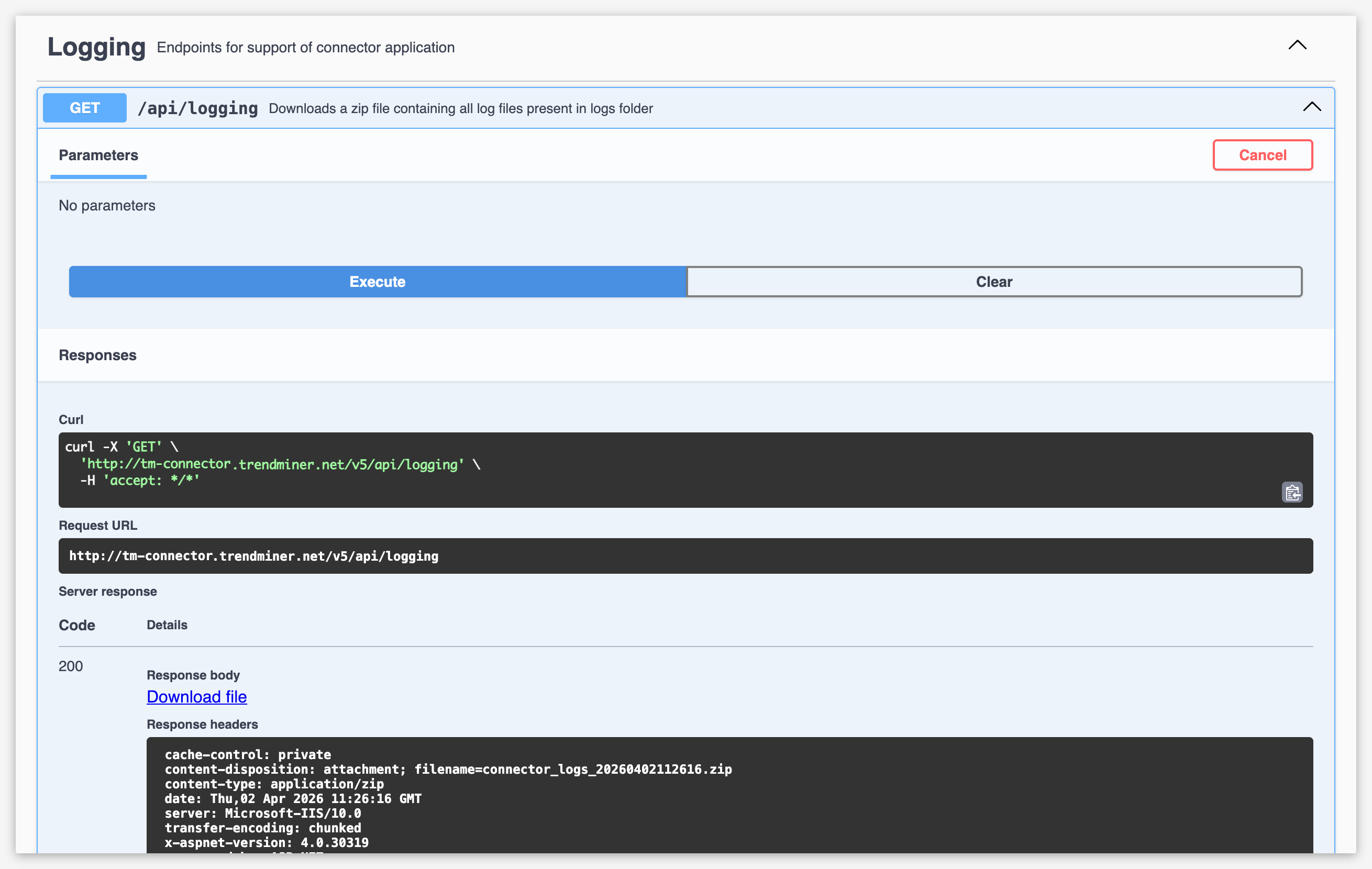
Open a browser and navigate to the Swagger UI of your connector:
https://<your-connector-url>/swaggerLocate the Logging section.
Expand the
GET /api/loggingendpoint.Click Try it out, then Execute.
Download the returned
.zipfile — it contains all log files present in the connector's logs folder.
Option 2 — Manually from the server
Log in on the connector (Plant Integrations) server.
Open the folder 'C:/…/<my-connector>/logs
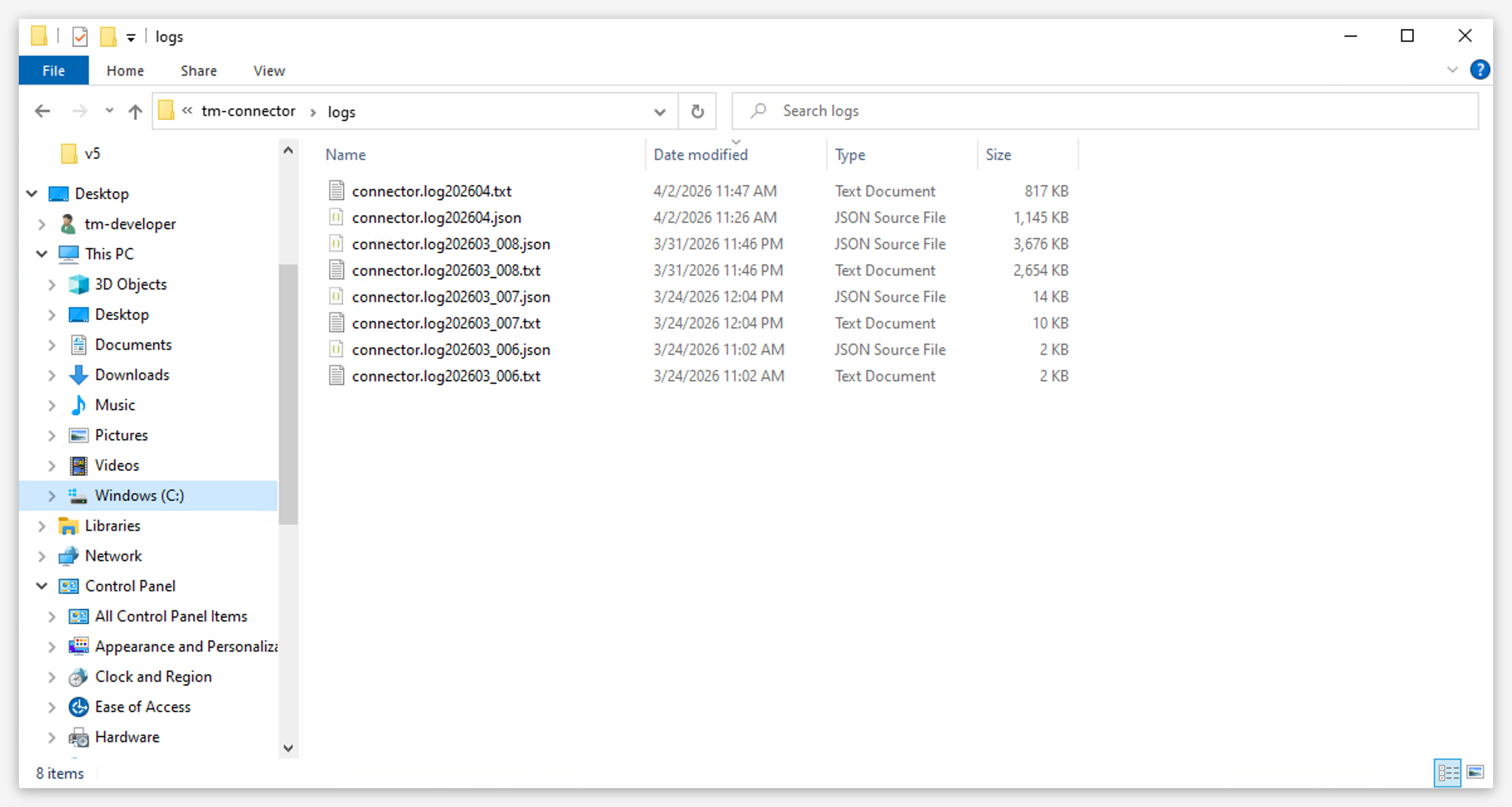
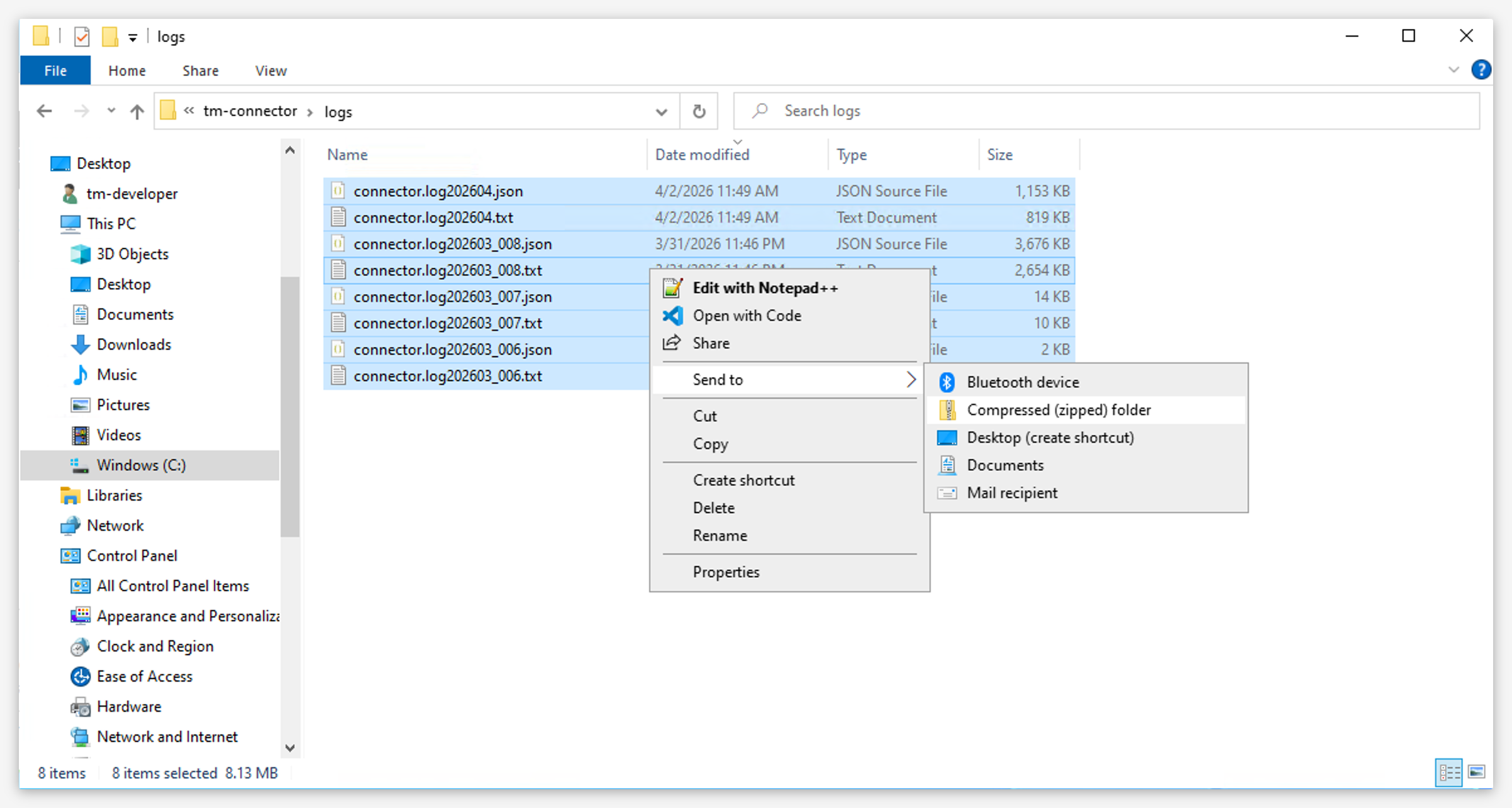
Select all log files and compress them into a .zip file.
Note
Connector generates two types of log files, each with its own numbering sequence: text logs (
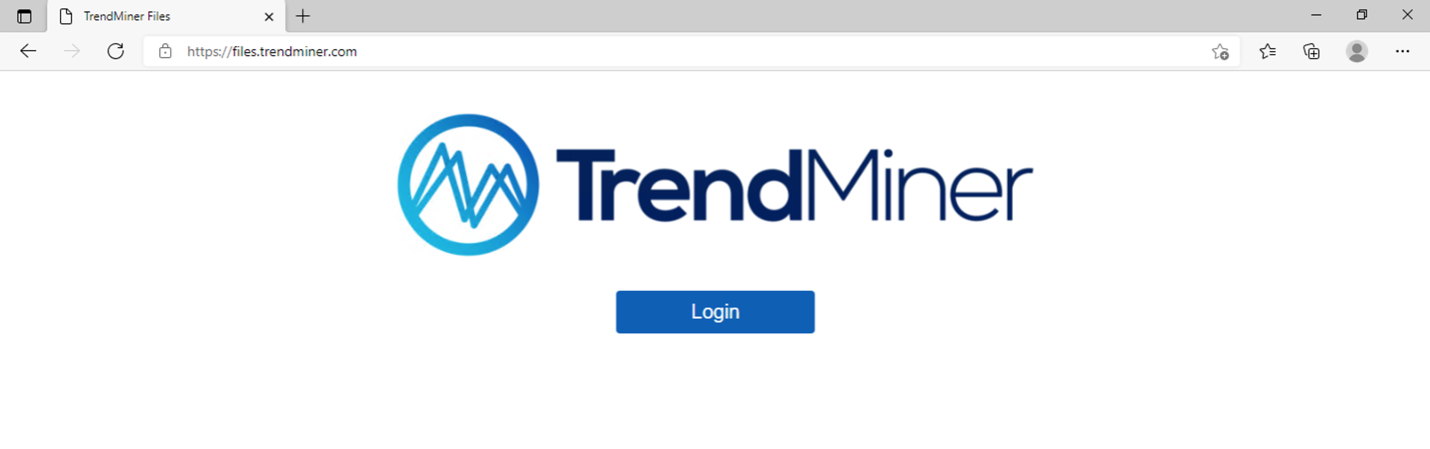
connector.log_<id>.txt) and JSON logs (connector.log_<id>.json). Both contain the same entries — the JSON format is simply a structured alternative that makes it easier to process logs programmatically, integrate with aggregation tools, and run automated diagnostics.Open the browser and browse to https://files.trendminer.com
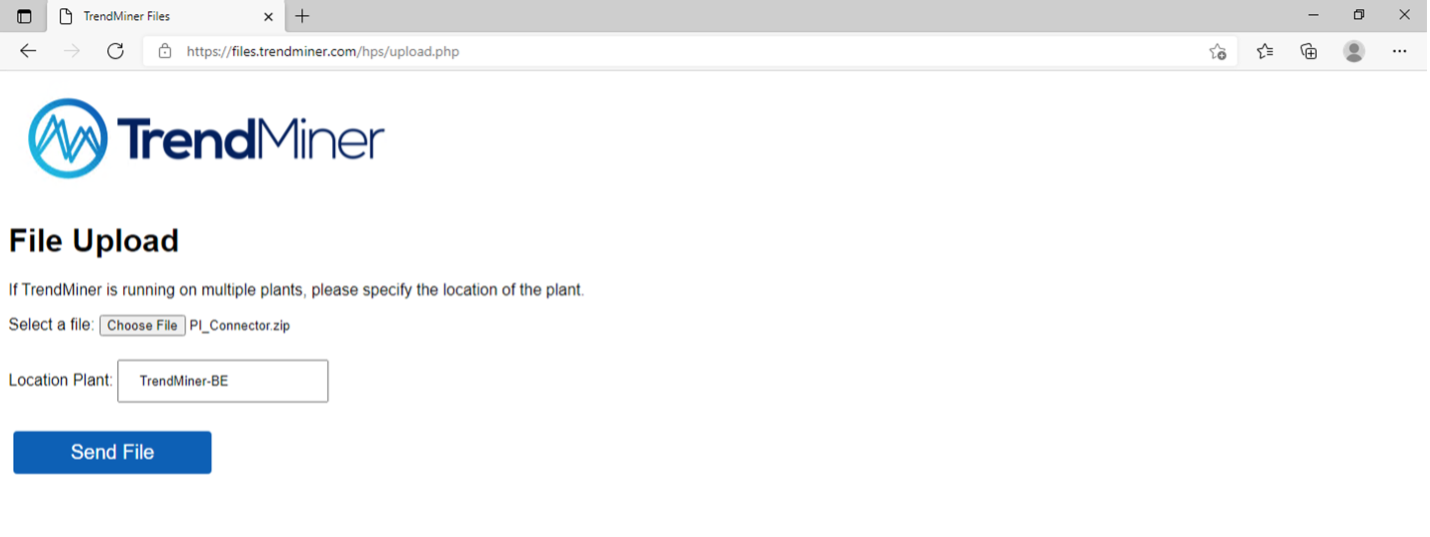
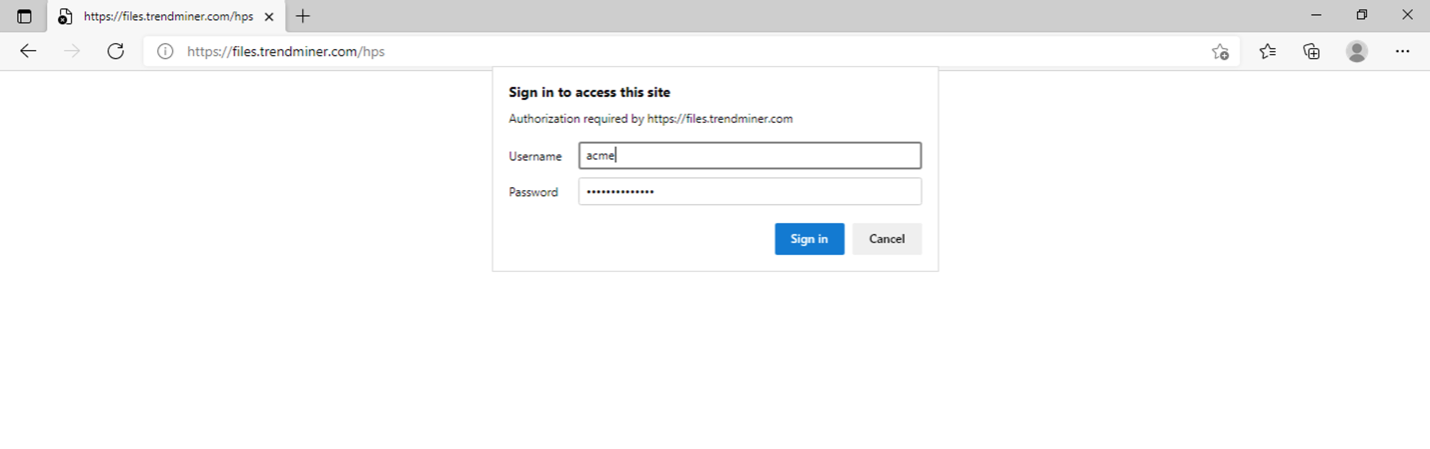
Log in using your TrendMiner file server credentials. If you don't know these or your credentials are not working, please contact your TrendMiner Customer Success Manager or send a support request to support@trendminer.com
Click on upload.php
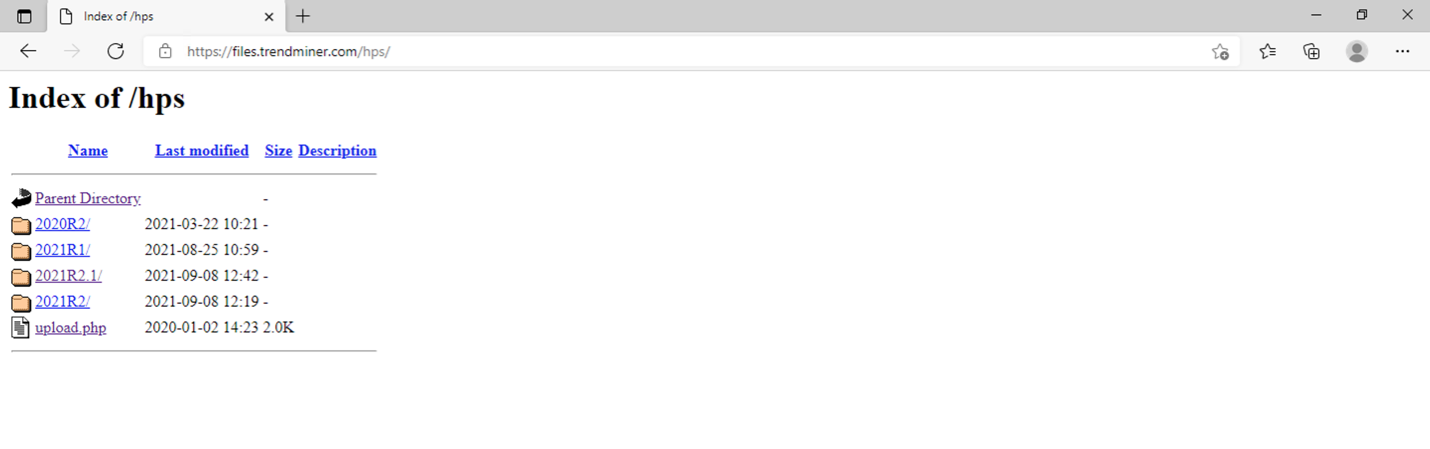
Select your file and enter your company or plant name and click 'Send File'.