How to fetch Plant Integration (connector) logs?
Plant Integrations logs can be fetched in three ways: via ConfigHub (recommended), via the API endpoint or manually from the server.
Option 1 — Download via ConfigHub
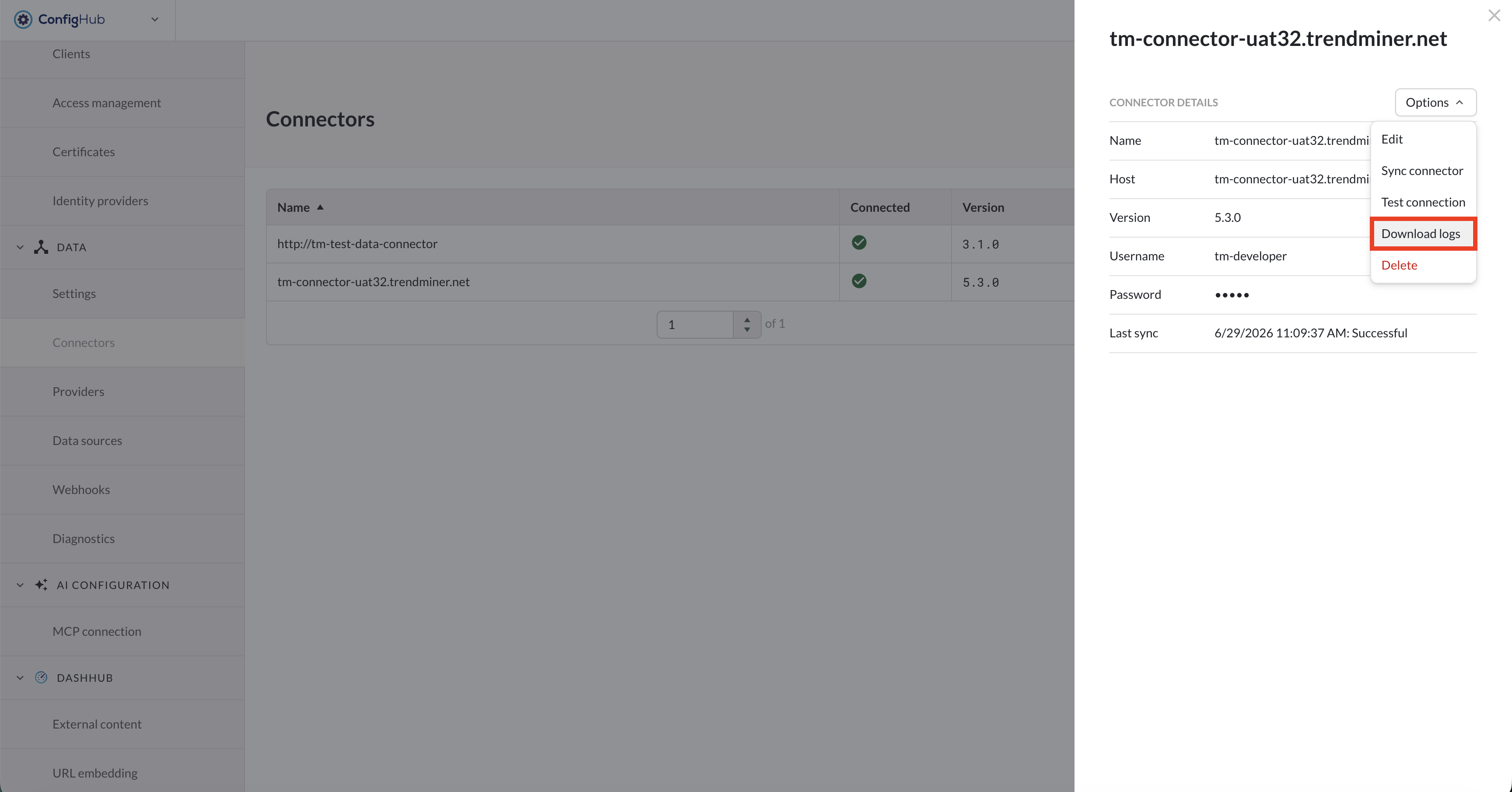
Open ConfigHub -> Connectors.
Select the connector you want to download logs from.
Under 'Options' select "Download logs".
ConfigHub will automatically collect the logs and download them as a ZIP file.
Notice
For custom connector implementations and connector versions below 4.105.1, the "Download logs" option is not available. If the user clicks the button, an error will be returned.
Option 2 — Via API endpoint
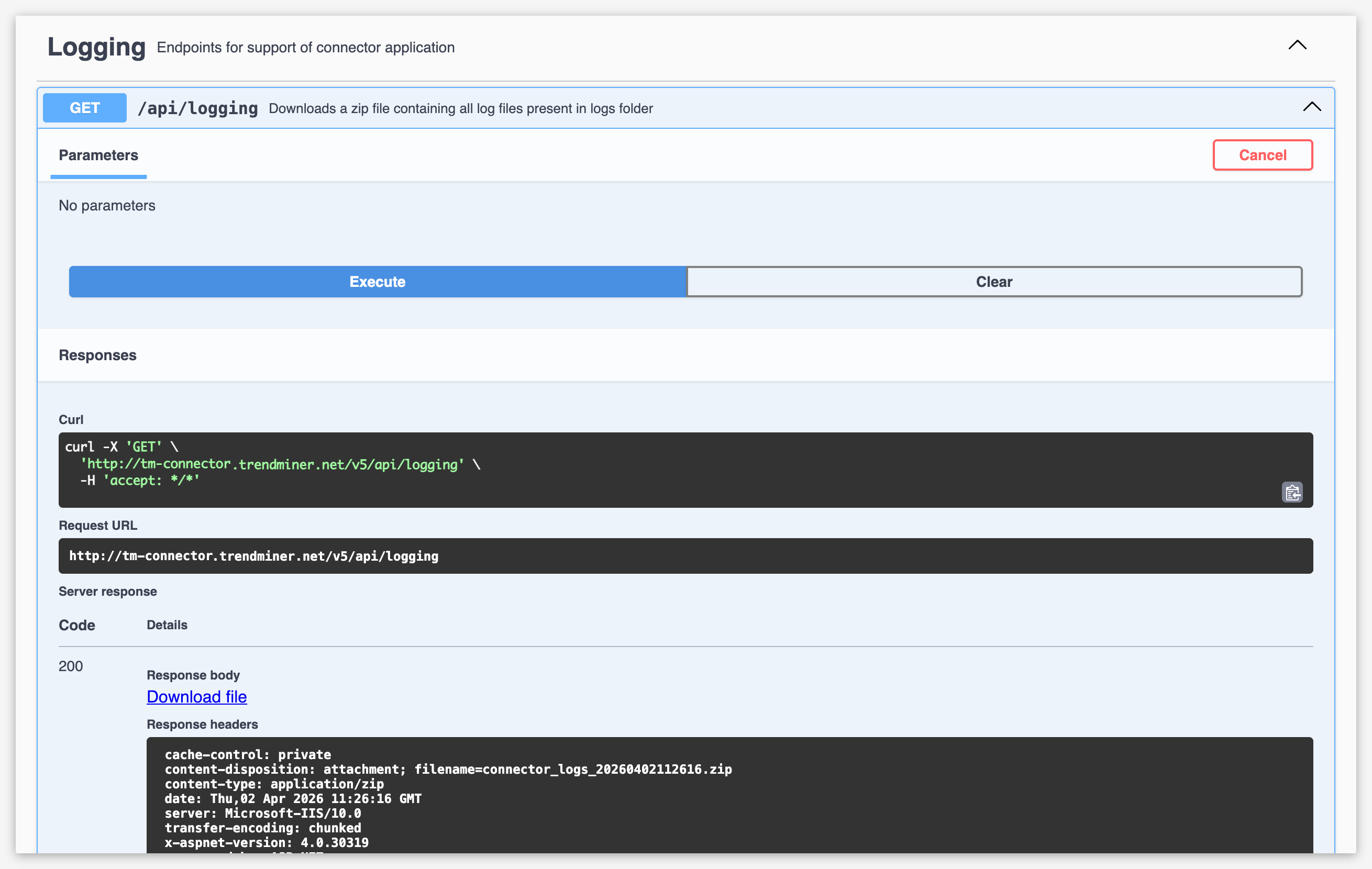
Open a browser and navigate to the Swagger UI of your connector:
https://<your-connector-url>/swaggerLocate the Logging section.
Expand the
GET /api/loggingendpoint.Click Try it out, then Execute.
Wait for the response to load, then click Download file to download the returned
.zipfile — it contains all log files present in the connector's logs folder.
Option 3 — Manually from the server
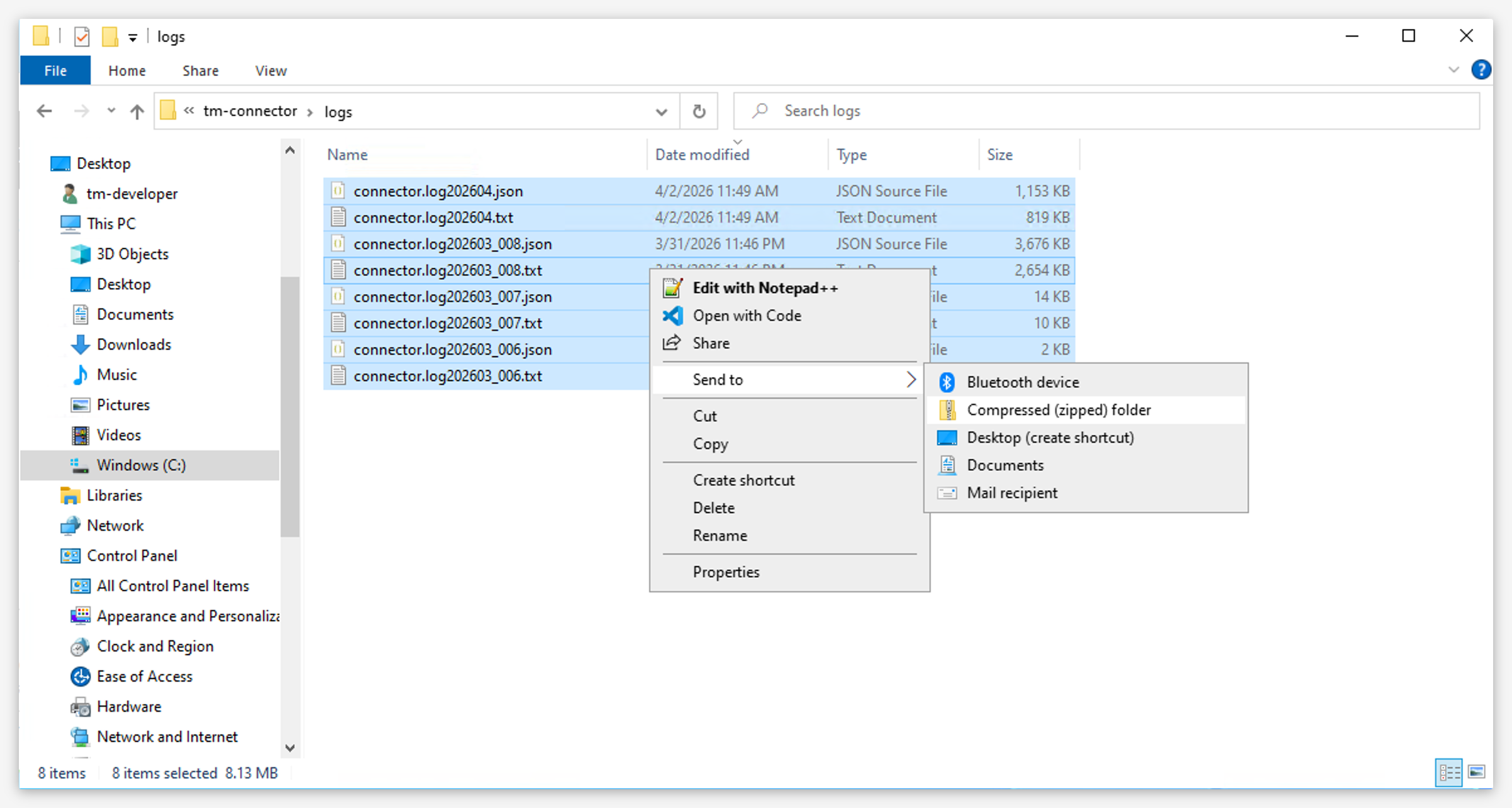
Log in on the Plant Integrations (connector) server.
Open the folder
C:/…/<my-connector>/logs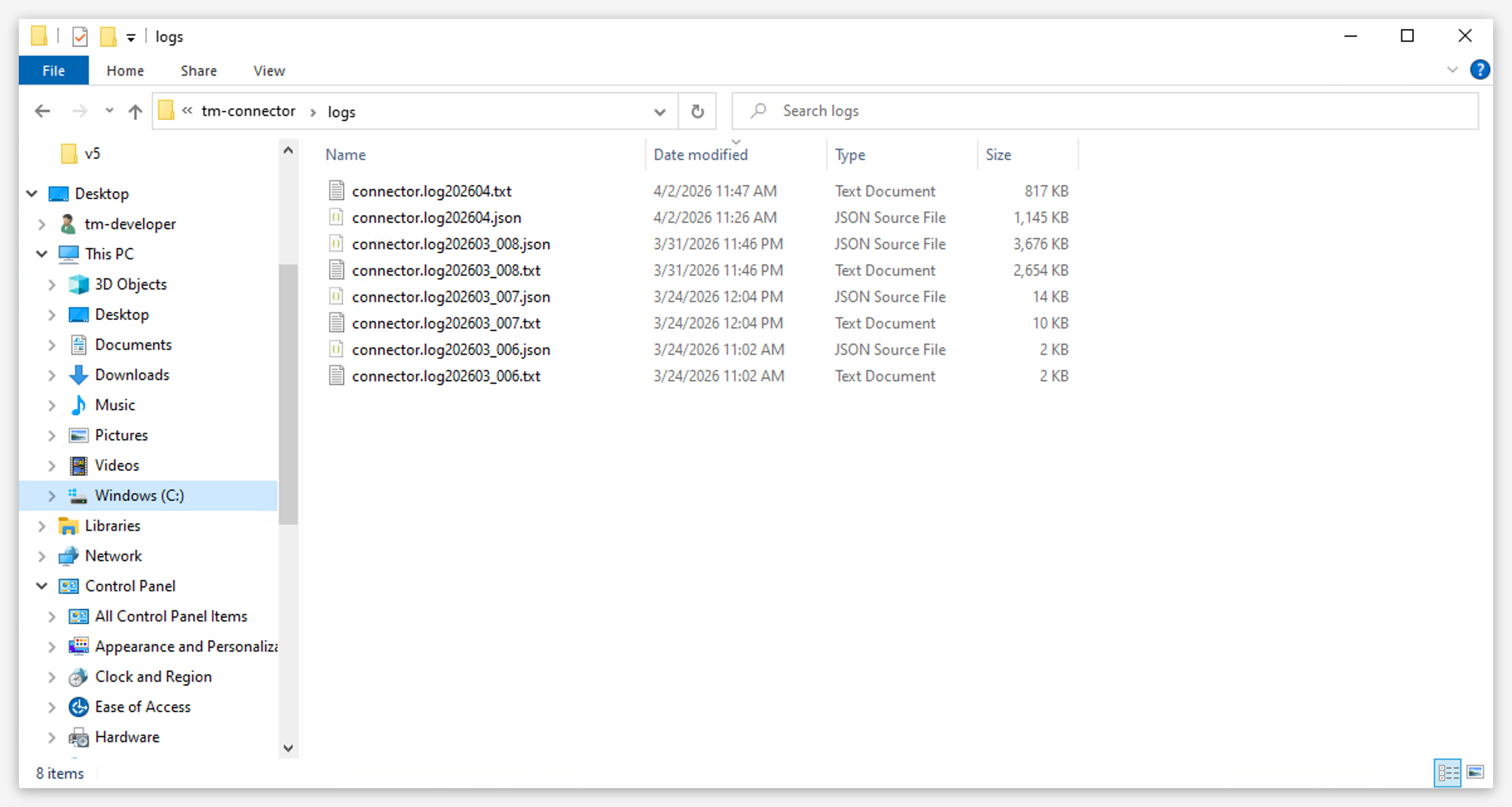
Select all log files and compress them into a .zip file.
Note
Plant Integrations generates two types of log files, each with its own numbering sequence: text logs (
connector.log_<id>.txt) and JSONL logs (connector.log_<id>.jsonl). Both contain the same entries — the JSONL format is simply a structured alternative that makes it easier to process logs programmatically, integrate with aggregation tools, and run automated diagnostics.
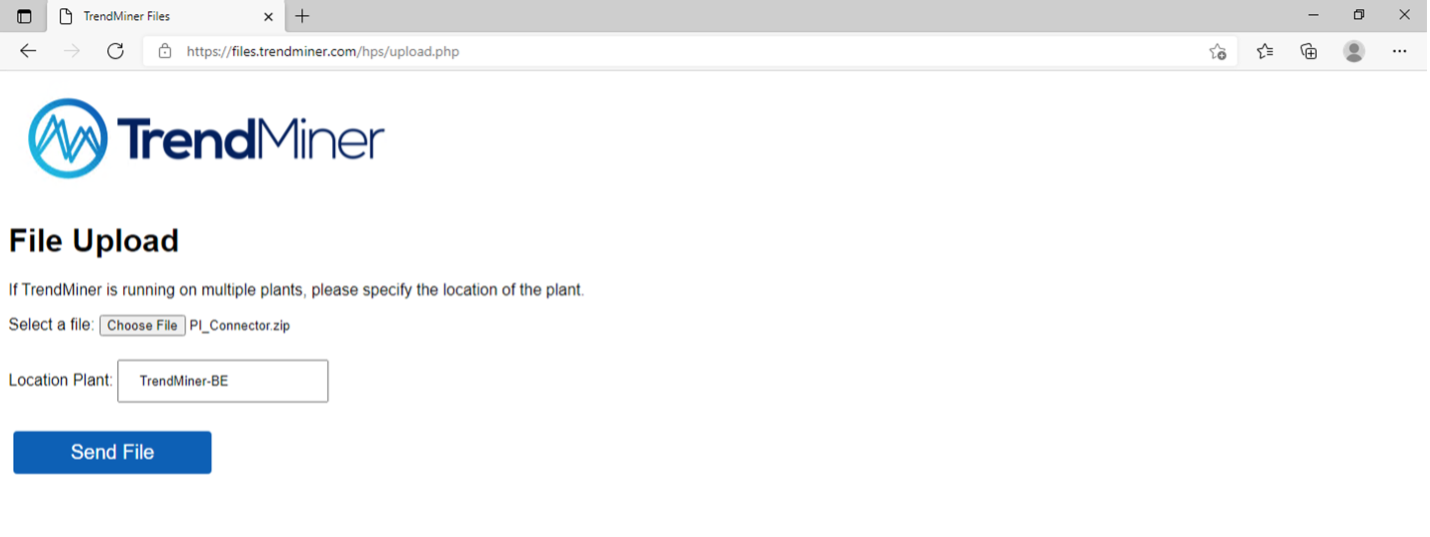
To upload the logs to the TrendMiner file server
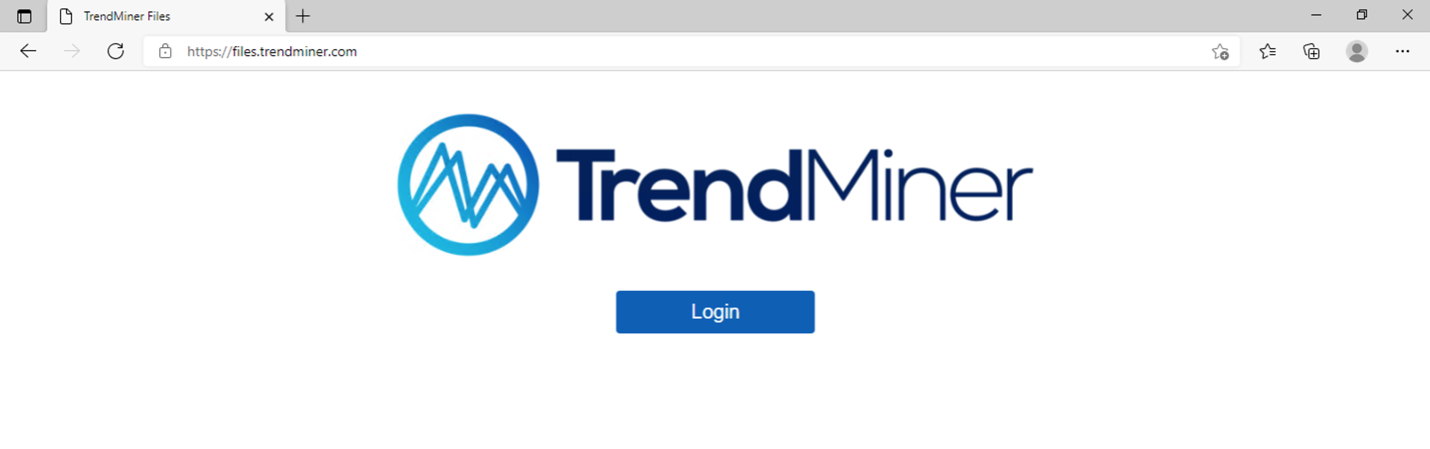
Open the browser and browse to https://files.trendminer.com
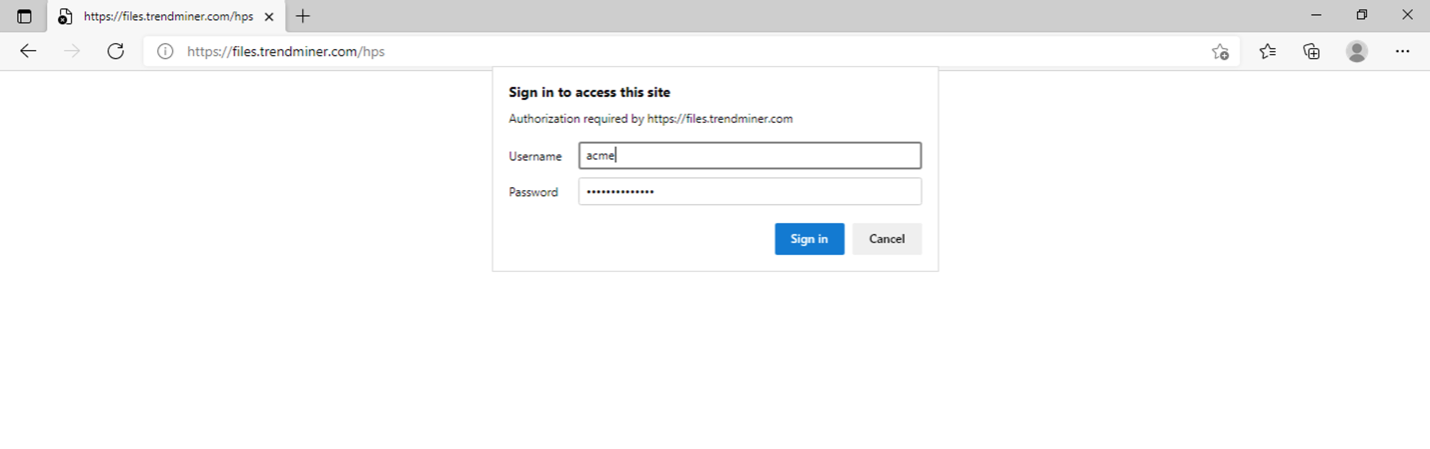
Log in using your TrendMiner file server credentials. If you don't know these or your credentials are not working, please contact your TrendMiner Customer Success Manager or send a support request to support@trendminer.com
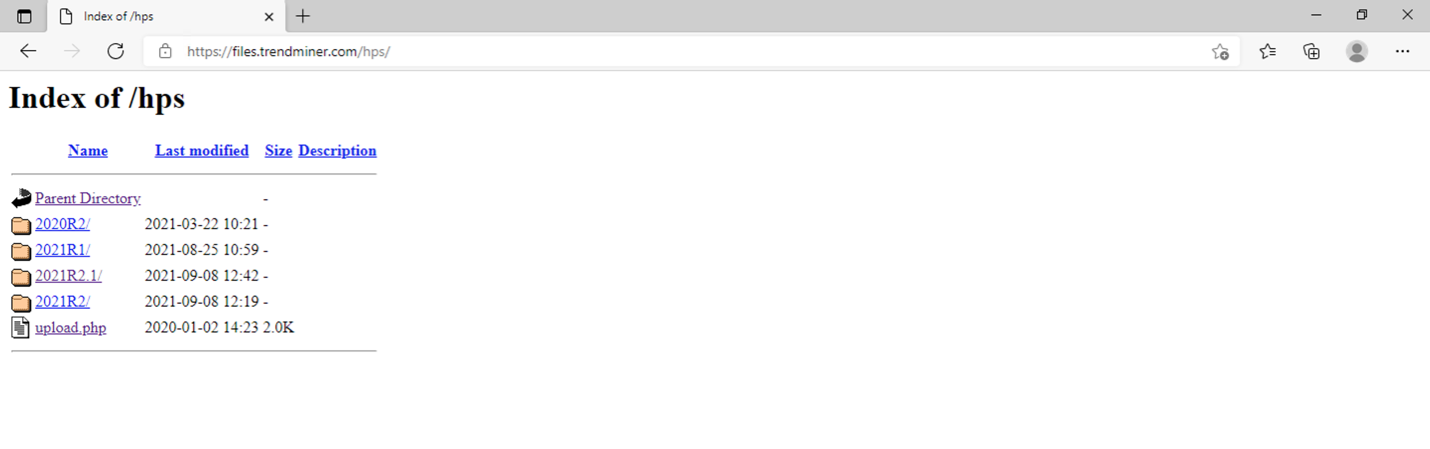
Click on upload.php
Select your file and enter your company or plant name and click 'Send File'.