Upgrade Connector
Before upgrading a connector, please make sure all TrendMiner appliances which connect to the connector are upgraded first as the TrendMiner appliance is backwards compatible but forward compatibility cannot be ensured (a newer appliance can connect with an older connector but not necessarily the other way around).
TrendMiner version 2025.R1.0 is compatible with connector versions 4.105.3. For the duration of the upgrade it is possible to connect to an older connector version but to ensure new features are successfully deployed connectors should be upgraded with every TrendMiner upgrade.
Important
During this upgrade all web.config settings will be migrated into a database and will no longer be read from the web.config file after the upgrade.
Follow the upgrade instructions below carefully.
Download the Plant Integrations installation file
<trendminer-hc-X.Y.Z.zip>from the TrendMiner download site.Before starting the upgrade, make a copy of your Plant Integration folder as a backup. This folder is usually located at C:\inetpub\PlantIntegrations.
Important
When a connector backup needs to be restored, only copy the files within the main directory (e.g. "PlantIntegrations"). Never overwrite the directory itself. Overwriting the directory will clear all configured permissions on the directory which will prevent you from updating data sources or making changes to configuration from the TrendMiner application.
In the ConfigHub UI this can be recognized by the data source errors
500 Internal Server ErrororFailed Error on remote service - HttpCode: '500'orAccess deniedTo reset the permissions you can follow the instructions listed in the connector installation guide.
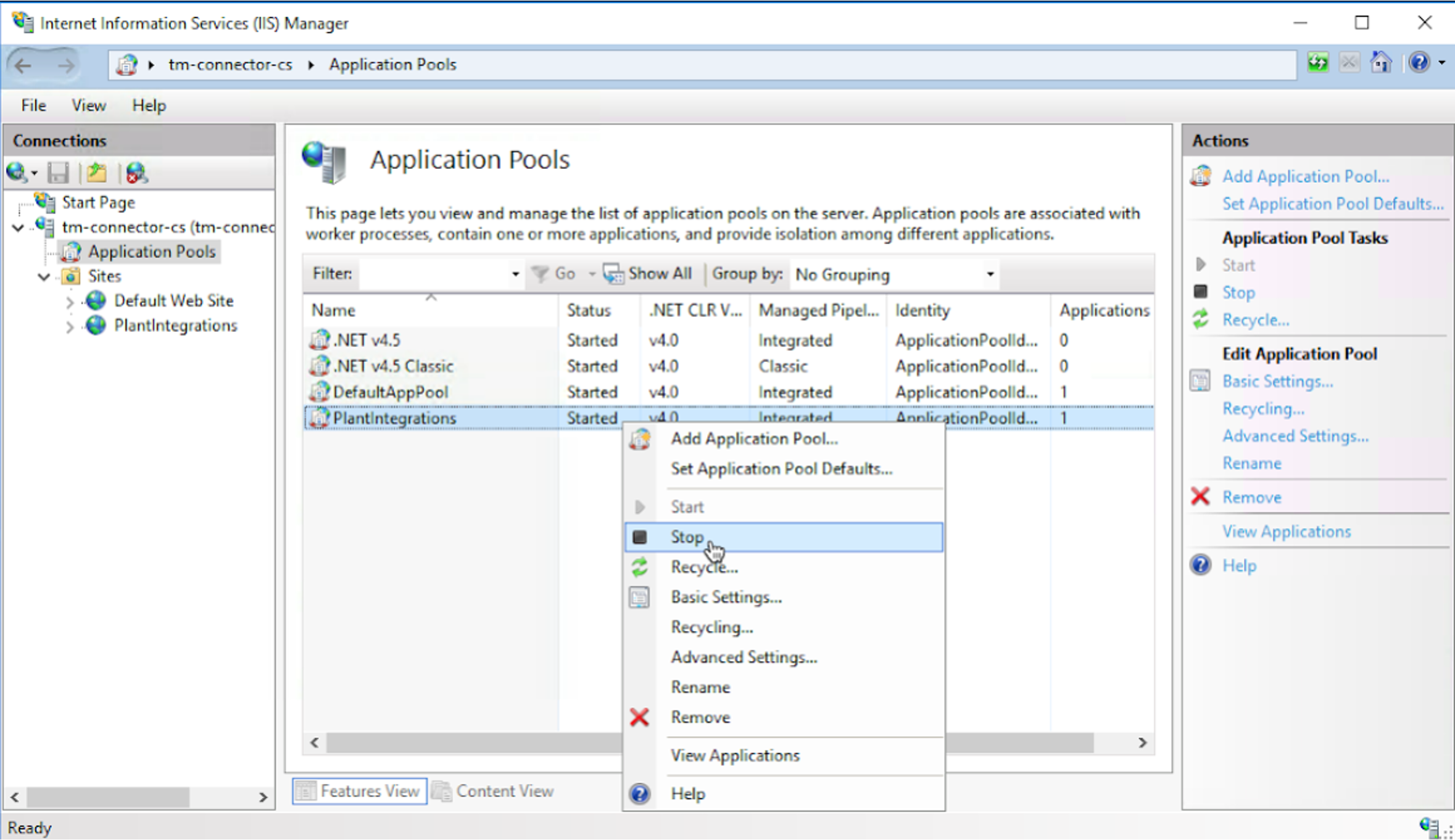
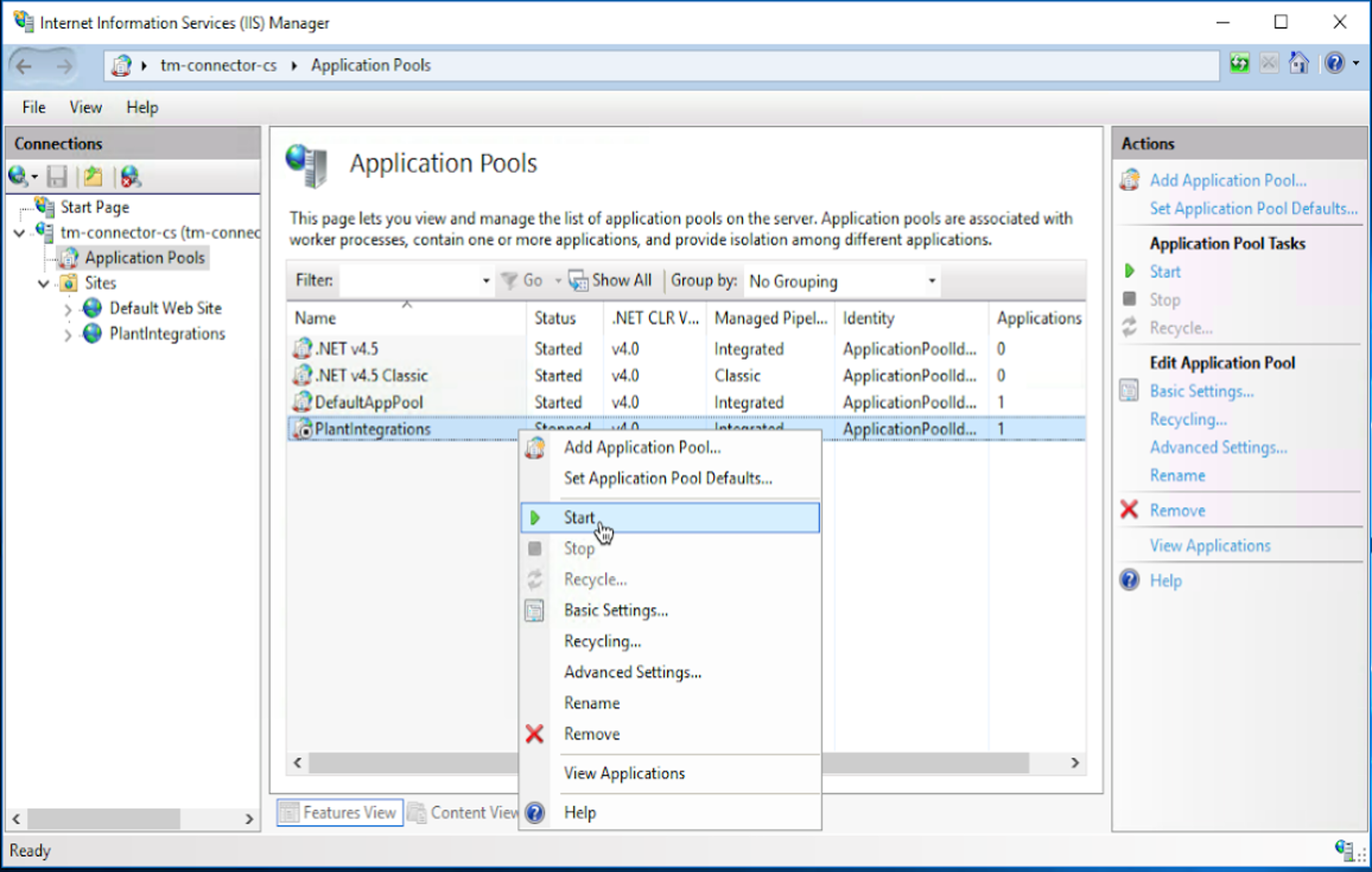
Stop the Plant Integrations application pool in ‘Application Pools’ to begin the upgrade steps.
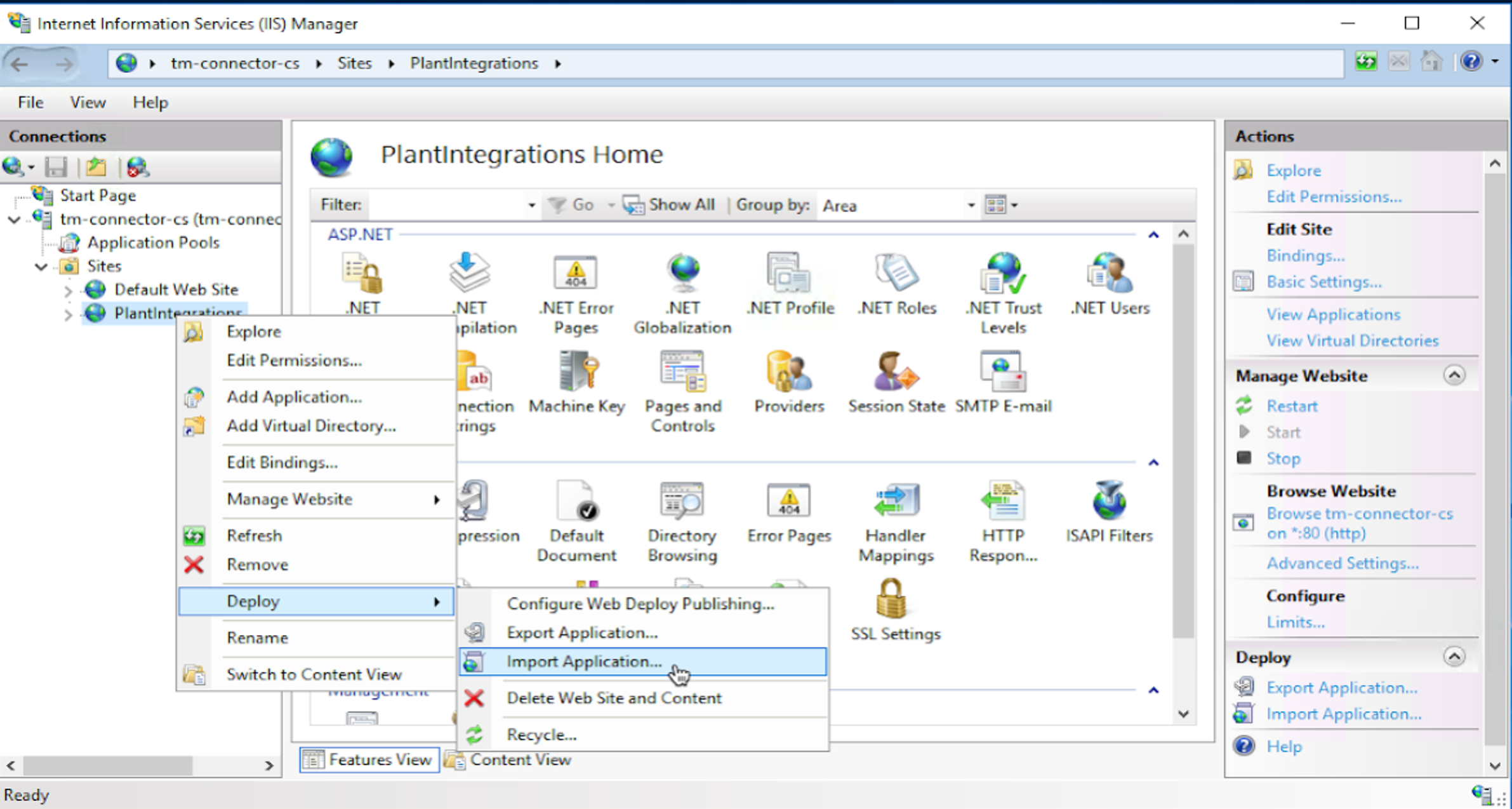
Right-click on the website and choose ‘Deploy’ - ‘Import Application’.
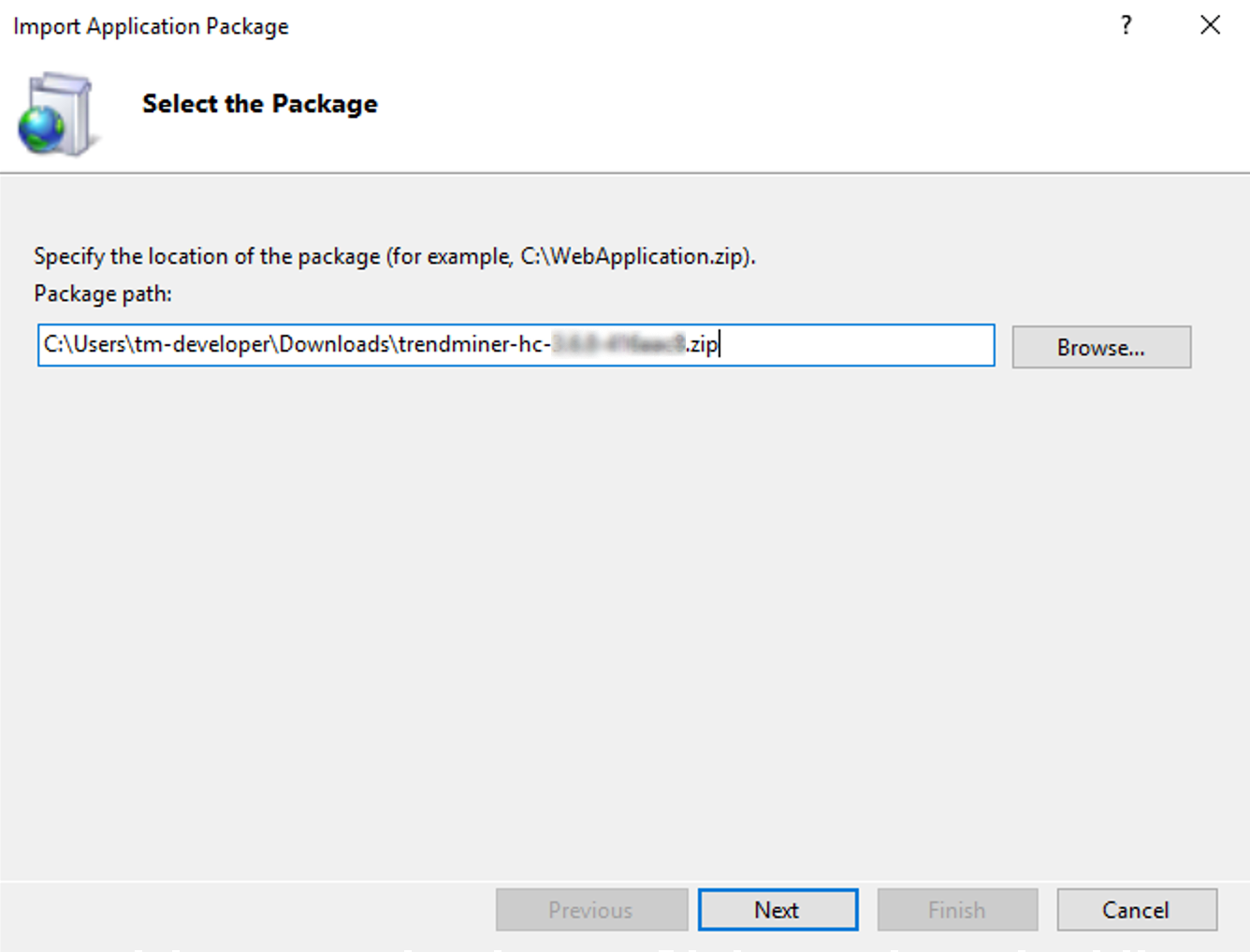
Select the TrendMiner Plant Integrations zip archive and click ‘Next’.
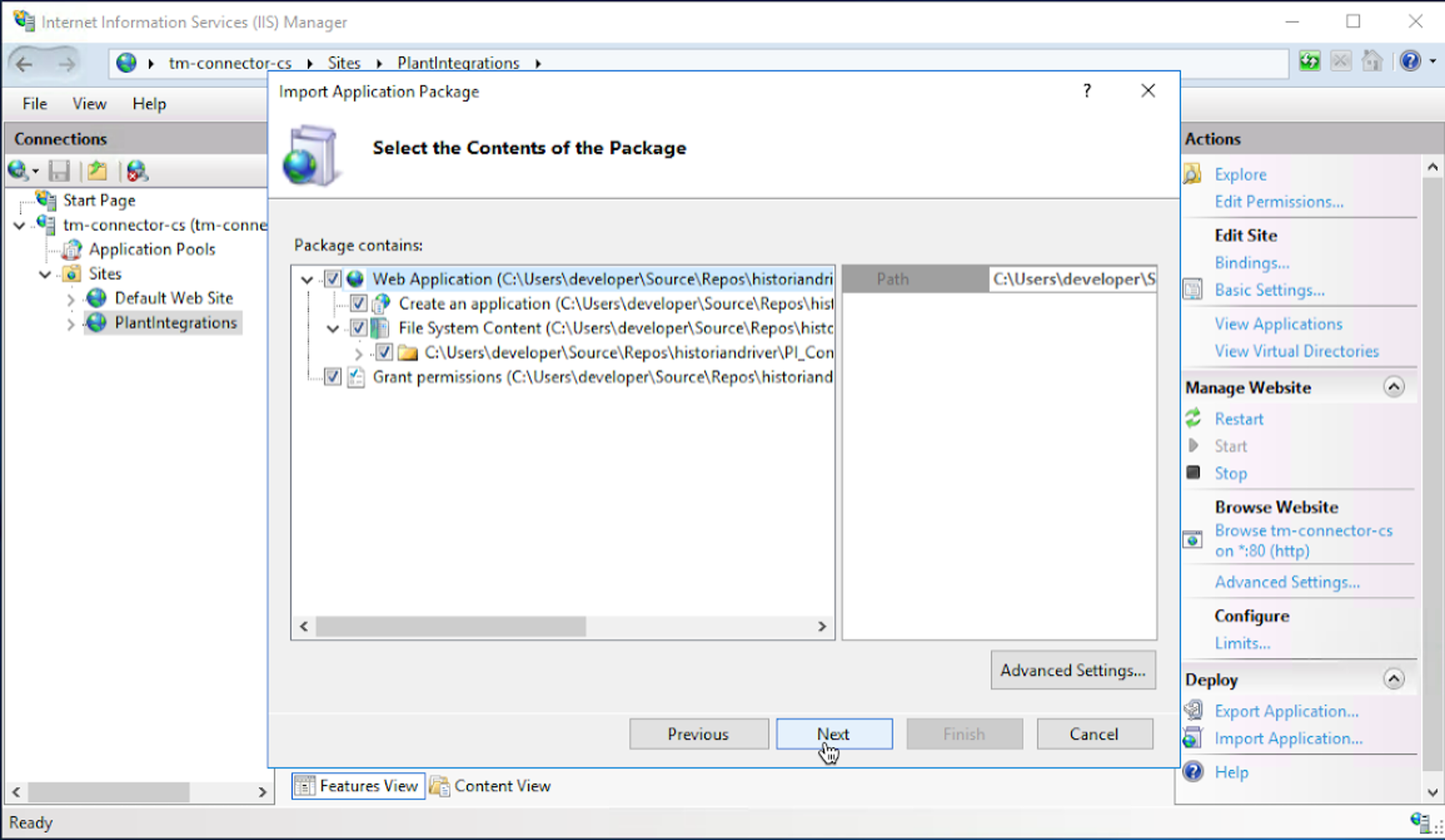
Click ‘Next’.
Remove the Application Path to a blank field (default will show HC) and click ‘Next’.
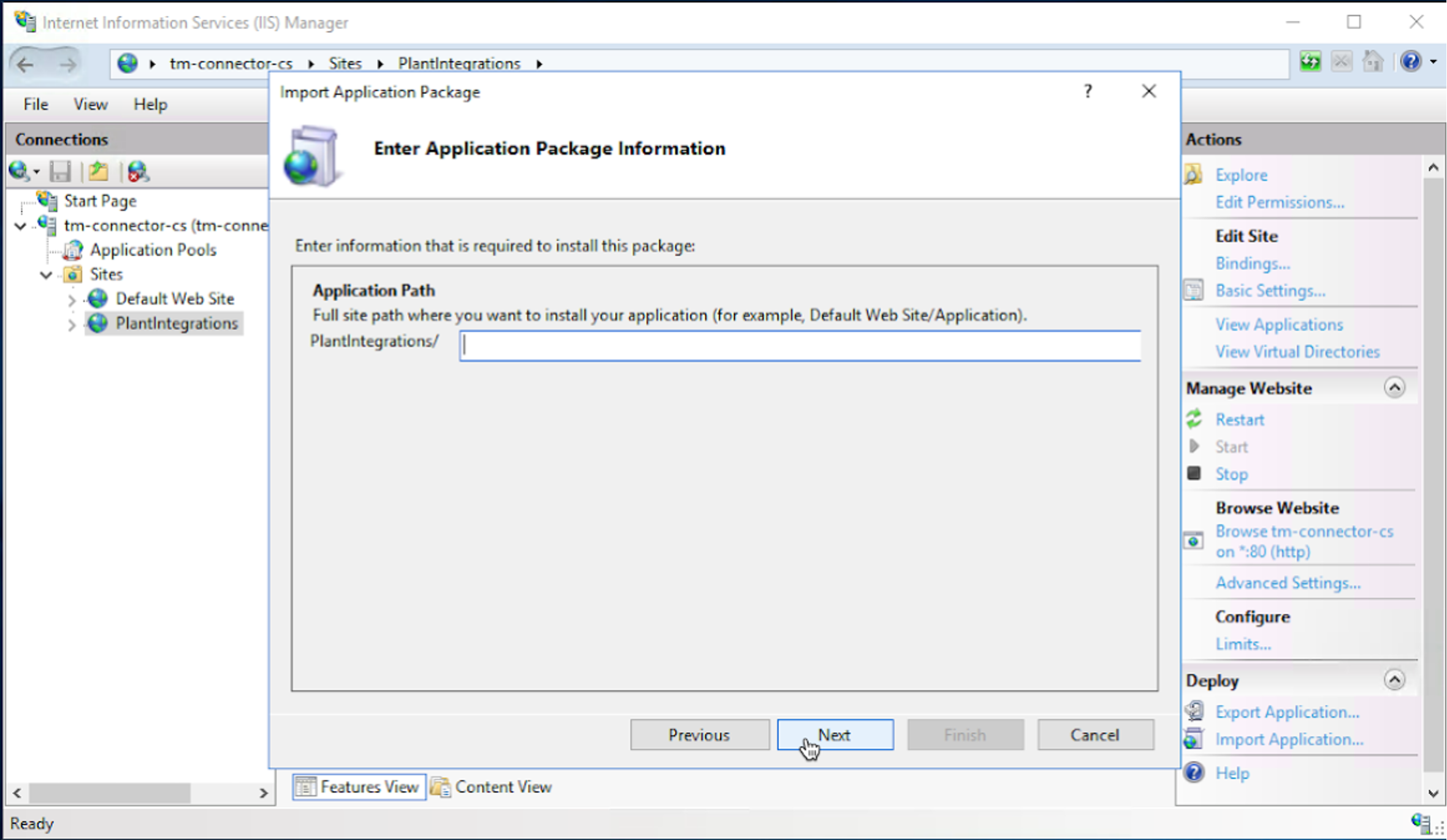
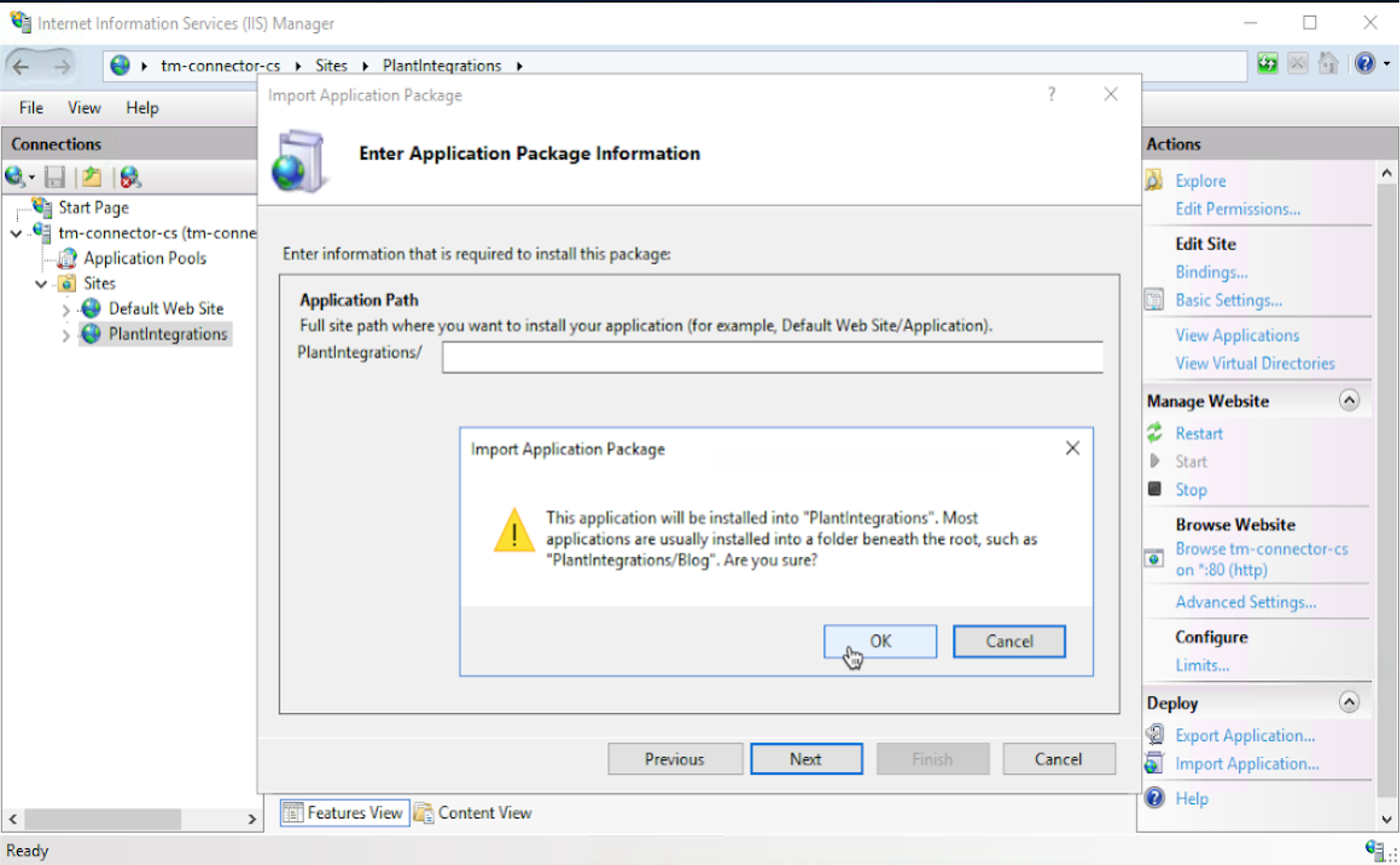
Click ‘OK’ to continue. If this warning message does not appear, go back to the previous step.
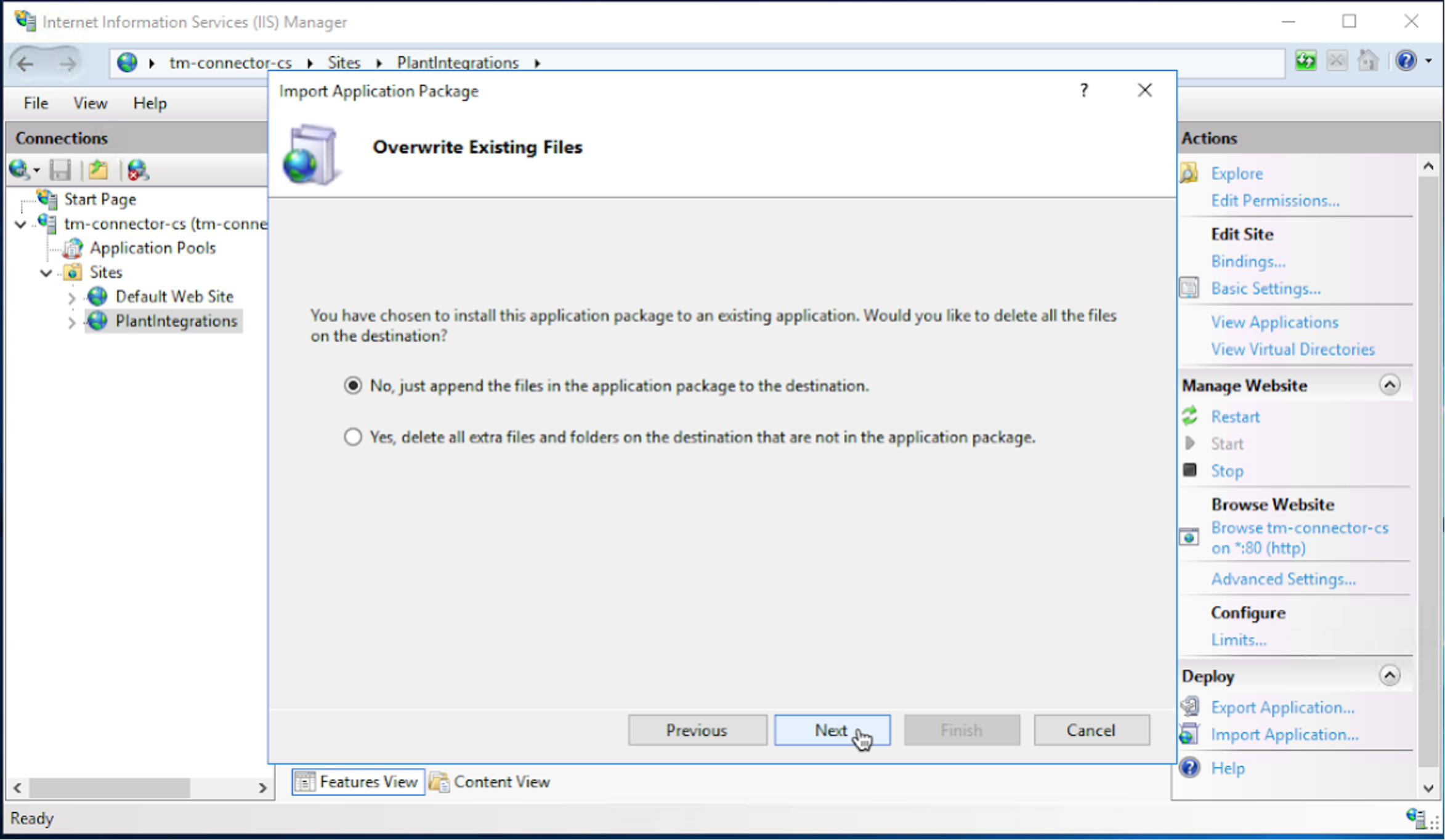
Click ‘Next’.
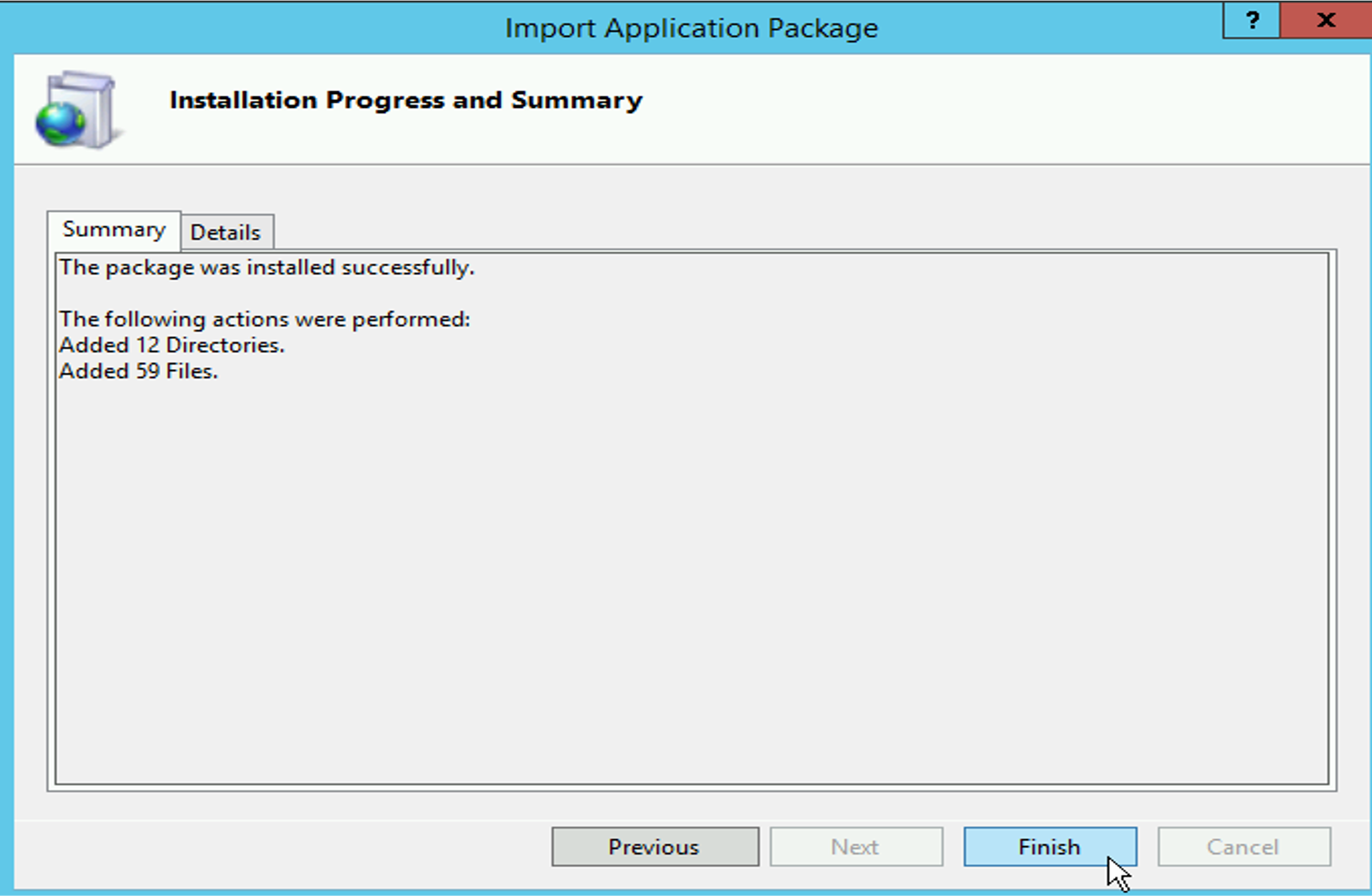
Click ‘Finish’ to complete the Plant Integrations deployment.
Open both the web.config file which is located in the backup of your Plant Integration folder and the web.config which is in your Plant Integration folder (usually located at C:\inetpub\PlantIntegrations) and compare the values under <appSettings>.
If there are differences in the values, copy over the values from your backup directory to the installation directory.
If there are values in the active web.config which are not in the backup web.config, leave these new values untouched.
Start the Application Pool again.
Important
Before the upgrade connector configuration was done via parameters in the web.config file. After the upgrade a migration runs which migrates all web.config settings to a database. As a result the web.config parameters should be gone when the connection pool has been started again. Note that it can take up to 10 minutes after restarting the application pool before the values are migrated out of the web.config.
As of this moment all connector configuration can be done from within ConfigHub -> Data sources. All configuration options are documented on the specific provider documentation, accessible from the connectivity overview page.
Important
In case you already started the application pool before copying over the values of your backup web.config the new web.config will not contain settings anymore under <appSettings>. In that case copy over all <appSettings> from your backup file into the new web.config and restart the application pool. The migration will run again and migrate all your settings out of the web.config again.